
JayIKEA
Inspiring
February 24, 2021
Answered

Create a border

  • February 24, 2021
  • 8 replies
  • 1198 views

Whats the fastest way to make a outer border outline around the whole vector object?
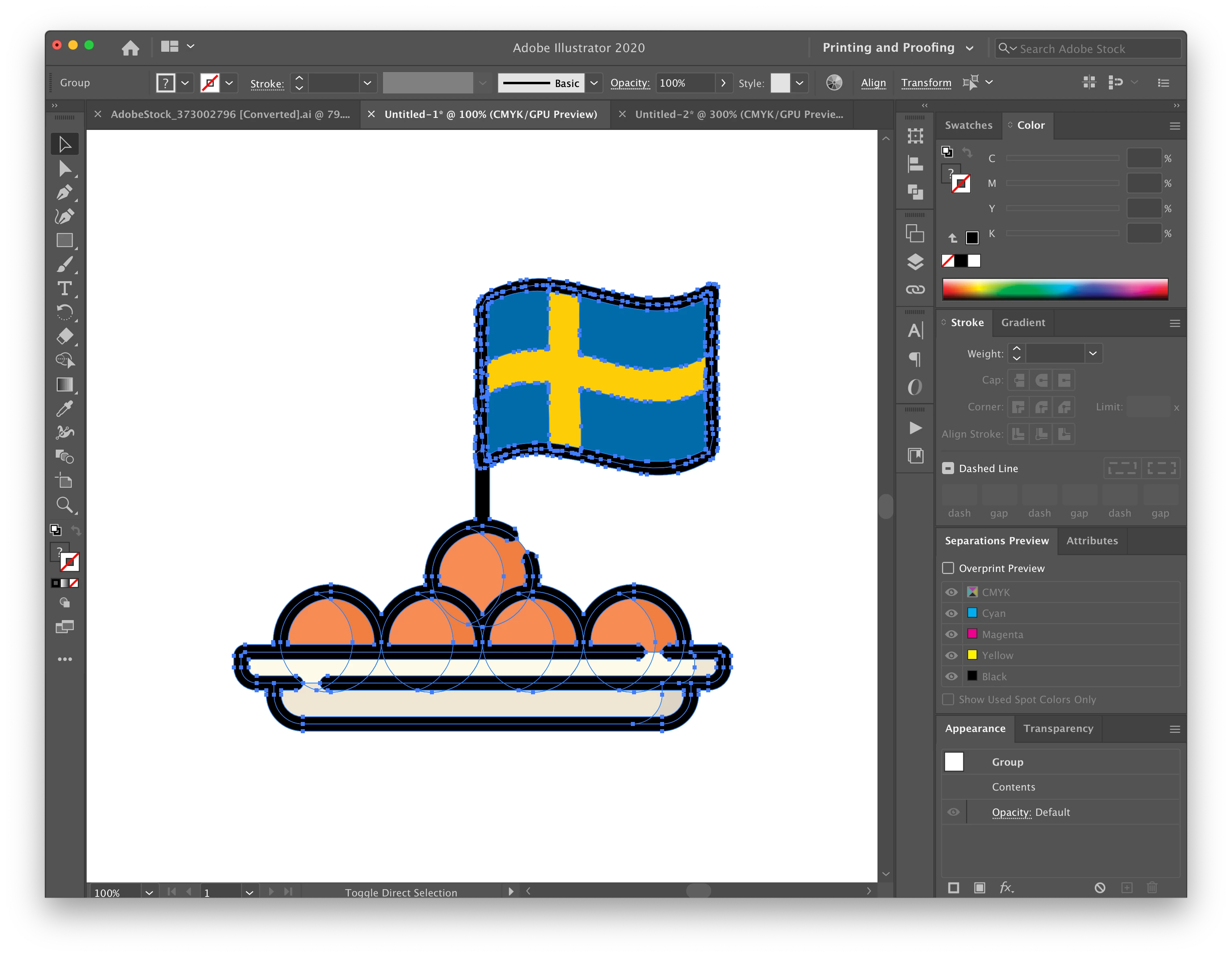


[ attachment inserted as inline image by moderator ]

This topic has been closed for replies.
Correct answer Dan Rodney
  1. Select all the artwork.
  2. Group it (Object > Group).
  3. In the Appearance panel (Window > Appearance) Add a New Stroke (button at bottom left).
  4. Drag the new stroke below Contents.
  5. In the Appearance panel select the Stroke.
  6. Choose Effect > Pathfiner > Add.
  7. With the stroke still selected in Appearance panel, choose Effect > Path > Offset Path.
  8. Choose a desired Offset amount and click OK.


Hope that helps!


NOTE: If you need to edit anything inside the group, use the Group Selection or Direct Selection tools (or double-click to go into the group). Do not ungroup it or you will loose the appearance (which creates the outline). As you adjust the contents of the group, the outline will automatically update.


8 replies

pixxxelschubser
Community Expert
Community Expert
February 24, 2021

@JayIKEA 

Have you been successful?

JayIKEA
JayIKEAAuthor
Inspiring
February 24, 2021

yes, it worked out. Thanks so much

pixxxelschubser
Community Expert
Community Expert
February 24, 2021

Hi Dan,

two souls - one thought.


But - we are already a little further.

😉

Dan Rodney
Community Expert
Dan RodneyCommunity ExpertCorrect answer
Community Expert
February 24, 2021
  1. Select all the artwork.
  2. Group it (Object > Group).
  3. In the Appearance panel (Window > Appearance) Add a New Stroke (button at bottom left).
  4. Drag the new stroke below Contents.
  5. In the Appearance panel select the Stroke.
  6. Choose Effect > Pathfiner > Add.
  7. With the stroke still selected in Appearance panel, choose Effect > Path > Offset Path.
  8. Choose a desired Offset amount and click OK.


Hope that helps!


NOTE: If you need to edit anything inside the group, use the Group Selection or Direct Selection tools (or double-click to go into the group). Do not ungroup it or you will loose the appearance (which creates the outline). As you adjust the contents of the group, the outline will automatically update.


— Adobe Certified Expert & Instructor at Noble Desktop | Web Developer, Designer, InDesign Scriptor
pixxxelschubser
Community Expert
Community Expert
February 24, 2021
  • activate the stroke in Appearance Panel
  • add menu: Effect --> Pathfinder --> Add ( ! to the stroke)
  • choose menu: Object --> Expand Appearance
pixxxelschubser
Community Expert
Community Expert
February 24, 2021

Ok.


Because of your last answer (additional to my previous post):

  • a new fill is not needed - but a new stroke
  • and I think you don't need the effect
JayIKEA
JayIKEAAuthor
Inspiring
February 24, 2021

Ok, i see the outline.  How do I select the outline and put it on its own layer?


[ attachment inserted as inline image by moderator ]

JayIKEA
JayIKEAAuthor
Inspiring
February 24, 2021

I want to cut this graphic out on the cutting machine... so I need to make an outline of the whole object, so the cutter can cut alot the edges of the graphic.


In photoshop, i would just select outside the object, invert the selection, and create a path....


Is there a similar workflow in Illustrator?

pixxxelschubser
Community Expert
Community Expert
February 24, 2021
  1. Click on the circle right beside your layer name and open the Appearance Panel.
  2. Add a new fill (to the layer) in Appearance Panel.
  3. Drag this new fill below contents in Appearance Panel.
  4. Add menu: Effect --> Path --> Offset Path  with your wished settings.


Done

jane-e
Community Expert
Community Expert
February 24, 2021

It's not clear what you are asking. If you want one border around the entire object, then remove the strokes from the individual objects first, then with the Group selected, add a stroke to the Group using the Appearance panel.


Is that what you are asking?


~ Jane