
Create portable PDFs with illustrator that correctly handle transparency flattening
Dear all
Background:
I'm working with PDFs created by some toolbox - in my case it's python and matplotlib. My graphs contain circular and cross-shaped markers that are outlined by an edge. These markers I will use in this question to illustrate my problem(s). Both fillings and edges of the markers are painted with alpha=0.7.
My workflow is very common in an academic context:
- Create scientific graphs with some data processing tool, export graphs to PDF
- Adjust graphs for publication (fonts, spaces, colors, legends, etc...)
- Insert the vector graphic in MS Word (some journals only accept .docx files!)
My system: Adobe Illustrator 23.0.4, on MacOS 10.14.5, all screenshots were taken on the same screen.
Problem description
MacOS' default PDF viewer displays the markers as shown in screenshot 1.
If I import this PDF directly into Powerpoint, the markers are shown roughly the same (screenshot 2).
Screenshot 1: Apples' PDF Preview, left
Screenshot 2: MS Powerpoint, right


Now, if I open the PDF in Adobe Illustrator (version 23.0.4), a first thing that I notice is that the marker edges of the plots are shown with a white frame around it (see screenshot 3). It appears that the filling and the outline of the markers are represented by two different elements. Changing the way how the marker is created is out of debate in this context.
Screenshot 3: Adobe Illustrator 23.0.4, left
Screenshot 4: Adobe Illustrator, right (detailed view showing the elements of the marker)
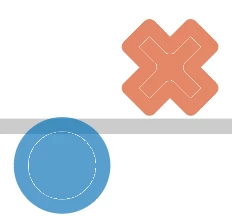

Look at screenshot 5 and note that the outline (left) throws a white border on the filling (right). Interestingly, this white outline border disappears if an edge is added to the filling, even if the border is minuscule (screenshot 6)!
Screenshot 5: Adobe Illustrator (detailed, showing the white frame, the filling object is colored differently to better see the effect)
Screenshot 6: Adobe Illustrator (detailed, white frame around outline not present if filling has an edge with non-zero width)


If I save the project in Illustrator as PDF, the PDF shown in MacOS Preview looks still okay. But Powerpoint (actually: any Microsoft Office tool) cannot render the output correctly. See screenshots 7 and 8.
Screenshot 7: MacOS Preview, left - PDF created by Illustrator (PDF Preset: Illustrator default, standard: None, compatibility: Acrobat 6 (PDF 1.5))
Screenshot 8: MS Powerpoint, right - same PDF as in screenshot 7, rendering of PDF is completely messed up in MS Office software


I finally observed that the choice of PDF standard is key to create a PDF compatible with Microsoft tools (actually, anything higher than compatibility "Acrobat 4 (PDF 1.3)" does not work with MS Office tools). Standards PDF/X-1a:2001, PDF/X-1a:2002, PDF/X-3:2002 and PDF/X-3:2005 work, but not PDF/X-3:2010. However, working with Acrobat 4 compatibility breaks the appearance of the markers  , see screenshot 9, 10 and 11. While one probably can live with the difference in 9 and 10, screenshot 11 is a show stopper.
Screenshot 9: Apples' PDF Preview, left (PDF created by Illustrator, with compatibility for Acrobat 4)
Screenshot 10: MS Powerpoint, right (same PDF as in screenshot 9)
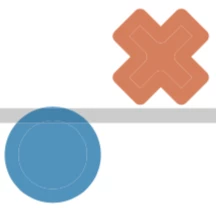

Screenshot 11: Apples' PDF Preview, left (same PDF as in screenshot 11, different

I believe this is related to transparency flattening, but I was not able to figure out the proper settings to recover the input PDF (screenshot 1).
I also tested to export to EPS - but the problem are the same as with PDF.
Questions
I know that I'm addressing several, probably unrelated problems:
- What is the matter with PDF standards? Why does Powerpoint (actually any Microsoft Office software) fail to render newer PDF standards? The compatible standards are 15 years old and more!? How to work around these appearance problems?
- How to handle transparency flattening properly for Acrobat 4 compatible PDFs, which I require for use with Microsoft Office (at least on MacOS - haven't checked the problem on other operating systems)
- Why doesn't Illustrator render the original PDF just like other viewers do (MacOS Preview, Microsoft Powerpoint)? Compare screenshot 1 vs. 3. Fore example: why is there the white border around the outline object in Illustrator? I upgraded from Illustrator 19.x to 23.x, but the problem persists. So I guess it's standard behavior, rather than a bug.
Because I bumped into these problems already several times, I decided to spend a bit of effort to describe all these issues. For me, it is not an option, to always adjust the graphs until the publishing tools can handle the PDF. (There are too many tools, and adjusting plotting functions typically is a nightmare. Therefore I'm wondering what the best practices are to handle these portability problems!
I'd be massively grateful to receive some help here!
 AdChoices