Copy link to clipboard
Copied
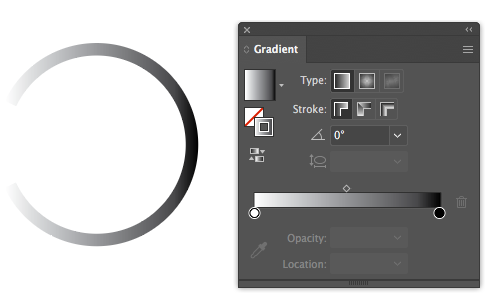
What I want to achieve is a C letter shape with a custom gradient made with the knife tool rather than the gradient tool. Like this:

But in reality I have achieved this in a messy way, by making the gradient in a circle shape (you cannot make a gradient with a knife tool on an object with stroke only), putting a white circle shape on top and a white box to the side:

Is there a way to achieve this more professionally/cleanly?
Copy link to clipboard
Copied
You are 3/4 of the way there. Group your two white objects, then color them black.
From there, select that group and your green circle, and use the Transparency pallet to cut the shapes out. (Uncheck Clip for this result).
This will give you the effect you want on a transparent ground.


Copy link to clipboard
Copied
c=fe,
How about a stroked circle with a gradient along the path and just the white rectangle on top, both selected, then in the Transparency palette (flyout) choosing Make (Opacity) Mask (in the flyout) with Clip unticked and Invert Mask ticked?
Copy link to clipboard
Copied
There may be close to a dozen different ways (2 above already) to produce the result you want, but I'm not sure what you mean by this:
. . . a custom gradient made with the knife tool rather than the gradient tool.
I don't know that I could make a gradient with the Knife tool, but maybe I'm just missing your meaning. Can you clarify?
Copy link to clipboard
Copied
If the earlier suggestion made by SC Riegel doesn't cover what you need.
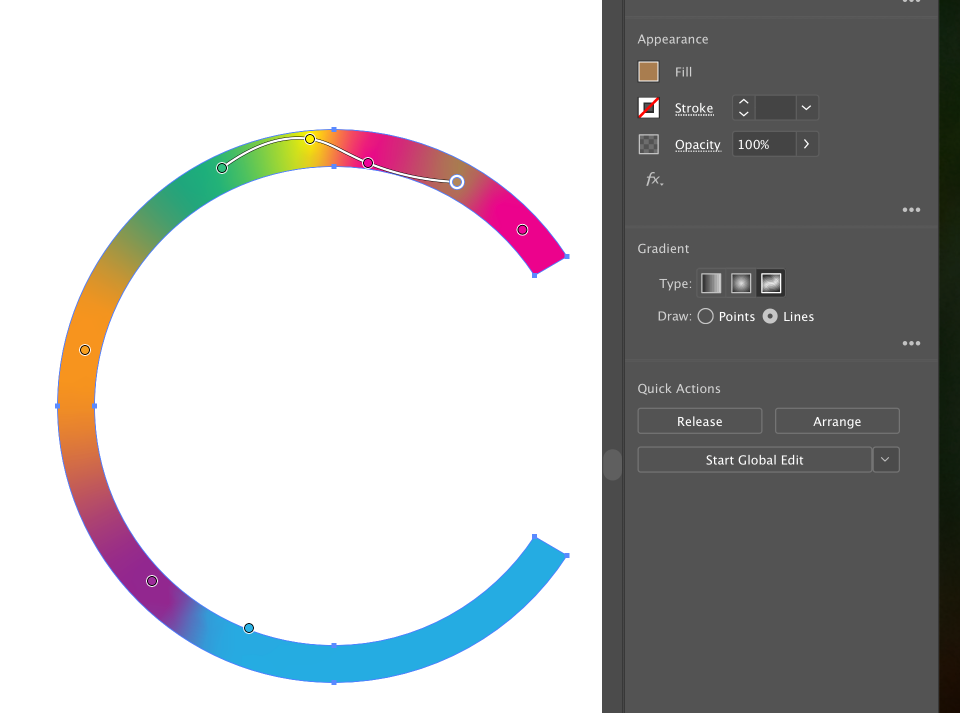
It sounds like you need to dive into the new Freeform Gradient tool features. YOu can access this as the third button in your gradient options within the Appearance/Properties area of the UI.
It allows you to set coordinate points inside an object if you want gradients to radiate/blend around that point. Or you can draw lines, which can be straight or curved, inside the object. This, I think, reflects your idea of using the knife tool to chop up areas and have gradients blend between them.

Copy link to clipboard
Copied
What about if you apply the gradient to the stroke?

Get ready! An upgraded Adobe Community experience is coming in January.
Learn more