
hannahhussong
Participant
February 17, 2022
Question

Creating a partial stroke for an arrow object

  • February 17, 2022
  • 6 replies
  • 937 views

In my illustrator file, I have to use arrows to point to certain objects in the artboard. I like the look of a white stroke in a layer above that essentially creates a cut-out around the stroke.
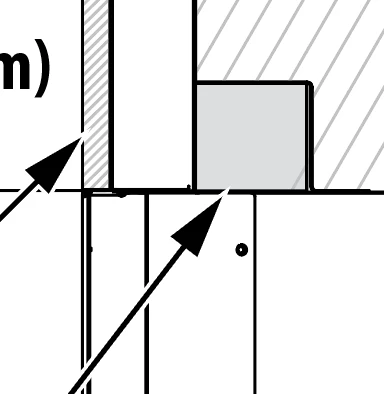
 

However, when I create the stroke around the arrow object (it is filled object instead of a stroke with an arrow head), the stroke extends to the top of the arrow head. 


Is there a way to create the stroke so only the leg and the arrow without the tip? I have highlighted the part I wish to remove.
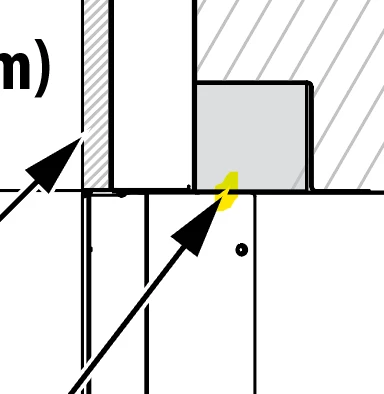
 

This topic has been closed for replies.

6 replies

Jacob Bugge
Community Expert
Community Expert
February 18, 2022

Hannah,


As I (mis)understand it, you may (also) be able to obtain the desired appearance with Knockout Group(s) as follows, more or less starting as you have done already:


1) Create a (straight) path with a black stroke and apply the desired arrowhead as Effect, then in the Appearance panel add a new stroke beneath it and make it white, then with only the white stroke selected set the Opacity to 0%; this will make the white part invisible;


You can work with copies of this, and just change the length as desired;


2) In each drawing, adjust/place the arrow(s) on top of the parts as desired, then Group the arrow(s) and the parts to have cutouts round the arrows, then in the Transparency panel click Knockout Group; any part(s) kept out of the Group will have no cutout(s).


Kurt Gold
Community Expert
Community Expert
February 18, 2022

Hannah,


I don't see many reasons why you wouldn't want to go the brushes route as mentioned a couple of times.


Just follow kphotopage's instruction. That should just work as per your request.


kphotopage
Legend
February 18, 2022

Hannah, Hi.


Here I created two brushes.

Art Brush for the tail.

Pattern Brush for the arrowhead.


Draw a Stroke.

Appearance Panel:

Add Stroke. Apply Art Brush

Add Stroke again. Apply Pattern Brush.

Create a Graphic Style.


So any stroke you create, just apply that Graphic Style.


 K


Edit:

After reading you this post again, perhaps you want just a partial white area around the arrow head and but not the tip. I would go with what John did.


My method was based on an old file, where the art brush was highly customized and I added the arrowhead using Pattern brush so no distortion.  


K

Kurt Gold
Community Expert
Community Expert
February 17, 2022

You may consider to create a custom Pattern Brush that includes an end tile that may suit your needs.


In many cases another way may also to create a custom Art Brush.


John Mensinger
Community Expert
Community Expert
February 17, 2022

Here's how I do it so the arrowhead doesn't get the white:


One path, two strokes, arrowhead on the narrower, upper path only, aligned "Arrow Tip Beyond..."


If you want the white surround on part of the arrowhead and not another part, the only way I know of is to expand and purpose-edit at the anchor-point level.

hannahhussong
Participant
February 17, 2022

I was thinking that as well - purpose-edit at the anchor-point level, but that would take entirely too long. 

John Mensinger
Community Expert
Community Expert
February 17, 2022
quote

purpose-edit at the anchor-point level, but that would take entirely too long.


Well, you're free to determine that for yourself of course, but this took less than a minute...


Larry G. Schneider
Community Expert
Community Expert
February 17, 2022

Try setting the Miter Limit of the white stroke to 2or even 1 and see if that works.