
Participant
May 13, 2025
Answered

Creation and export of labels in Illustrator

  • May 13, 2025
  • 2 replies
  • 568 views

How to create labels in Illustrator ?


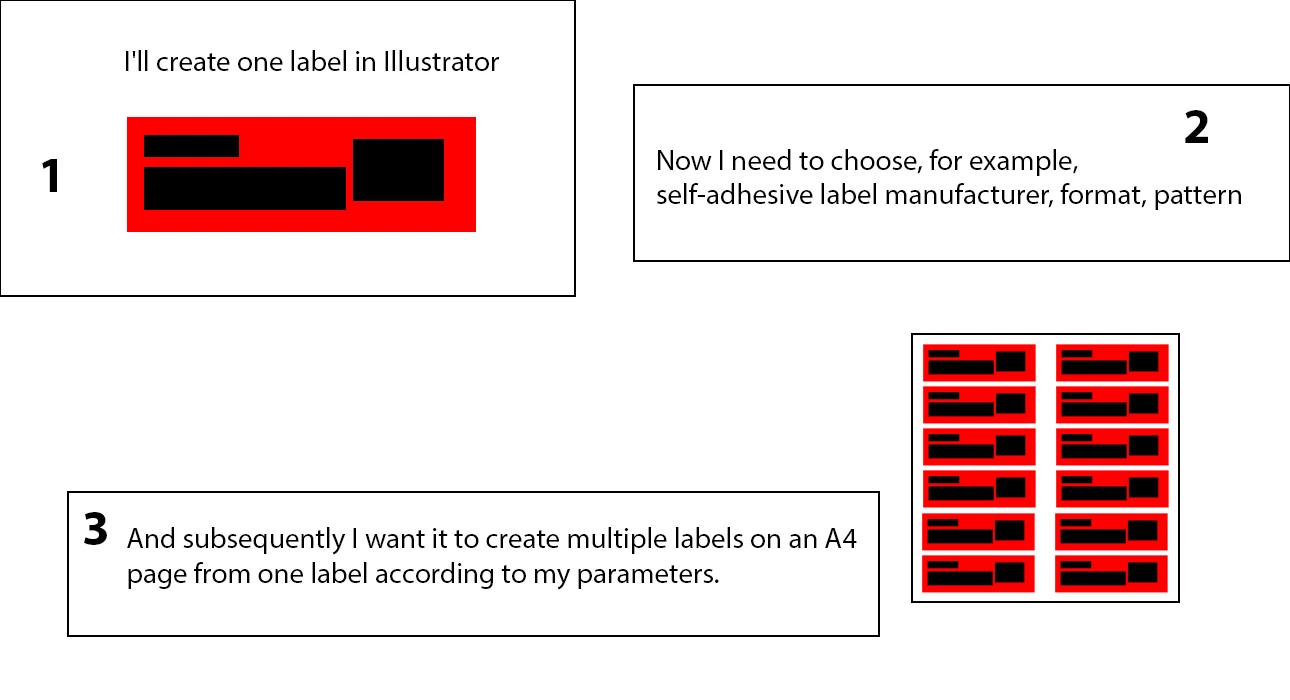
I would like to ask why Adobe for Illustrator does not create an option that allows from one Label that I create its export to any size on a page of A4 self-adhesive labels from different manufacturers such as Herma, Every, etc. or to custom sizes as it has competing tools.


There is only a very complicated manual method and so I always have to create one label in Illustrator, export it to PDF and then export it to full A4 using the tool on onlinelabels.com.

Of course, I know it is possible to download a pattern for Illustrator but if you have a really large number of labels, this will take an awful lot of time.

Adobe subscriptions are not the cheapest and I think this option should have been in Illustrator a long time ago. And subsequently I want it to create multiple labels on an A4 page from one label according to my parameters.


I will explain in simple terms, I need some add-on or direct function in Illustrator that will create multiple labels per page from one label according to my dimensions.
 

Correct answer Tina_Irvine

Hi @thomas_2039,


You can have imported objects as "linked" where they have a blue "x" over them (that shows it's linked and not embedded). 


Drag your label file PDF onto your artboard that you have set up for printing (I usually use InDesign, but this can work through Illustrator as well). You'll notice it has the blue "x" over it. Don't embed it. Once you have all of your labels (pdfs) laid out to the specs of your Avery (or whatever brand) label sheet, save this document as a template file.


When you're ready to print a new batch of labels, duplicate your template file, then go to your "links" panel and choose "relink." Select the new pdf(s) and it will replace the template ones with your new pdf(s).


When you're ready to print, embed your images so you get proper print quality and save this as a new press file.

2 replies

Tina_Irvine
Community Expert
Tina_IrvineCommunity ExpertCorrect answer
Community Expert
May 13, 2025

Hi @thomas_2039,


You can have imported objects as "linked" where they have a blue "x" over them (that shows it's linked and not embedded). 


Drag your label file PDF onto your artboard that you have set up for printing (I usually use InDesign, but this can work through Illustrator as well). You'll notice it has the blue "x" over it. Don't embed it. Once you have all of your labels (pdfs) laid out to the specs of your Avery (or whatever brand) label sheet, save this document as a template file.


When you're ready to print a new batch of labels, duplicate your template file, then go to your "links" panel and choose "relink." Select the new pdf(s) and it will replace the template ones with your new pdf(s).


When you're ready to print, embed your images so you get proper print quality and save this as a new press file.

Monika Gause
Community Expert
Community Expert
May 13, 2025

Set up templates using the transform effect.