
Participant
February 23, 2018
Answered

Crop tool is deleting pencil tool details

  • February 23, 2018
  • 4 replies
  • 2221 views

I've been having trouble making seamless repeating swatches because I'd design the pattern, make a clipping mask for it, but then I go and crop it using the crop tool in pathfinder and suddenly all my small details I drew with the pencil tool will disappear!

Why is this happening and how can I stop it?

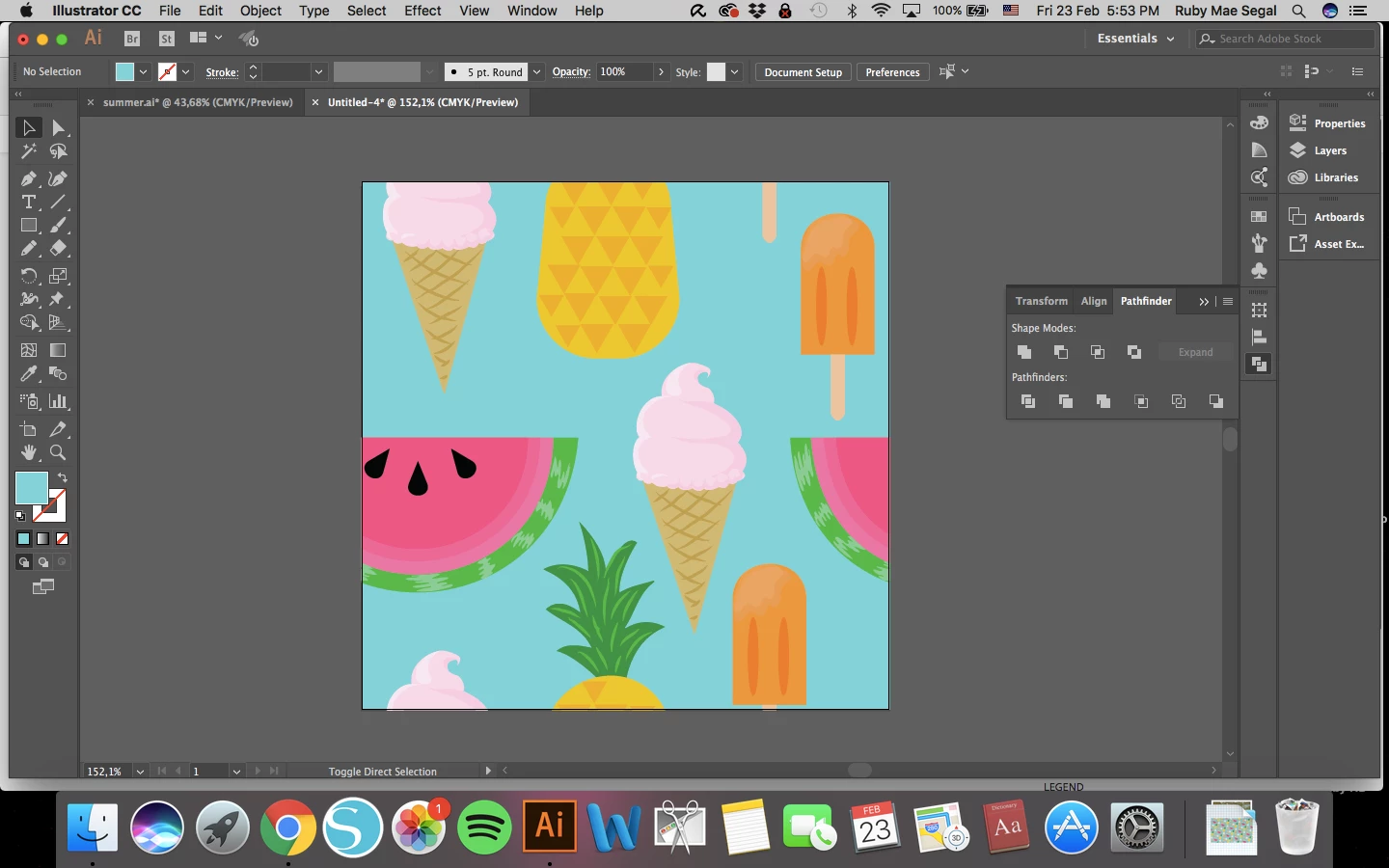
here's my finished swatch (not rasterized) with the clipping mask applied
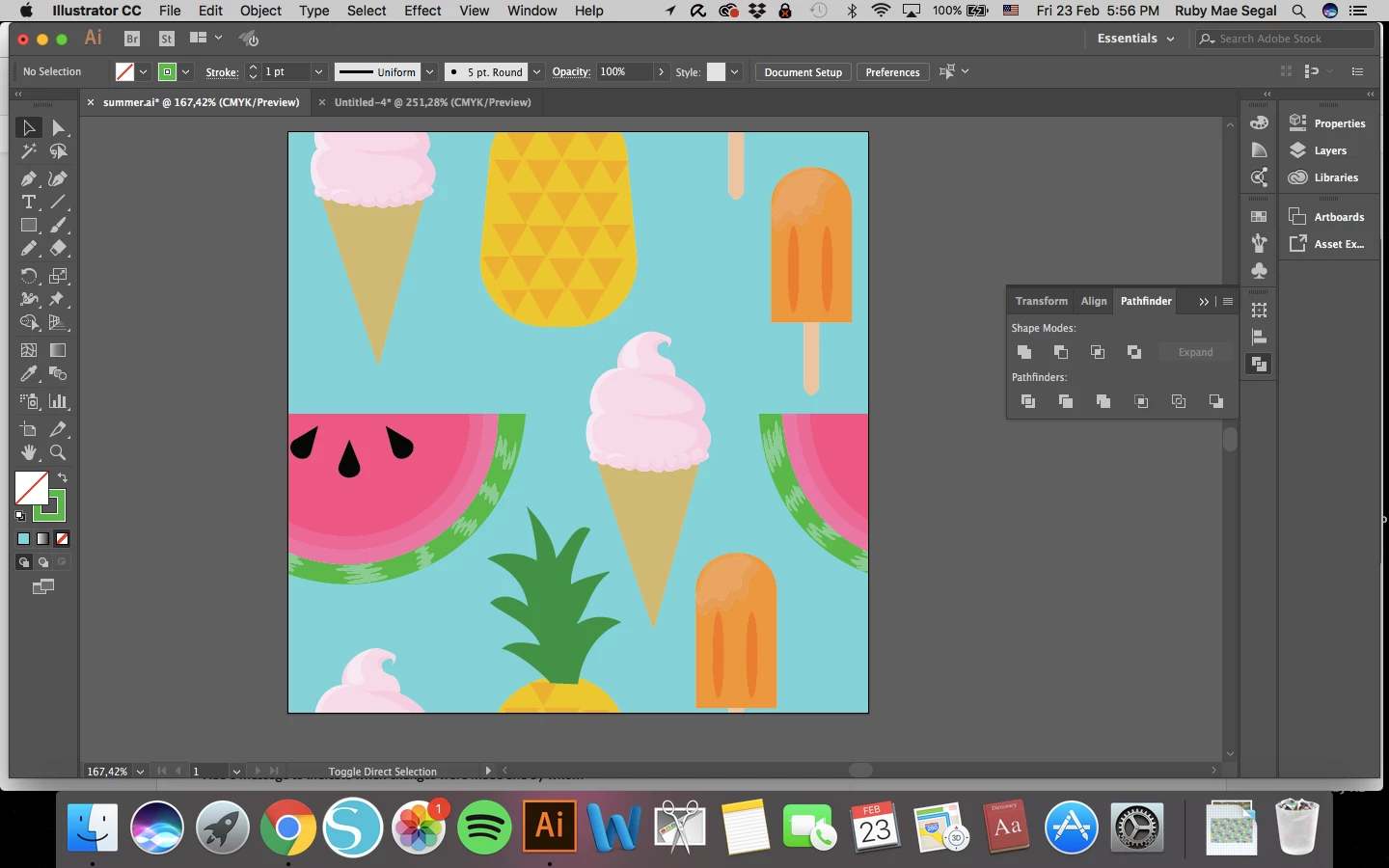
And as soon as I crop it so that it can act as a swatch It deletes the small drawn details on the ice cream cone & pineapple
This topic has been closed for replies.
Correct answer michelew83603738

You don't need to use a clipping mask for this. Instead, but a rectangle with no fill or stroke under the part that you want to define the pattern include it as you select when you make the pattern. It will act to define the area of the pattern.

4 replies

Participant
September 3, 2022

I've had the same problem today, the solution was pressing expand appearance, then crop stopped steeling my details.

Kurt Gold
Community Expert
Community Expert
October 27, 2021

Billie,


just to clarify a bit: The flag "correct answer" does not necessarily mean that this approach is irrevocably true or the only appropriate solution. Often it is just an appreciation given by the questioners because they think it is the best solution in their situation.


But that can vary, of course. Sometimes other answers with no flags at all can actually be better solutions. Sometimes other and better solutions are ignored or overlooked. And sometimes questioners are not able to understand the best solutions in specific cases, and therefore even do not answer nor honour them.


A quite long time ago there were no flags at all on the Adobe forums. And that worked very well.


Participant
October 27, 2021

I had the same problem as you and the "correct answer" that folks were providing was inaccurate.  


I tried a million things, but I eventually converted the line to an outlined stroke, and that solved it.  

Participant
November 5, 2021

Thank you so much for posting this. It was exactly the solution I needed!:)

Participant
July 12, 2022

Thank you, this also worked for me.

Monika Gause
Community Expert
Community Expert
February 24, 2018

You don't need to crop it.

Just put the rectangle in the background, assign no fill, no stroke and drag the whole thing into the swatches panel.

Participant
February 24, 2018

Sorry, not understanding, what rectangle? Also if I just take it as is there are still paths left outside the clipping mask that need to be cropped away or else the swatch won't pattern the tiles directly next to each other, it will leave a gap for those paths.

michelew83603738
Community Expert
michelew83603738Community ExpertCorrect answer
Community Expert
February 24, 2018

You don't need to use a clipping mask for this. Instead, but a rectangle with no fill or stroke under the part that you want to define the pattern include it as you select when you make the pattern. It will act to define the area of the pattern.