Known Participant
September 19, 2023
Question

CS5 to CC23 file conversion

  • September 19, 2023
  • 2 replies
  • 807 views

Hi Team,


Previously we are working on CS5 now i updated on the AI 23 . after that i have faced some kind of issue in  AI file creation.

These are


  1. while opening the CS5 file AI images in CC23 some of the text are not visible.
  2. Text boxes are shrinking in CC23.


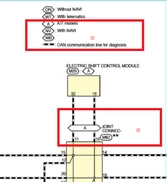
for your reference below i pasted CS5  and CC23 image. below i highlighted what is the issue is in CC23.

this the sample images for your reference but i have an lot of text missing in my file. kindly give respective sollution  for this

CS5                                                                                         CC23
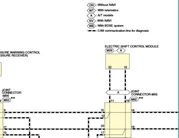


Note : important things we have crated lot of file in CS5 there is no possible things to create a new file in CC23 so kindly give the option or any methodology to accessing same file in CC23 without any missing things.

This topic has been closed for replies.

2 replies

Brad @ Roaring Mouse
Community Expert
Community Expert
September 29, 2023

The issue is not that your text boxes are shrinking, it's that your type has been replaced with a different version of Helvetica and it's not fitting the same way, and in some case, not at all, beacuse your text boxes are too tight. (Frankly, these would have been better as point type instead of area type, but what's done is done, but that's something to consider going forward.)


In any case, I poked into the CS5 file and it used the Type 1 version of Helvetica (on a PC, it appears). If you are now opening this on, say, a current Mac, that Helvetica is being replaced with the TrueType version. Unfortunately, the TrueType version calculates text differently in terms of font metrics and line spacing, so your type is no longer fitting within some of the very tight text boxes that are in the file.

So, what can you do...?

1. Since you can't use Type 1 versions anymore, if you happened to have the updated OpenType versions of Helevtica (sadly now only available from Monotype/Linotype for sale and not through Adobe anymore), these are a metrics and linespacing match to the old Type 1, and if I swapped the TT with these OpenType versions, all snaps back into place... like so:

OR

2. Manually resize ALL of your text boxes. Yah I know. a lot of work for a lot of files.

but, good news:

3. Change the text boxes to an auto-sizing box (look it up). This can be done individually or en masse for a group of selected text boxes: Under Type > Area Type Options. Select the type boxes that are screwed up and check the Auto Size checkbox at the bottom of the Options. Turn on Preview so you can see what it does before you click Okay because, again, because of the difference in how TrueType calculates line spacings, some lines of text will be repositioned vertically depending on what is et for the First Baseline option, e.g. I recommend EM Box or Leading. This won't fix all the boxes... Some will need to be lengthened horizontally, but you can select those and add a few points to the width in the Area Text Options


Monika Gause
Community Expert
Community Expert
September 19, 2023

The text engine is permanently changing.

Can you perhaps upload a demo file to Dropbox or the like?

Known Participant
September 26, 2023
DemoFile_AICS5_Content.svg
Monika Gause
Community Expert
Community Expert
September 28, 2023

Hi team any update for this


Any update for what? You still cannot upload AI files to the forum.


This forum is 95% volunteers. We are not working for Adobe. We have no control over the apps or this forum. If you want to talk to Adobe, please contact https://helpx.adobe.com/contact.html or post bug reports to https://illustrator.uservoice.com