
Participating Frequently
November 30, 2017
Answered

cut several lines with one line

  • November 30, 2017
  • 3 replies
  • 2188 views

Hey everyone!

I'm a greenhorn in working with illustrator and I need help for a problem which is probably very easy to solve....

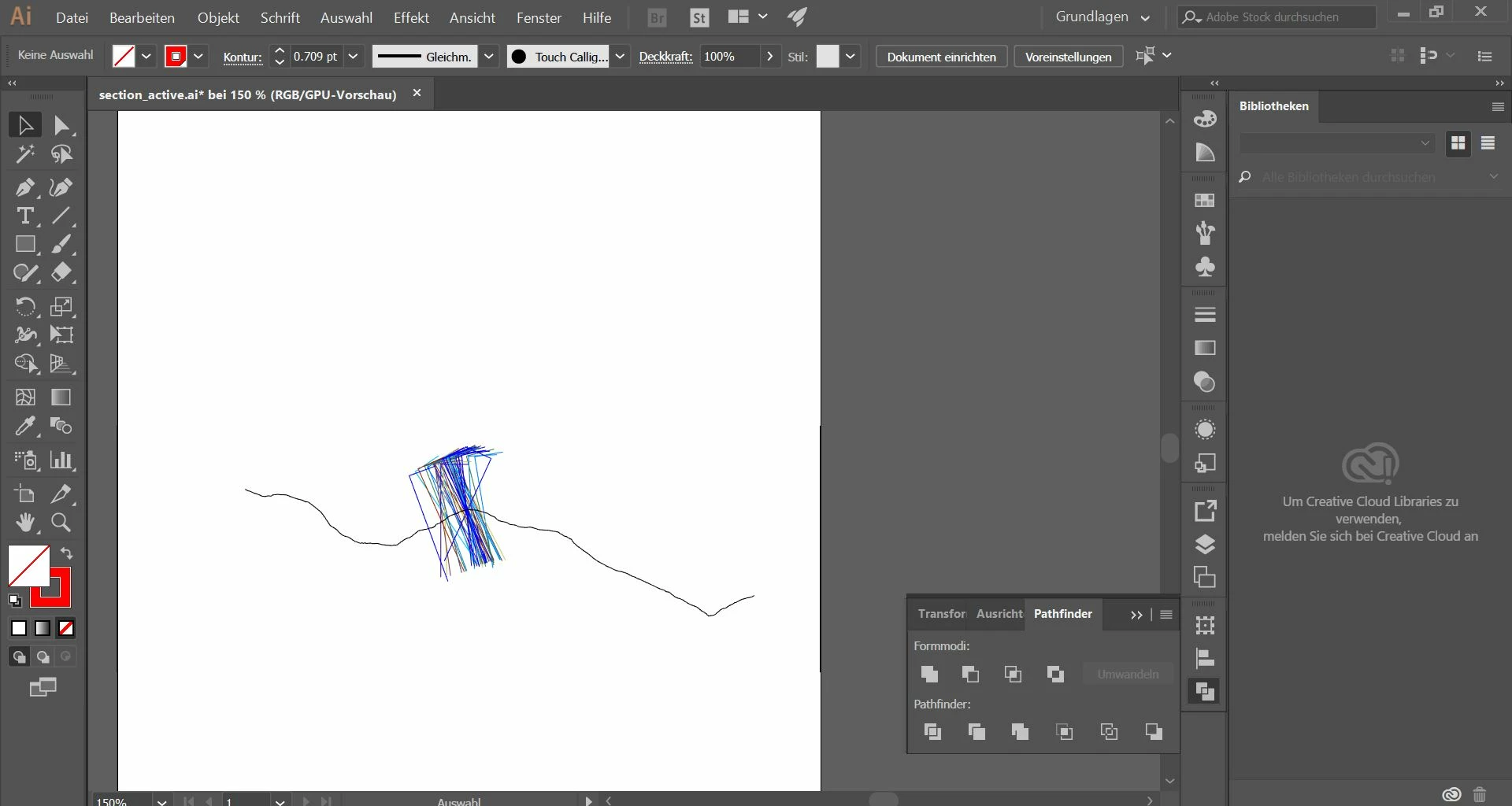
From a Geology software (Move) I exported a profile which shows a topography line (black) and some lines (many different colours) which cross this topography:
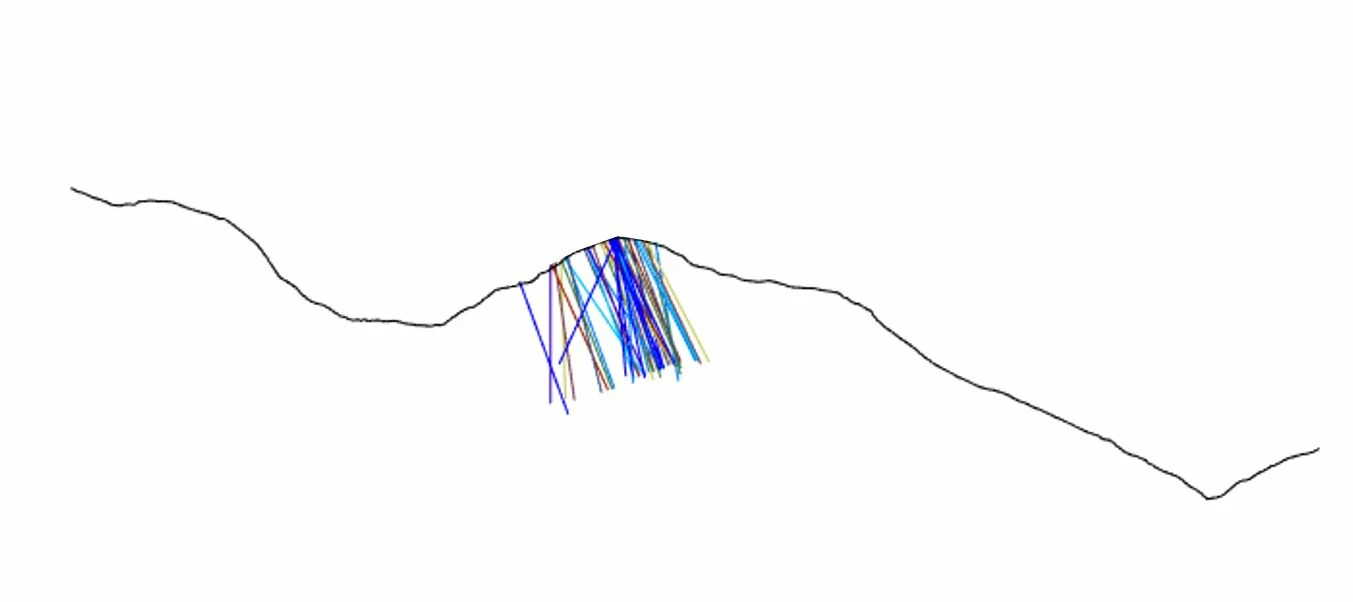
so I would like to cut all these colourful lines with the back topography line. Then I want to delete the parts of the coloured lines which are above of the topography line. in the end it should look something like this:
I tried to do it with the Pathfinder but I only got errors (because i don't have any filled forms, only paths) or weird results...

I also uploaded the file here if you want to try it yourself on the original file called 'section_active' : https://we.tl/obt2XXCP7y

It would be awesome if someone could help me!

thanks in advance!

Sibylla
This topic has been closed for replies.
Correct answer Bill Silbert

I just tried both methods on your original and realized that your topography line was an open path all along (it did not appear so from your original video). Probably because of the way that the lines were generated in the first place the method from #3 probably is not best. However, by making both the topography line and the other lines all into closed paths with Outline Stroke the method from #12 worked perfectly.


This is just one of those questions that I could not let go of. It took awhile but now I know why the method I described in comment #3 had so much trouble.

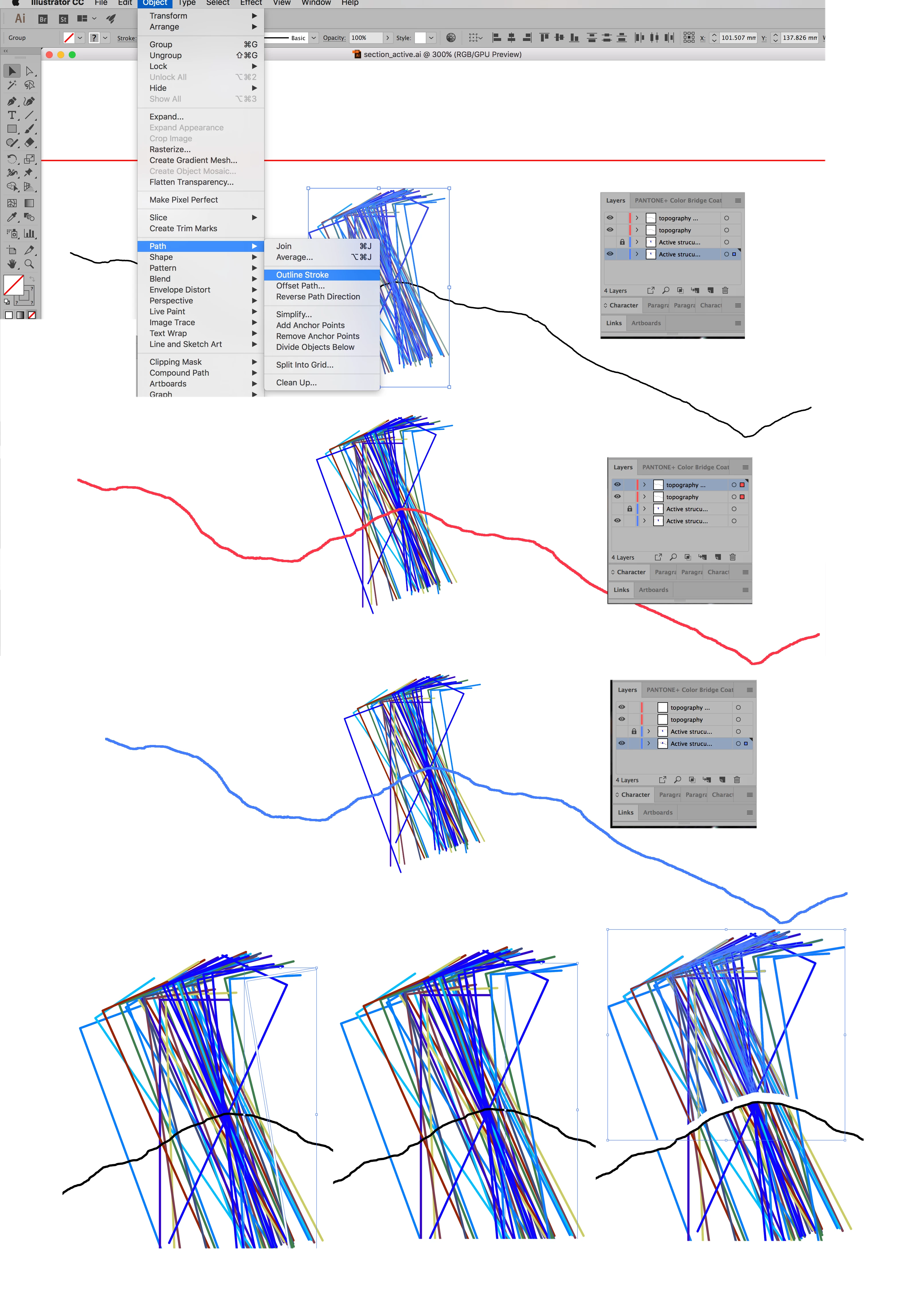
In the procedure I originally described you must convert all of the lines to be cut into closed paths with the Outline Stroke command (top picture) that is still the case. What has made it not work previously was not that your topography line was some kind of funky closed path but that it was actually two lines—one on top of each other and on separate layers (see layers panel for picture two). Then when I told you to make a duplicate of the line and lock it we actually had three copies of the line which led to it not working correctly. In the third picture above you can see that I put both copies of the line on the same layer (the same one that the other lines are on—making sure that I use the Object>Arrange>Bring to Front command to put the two copies of the line above the ones to be cut) and then used the Command/Control-2 command to lock one of the lines. When I then use the Divide Objects Below command it does divide the lines but for some reason (which I don't think really matters) makes the line on the far right lose its color fill. Selecting just that line and restoring the color (bottom middle picture) fixes that problem. In the bottom right picture using the Direct Selection tool (the white arrow) I selected all of the lines (actually closed paths) above the topography line and moved them slightly to show that they are now divided. Note that each of the now divided paths are still groups to one another so you will need to either ungroup them or use the direct selection tool to select them.

As I said in comment #17 the Divide method also works and may actually be simpler and less prone to funky things happening.

3 replies

Anna Lander
Inspiring
December 1, 2017

You can also use Outline button on Pathfinder pane. It divides all paths by all intersection points (on my sample I moved the short lines for better visibility, actually they stay at their original place). A result is a group, and you can ungroup it or work in Isolated Mode.

But be careful, there are some nuances:

1. This tool divides ALL lines by ALL intersection points, so you will need to replace the broken main path by its original.

2. This tool sets the fills and strokes to Zero, so you will need to restore the attributes.

But this is not a problem if you work with a copy of the original composition

sibyllaAuthor
Participating Frequently
December 2, 2017

Hi Anna!

thank you for your answer.

I already tried this but since this is not the only profile I have to work with it and this method is quite 'work-intensive' i try to find another solution. but thank you anyway!

Bill Silbert
Community Expert
Community Expert
November 30, 2017

In order to do this you will have to outline the paths that are to be cut and use the "Divide Objects Below" feature:

First step is to select the lines that are to be divided and use the Outline Stroke option found through Object> Path. The strokes will now be closed paths. Next you are going to use the topography line to divide the paths but in doing so the topography line will disappear. So you will have to make a copy of that line by selecting it and using the Copy Command (Command-C on a Mac and Control-C on a PC). Then while it is still selected you will paste a copy in front of the original using Command-F on a Mac or Control-F on a PC. Then while still selected you will lock the copy using the keyboard command Command-2 for Mac or Control-2 for a PC. Then you will select the other copy of the topography line (which did not get locked) and making sure that it is above the colored lines—actually closed paths (Object Menu>Arrange>Bring to Front) use the "Divide Objects Below" option found through Object>Path. The colored paths will now be split and the unwanted sections can be selected and deleted. The remaining topography line can be unlocked using the key commands Option-Command-2 on a Mac and Alt-Control-2 on a PC.

sibyllaAuthor
Participating Frequently
December 1, 2017

thank you Bill for your answer!

I tried It And It all worked out untli the last step but when I clicked 'Divide Objects Below' it gives me this fancy result:

from this (before I click 'Divide Objects Below'):

to this (after I clicked 'Divide Objects Below' ):

If I put the topography line in the same Layer as the colourful lines something else happens after clicking 'Divide Objects Below':

the lines seem to be cut (you can see a fine blue line where the topography was crossing it) but if I want to select just the upper part of the lines in order to delete them i doesn't work (the whole line gets selected -above and below topography)...

Maybe my topography line is formated in a strange way?

If You want to try it on the original file you can check it here: https://we.tl/XwyqrECnad

Bill Silbert
Community Expert
Community Expert
December 1, 2017

I can see by your screen shot that your topography line has a black fill and no stroke which means that it is actually a closed path rather than a stroke. What I showed you uses a line (an open path) that has no fill but a black stroke. Try it with a stroke for the topography line rather than a filled path. Also remember to save a copy of the stroke as I showed as the original will disappear after dividing the other paths.

Monika Gause
Community Expert
Community Expert
November 30, 2017

Select all lines and then with the shapebuilder tool press Alt and click on the parts of the lines you want to delet.

sibyllaAuthor
Participating Frequently
November 30, 2017

you're genius! it works thank you!

just out of interest -it is not possible to intersect all lines with just 1 line -im my case  the topography line (and not with each other) so it would result in 1 topography line (unchanged) and 1 set of lines below the topography and 1 set of lines above the topography?