
Known Participant
January 5, 2018
Question

Cutting out text with background inside it

  • January 5, 2018
  • 4 replies
  • 9055 views

Hi guys..

Please can someone help me..

I am trying to cut out this text with the background in it.  Everything I try just gives me the text but no background..
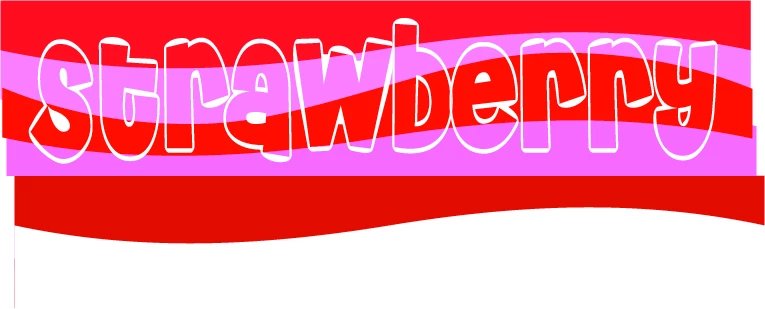
Is there a way to do this or maybe add stripes to the text???

Thank you

Jo

🙂

'Self taught and always learning' 🙂

This topic has been closed for replies.

4 replies

Ray Yorkshire
Participating Frequently
January 6, 2018

Another way, if you are having trouble with the main ways here

Put the text on top of the shapes

Select just the text

Type > Create outlines

Edit > Copy

With just the text selected

Switch to the Shape Builder Tool

Click on each transparent area - I changed the fill colour just  to make it easier to see

Object > Compound path > Make

Select >All - the text and the background

Object > Clipping mask > make

Then Edit > Paste in Front

To put your outline, saved earlier, back

then Object > Group

to make sure they stick together

barbara_a7746676
Community Expert
Community Expert
January 6, 2018

You've got the background shapes and the type on top of it. You've selected the text with the Selection tool

Iand chosen Type > Create Outlines.

Select all the shapes behind the text and Object > Group.

Select just the outlined text and choose Object > Compound Path > Make.

Select everything -- the outlined text and the grouped shapes.

Then Object > Clipping Path > Make.

Is that the effect you wanted?

Known Participant
January 6, 2018

Hi Barbara..

Thank you for your reply..

A couple more questions, sorry..

Firstly, I need the white round the letters as well and I am unable to select this..   When I select I get the outlined view, like your first picture..

Select just the outlined text and choose Object > Compound Path > Make.

Thank you

Jo :-)

Known Participant
January 6, 2018

Like this...

Jacob Bugge
Community Expert
Community Expert
January 5, 2018

Joanne,

As I (mis)understand it, especially based on a guess that the structure is slightly complicated with some counters (holes in letters) also being white, I believe the simplest and most straightforward way would be to:

1) Create a copy of the lettering behind the original (select the lettering, then Ctrl/Cmd+C+B);

2) Ctrl/Cmd+8 to turn the copy into one Compound Path then also (ShiftClick or something) the background as well, then Ctrl/Cmd+7 to create a Clipping Mask behind the original.

With this, all the white in the original will be retained, and part of the Clipping Mask with the colours will just be hidden behind those parts.

Known Participant
January 5, 2018

Thank you guys.  I think my head is going to explode as I have been at this all day  :-(

I have watched the link that Monika gave me for Clipping Masks but it isn't really relevent to me as it doesn't show how to get the inside of text..

I don't suppose there is any way you could do it and video it for me could you?  This is really confusing me..

I have got a mental block now...

:-''(

Jo

'Never give up'

Known Participant
January 7, 2018

Any ideas???

It says all are not paths so I can't make a compound path???

Help please???


Barbara

As soon as I release the letters from the compound path and do the changes I am unable to change to compound path again so I can do a clipping mask..

What am I doing wrong??

Thanks

Jo

Monika Gause
Community Expert
Community Expert
January 5, 2018

Is the text already outlined? (converted to paths?)

It will then be a compound path and you need the inside path of every letter. Combine all those into another compound path and then make a clipping mask

Known Participant
January 5, 2018

Hi Monika

I have 'outlined' text but how do I get the inside paths of every letter into a compound path?

And when I make a clipping mask, how do I get this onto another image?

Sorry, but can you explain in detail as I am fairly new to illustrator..

Thank you

Jo

:-D

Monika Gause
Community Expert
Community Expert
January 5, 2018

This is how you text looks in outline mode. Take the group selection tool and select the inside paths.

Copy them, deselect and paste in place

Then make a compound path.

With the compound path make a clipping mask for the background.

Please do refer to the documentation

Create a basic clipping mask |

You cannot learn a complex professional piece of software such as Illustrator without using the documentation.