MugShot85
Participant
March 22, 2022
Question

Design / masking help needed

  • March 22, 2022
  • 2 replies
  • 170 views

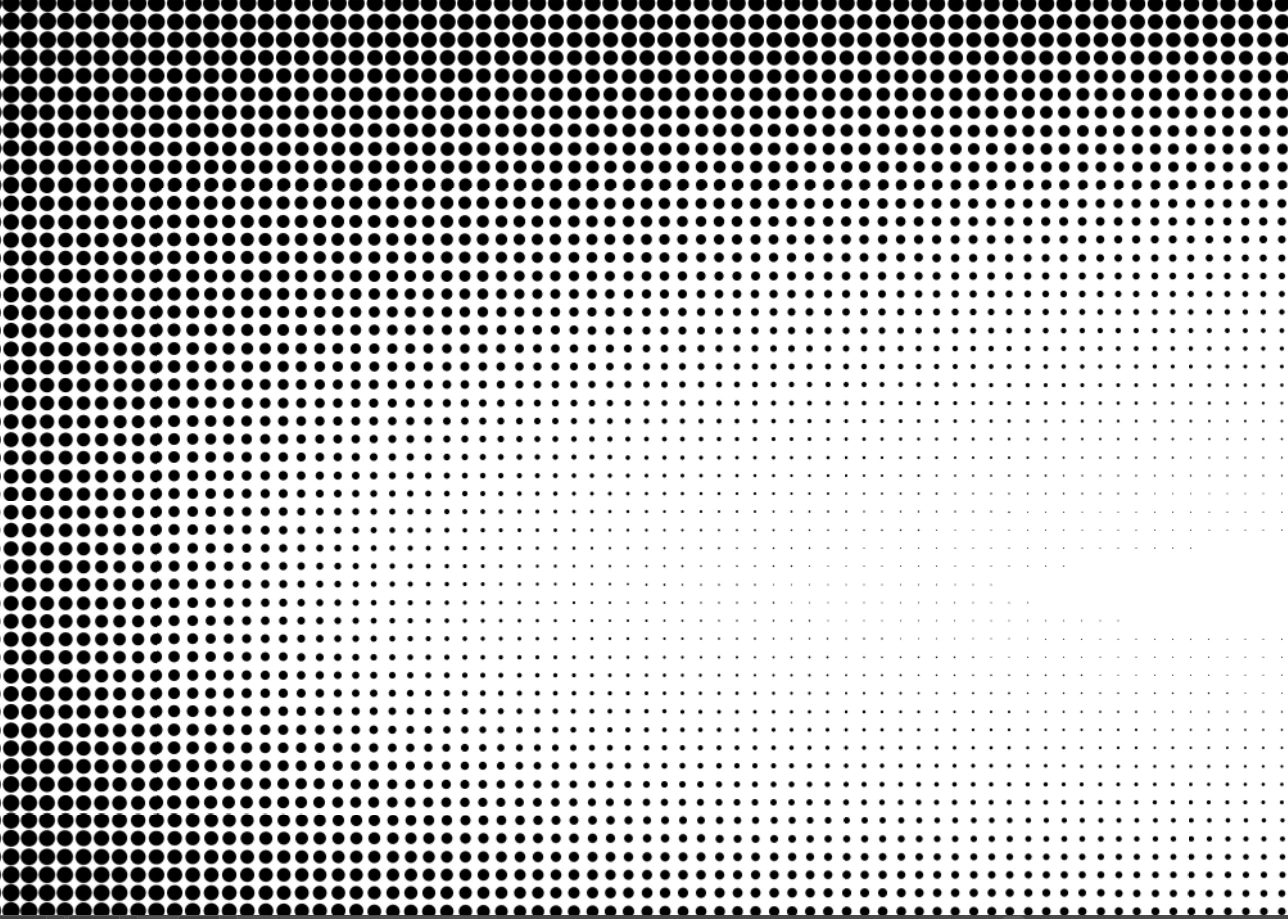
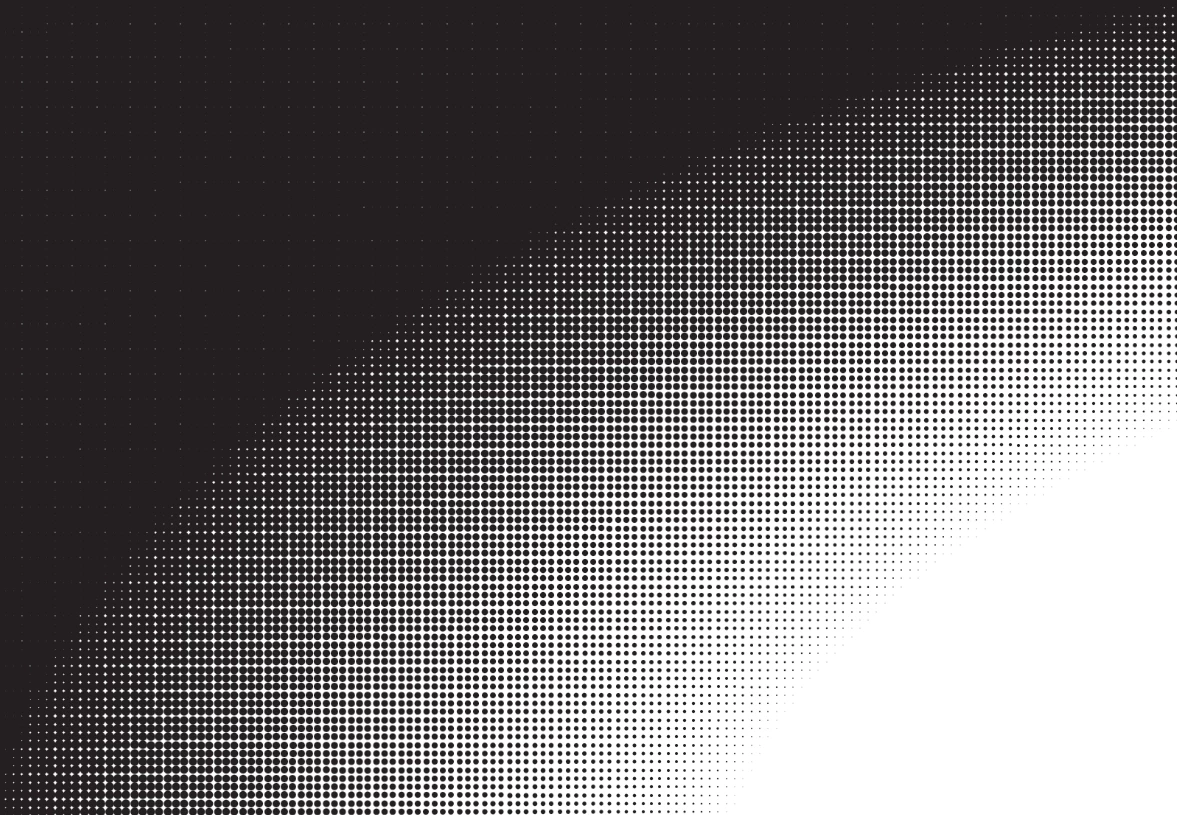
I am creating an image for printing and I need it to print looking like brushed aluminum... But I also have to make it fade out to nothing (clear) with dots like the pattern shown here. I can't seem to vectorize it where it looks clean to mask the aluminum where the dots are. Anyone have any ideas here? I need it to print on clear vinyl. Where the black is shown needs to look like the metal and where it is white... that is clear to see through on a window. 


This topic has been closed for replies.

2 replies

Community Expert
March 22, 2022

I think the effect you're trying to achieve would need to be created using a layered, raster/pixel-based image with a transparent background preserved.


First of all, I don't believe there is a sensible way to create a convincing looking brushed aluminum effect as a purely vector-based image, at least not without the image containing possibly a ridiculous amount of objects, with many of the objects possibly containing complex fills. It's just easier to create such a visual texture using pixels.


Halftone dots can be created as vectors. Astute Graphics' Phantasm plugin does a good job at it. The Pointillizer filter in CorelDRAW is also good at certain tricks. But a purely vector-based halftone texture can have many thousands of dots, which translates into a tremendous number of anchor points if all those dots are combined into a single compound path. That could create issues with it functioning as a clipping path. Worse yet, many printers and large format RIP applications have limits on how many anchor points a single compound path may contain. An artwork element containing more than 5000 or 10000 anchor points could be disregarded by the printer or only partially printed. So that gets back to using pixel-based artwork as an alternative. It's easy to turn a pixel-based halftone pattern into an alpha channel or layer mask to apply to other artwork.


In short, I would build this image at the desired size within Photoshop and save the results as a layered TIFF with the background layer turned to transparent. That's going to be important if your printer has white ink output capability.

Jacob Bugge
Community Expert
Community Expert
March 22, 2022

MugShot,


Based on how I (mis)understand it, have you considered an Opacity Mask based on a top object/Group with a transition (blend or something else) between black and white like the one shown, with both Clip unticked and Invert Mask unticked?