Known Participant
September 27, 2017
Answered

Dividing Part of a Circle

  • September 27, 2017
  • 2 replies
  • 1653 views

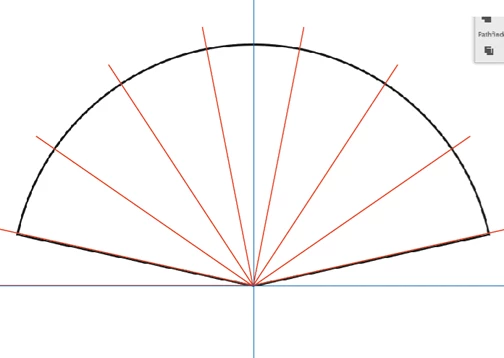
I'm looking for a simple way to divide this section of a circle into 7 equal parts.
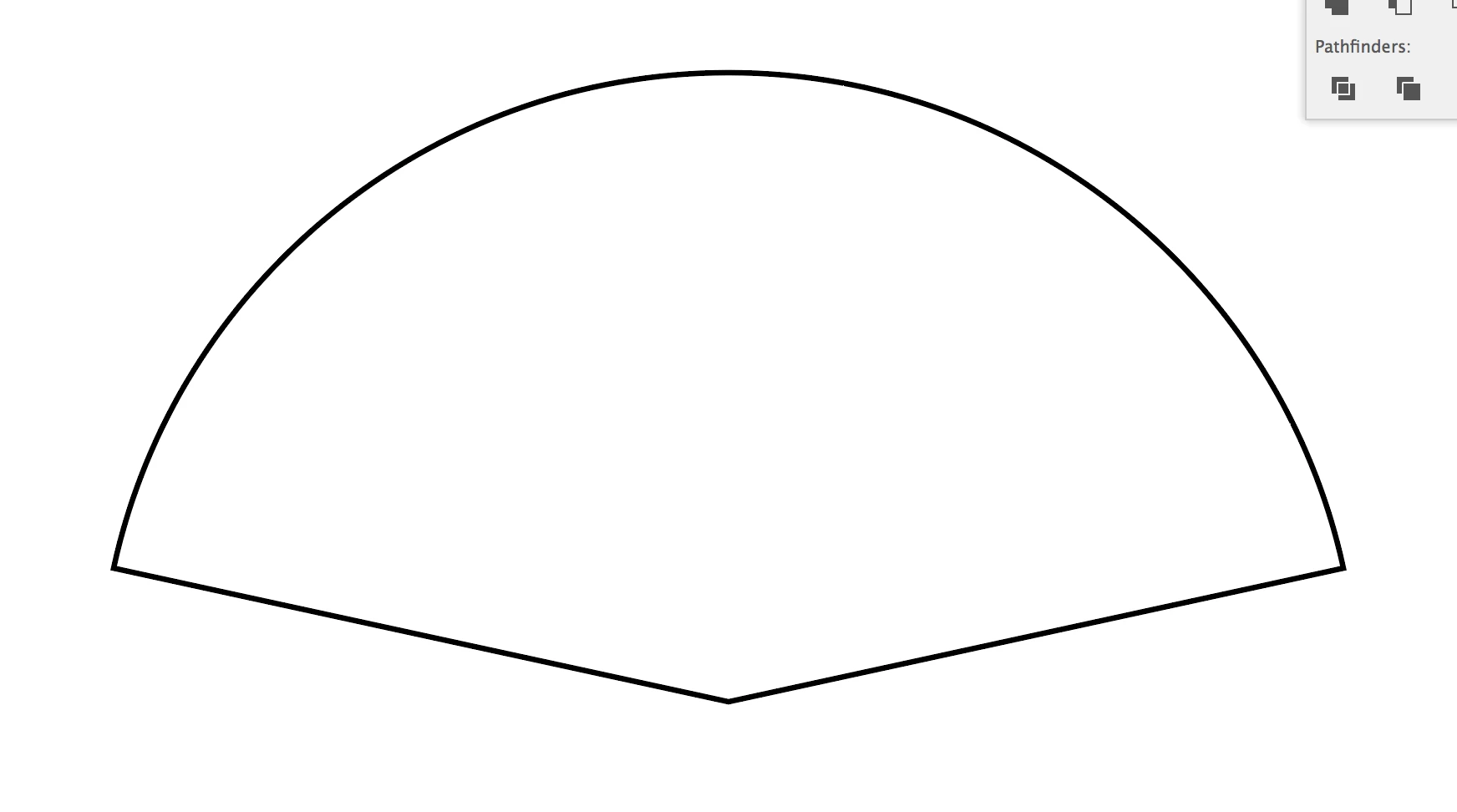
Is there an easy way on Illustrator?

Thanks in advance!

This topic has been closed for replies.
Correct answer jdanek

I took 180 degrees and subtracted the two angles existing ( 12.5 degrees x 2 = 25 ) which leaves me with 155 ÷ 7 = 22.143 degree rotation for the bottom left line in Red ( rotate 7 times @22.143 degrees each > then position one half or one side > select the four lines and use the Reflection tool for a verticle "copy" > position them to the right side.  Now you have 7 equal parts to the original shape to do whatever you want with.

2 replies

sandyl56939727
Participant
October 12, 2018

I know this question is from last year but I remember using a simpler method for creating a circle with 12 equal 30º angles using the Polar Grid tool (under the line segment tool). Once you select the tool and click the mouse on an open document you should get a dialog box that allows you to place the size of the object (i.e. 4"x4" to create a circle). In the next line, you can add how many concentric circles needed, if any. The last line you need to add information to is the number of radial dividers - this would be 7 in the case mentioned earlier. I have my students make a digital color wheel for reference that involves two concentric circles and 12 radial dividers. I have them add color to various segments so they need to use the Pathfinder tool to divide the sections so the Paint Bucket tool can be used in the various sections that were divided. This is the fastest way that I know to divide a circle. Sorry the answer is so late and I hope it is helpful. Thanks!

jdanekCorrect answer
Inspiring
September 27, 2017

I took 180 degrees and subtracted the two angles existing ( 12.5 degrees x 2 = 25 ) which leaves me with 155 ÷ 7 = 22.143 degree rotation for the bottom left line in Red ( rotate 7 times @22.143 degrees each > then position one half or one side > select the four lines and use the Reflection tool for a verticle "copy" > position them to the right side.  Now you have 7 equal parts to the original shape to do whatever you want with.

DativeAuthor
Known Participant
September 27, 2017

I ended up just using an equation to find it out in the end! Your method is much simpler though! Thanks

Inspiring
September 28, 2017

Yes, but there is a typo.  In line 2 I said rotate seven times.  Actually it is only 3 times after the first line is positioned ( @ 12.5 degrees ).  Then the "Reflection" for the right side.  Glad you found a way.  My procedure is how I would approach it and was very quick to perform ( 5 - 10 min., didn't really time it ).  Post your finished artwork ( if you can ), I am sure others would like to see your work.  I am also curious what your equation is.