iamjoan
Participant
December 18, 2014
Answered

Drop shadows and blur is pixelated on Illustrator CC

  • December 18, 2014
  • 8 replies
  • 71275 views

Hi

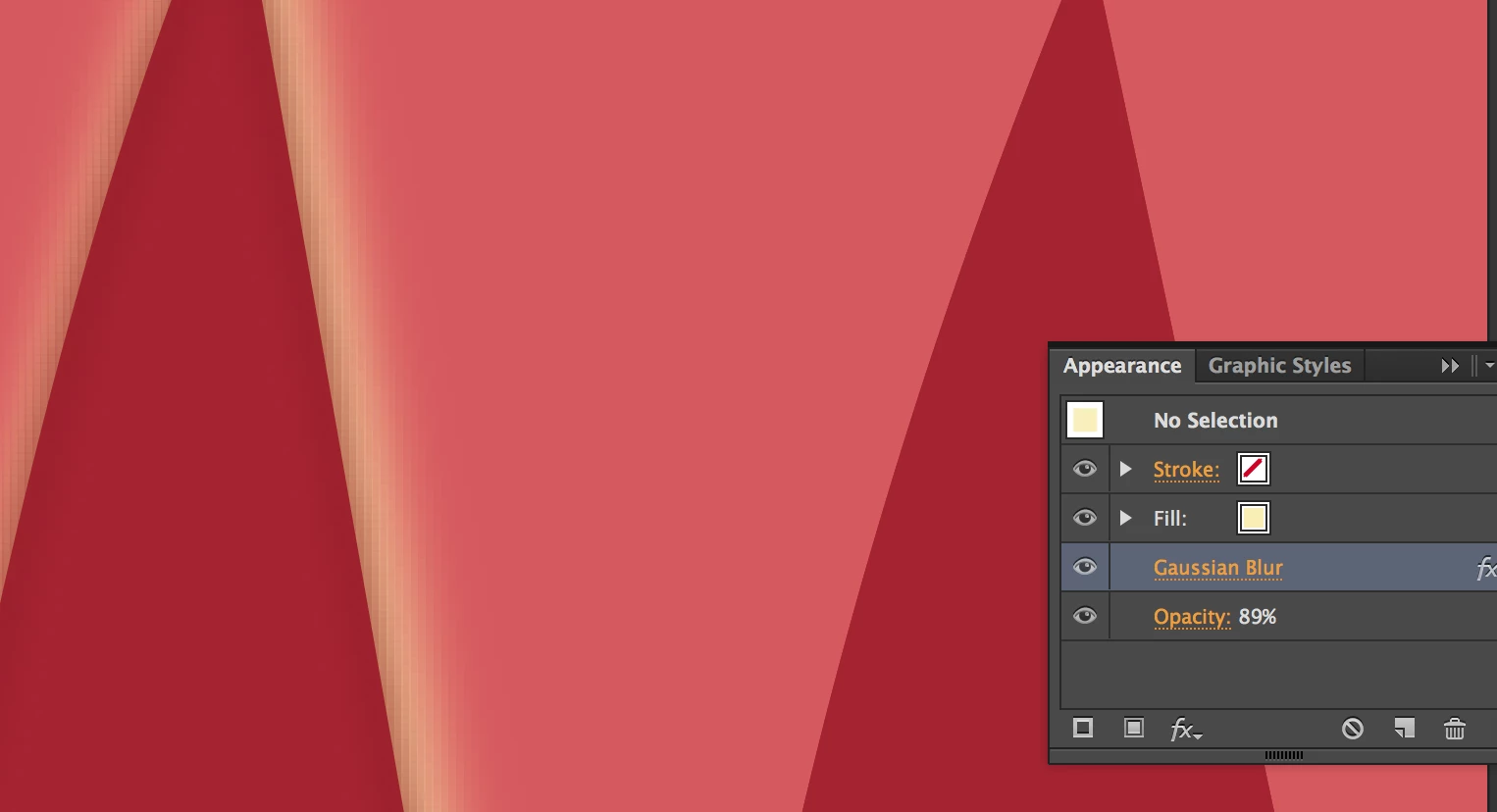
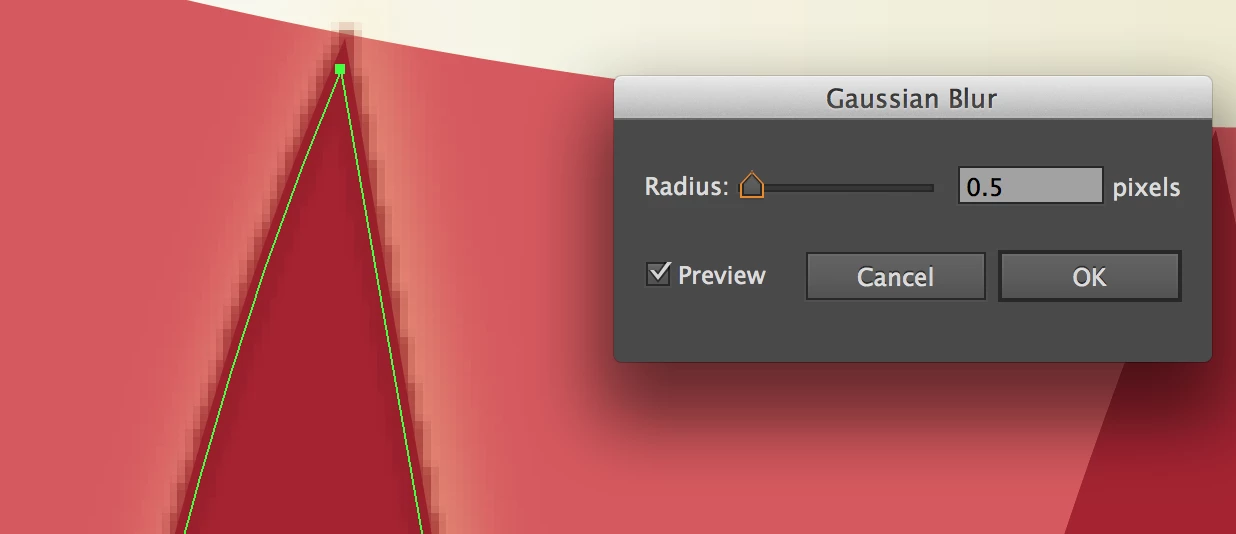
I'm trying to add drop shadows and outer glows to my vector images but they are pixelated. I tried to change raster settings (Effect>Document Raster Effect Settings>Resolution) and set it to high as I've read on other discussions but it does not work. What am I doing wrong? I also have the same problem with blurs (gaussian blur), inner glow, feather, and basically everything that has a shadowy effect,

Please help. I did this so many times before and I didn't have this problem until now.

Thanks in advance.

Correct answer celestenyc

You need to go to:

EFFECT/DOCUMENT RASTER EFFECT SETTINGS/OPTIONS - make sure "Anti-Alias" is clicked on.

Fixed it for me - I had the same issue.

8 replies

susanr97390151
Participating Frequently
December 15, 2021

If you've done everything correctly and it should be working but is not, create a new document and paste your artwok into it. I have to do this often when I open files that are extracted from pdfs or have been through an RGB to CMYK conversion. It's just a glitchy thing that has no rhyme or reason but this seems to always fix it with no effort.

michaelc68508840
Participant
November 2, 2016

Same issue for me on CS6. I checked the File/File info(alt+shft+ctrl+I). Look at the description tab. First item is document title. I noticed it was "WEB". I remembered I created the document as a WEB profile which is set at 72 dpi. Created a new file as PRINT profile at 300 dpi. Now my shadows and glows are perfect.

Participating Frequently
October 11, 2019
Changing to 300 dpi worked for me. Anti Alias did nothing, but I guess it couldn't hurt to leave it on.
celestenycCorrect answer
Participant
June 2, 2016

You need to go to:

EFFECT/DOCUMENT RASTER EFFECT SETTINGS/OPTIONS - make sure "Anti-Alias" is clicked on.

Fixed it for me - I had the same issue.

debra.vetter
Participant
December 14, 2017

Thank you so much, your answer was spot on and helped me from so much frustration!!

Inspiring
December 4, 2015

Hey everyone.

I am seeing this as well on two workstations well after updating to 19.2 (CC 2015.2?)

Here's a screenshot of a placed raster image with a drop shadow applied (lower right) with an object drawn with the pen tool placed over it with the same drop shadow applied.  Very large improvement, still, not great.

Raster effects are at 300dpi, shadow is a 4 color black.  This is zoomed in about 400% to show the issue clearly.  The objects are about 1.5"x1.75"

Participant
November 5, 2015

High resolution cannot be solution.

I still wonder why my illustration is pixelated as I am using vector based tool. Why?

Who can show to solve this problem? Who can explain? Thanx.

Monika Gause
Community Expert
Community Expert
November 5, 2015

rahmonjon0205 schrieb:

High resolution cannot be solution.

I still wonder why my illustration is pixelated as I am using vector based tool. Why?

Who can show to solve this problem? Who can explain? Thanx.

Drop shadow and blur are raster based effects.

Participant
April 22, 2015

Go to effect--->document raster effect setting. (set 1200).

Cheers

Monika Gause
Community Expert
Community Expert
April 22, 2015

arcypasterz schrieb:

Go to effect--->document raster effect setting. (set 1200).

Be really careful what you set there. When the file is to be placed inside an InDesign document then don't select a higher resolution than necessary unless you want to get in serious trouble when creating the output file. Too high resolution might cause crashes in PDF generation.

Participant
February 10, 2015

I'm having the same problem, did you ever figure out how to fix the problem?

Jacob Bugge
Community Expert
Community Expert
December 18, 2014

Joan,

What happens if you Ctrl+Alt+Y/Cmd+Option+Y?

That will untick (or tick) Pixel Preview.

iamjoan
iamjoanAuthor
Participant
December 18, 2014

Hi Jacob

Thanks for responding. I tried what you said and now everything is pixelated. 

look...

Any other suggestions? This is driving me absolutely crazy for the past couple of days now. lol

iamjoan
iamjoanAuthor
Participant
December 18, 2014

Joan,

Then Ctrl+Alt+Y/Cmd+Option+Y again to unpixelate.

As I said, that will untick (or tick) Pixel Preview.

I was unsure about the size of the original images.


Oh yeah, I did that again to unpixelate the balloon. But my outer glow and gaussian blurs are still pixelated though.