
Chimakwa
Participant
May 9, 2018
Answered

Easier way to convert two-color to one color?

  • May 9, 2018
  • 1 reply
  • 490 views

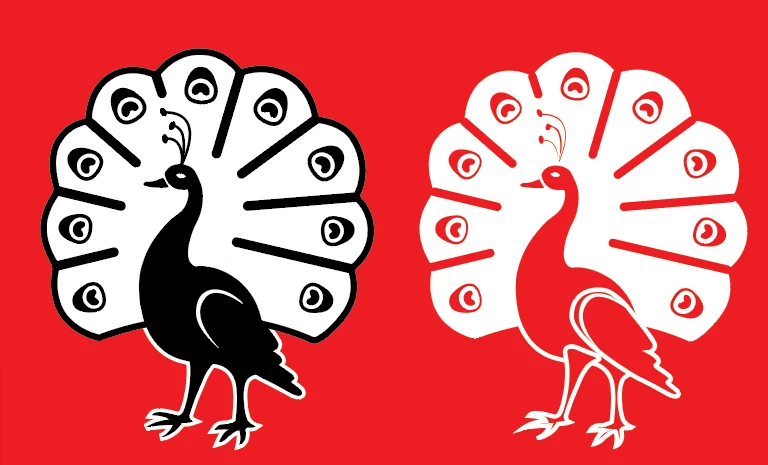
I have a piece of complex two color (black and white) artwork that I need to convert to one-color (white) so that it can be printed on a colored surface.  The white parts are fine, but I need to knockout the parts that are black so that the background shows through.  I have painstakingly (emphasis on "pain") started using the pathfinder tools and compound paths to make this happen but it has taken hours to get through one, and it seems like there should be a much easier way to do the other eleven I have to do.  To the left in my image is the original artwork and the right is the effect I'm looking for, where the red is on a separate layer under the white artwork layer.  Help?
This topic has been closed for replies.
Correct answer JETalmage

Using Pathfinder commands will be somewhat dependent upon whether the black areas are strokes or fills. (Note that the right-side image has white lines which are not shown in the left side.) So if you are going to use Pathfinders, one way to do it in the example you've shown is:

  1. Select All.
  2. Object>Path>Outline Strokes.
  3. Select a black-filled path.
  4. Select>Same>Fill Color.
  5. Apply the red color (same as background color)
  6. Select All.
  7. Pathfinder palette: Merge button.

As a general rule, get in the habit of always defining your color Swatches as Global Swatches. Also bear in mind: Just getting all the objects colored correctly is enough for print because the same-colored objects will print to the same separation plate. (In other words, adjacent or overlapping same-colored objects do not have to be unioned into single objects. But for other purposes (e.g.; cutting out of sign vinyl, spray masks, engraving, etc.) they do.

JET

1 reply

JETalmage
JETalmageCorrect answer
Inspiring
May 9, 2018

Using Pathfinder commands will be somewhat dependent upon whether the black areas are strokes or fills. (Note that the right-side image has white lines which are not shown in the left side.) So if you are going to use Pathfinders, one way to do it in the example you've shown is:

  1. Select All.
  2. Object>Path>Outline Strokes.
  3. Select a black-filled path.
  4. Select>Same>Fill Color.
  5. Apply the red color (same as background color)
  6. Select All.
  7. Pathfinder palette: Merge button.

As a general rule, get in the habit of always defining your color Swatches as Global Swatches. Also bear in mind: Just getting all the objects colored correctly is enough for print because the same-colored objects will print to the same separation plate. (In other words, adjacent or overlapping same-colored objects do not have to be unioned into single objects. But for other purposes (e.g.; cutting out of sign vinyl, spray masks, engraving, etc.) they do.

JET

Chimakwa
ChimakwaAuthor
Participant
May 9, 2018

That worked perfectly.  Thank you so much!

Chris