dzgnr89
Inspiring
May 9, 2017
Pregunta

Easy and flexible offsets in only one direction?

  • May 9, 2017
  • 1 respuesta
  • 27883 visualizaciones

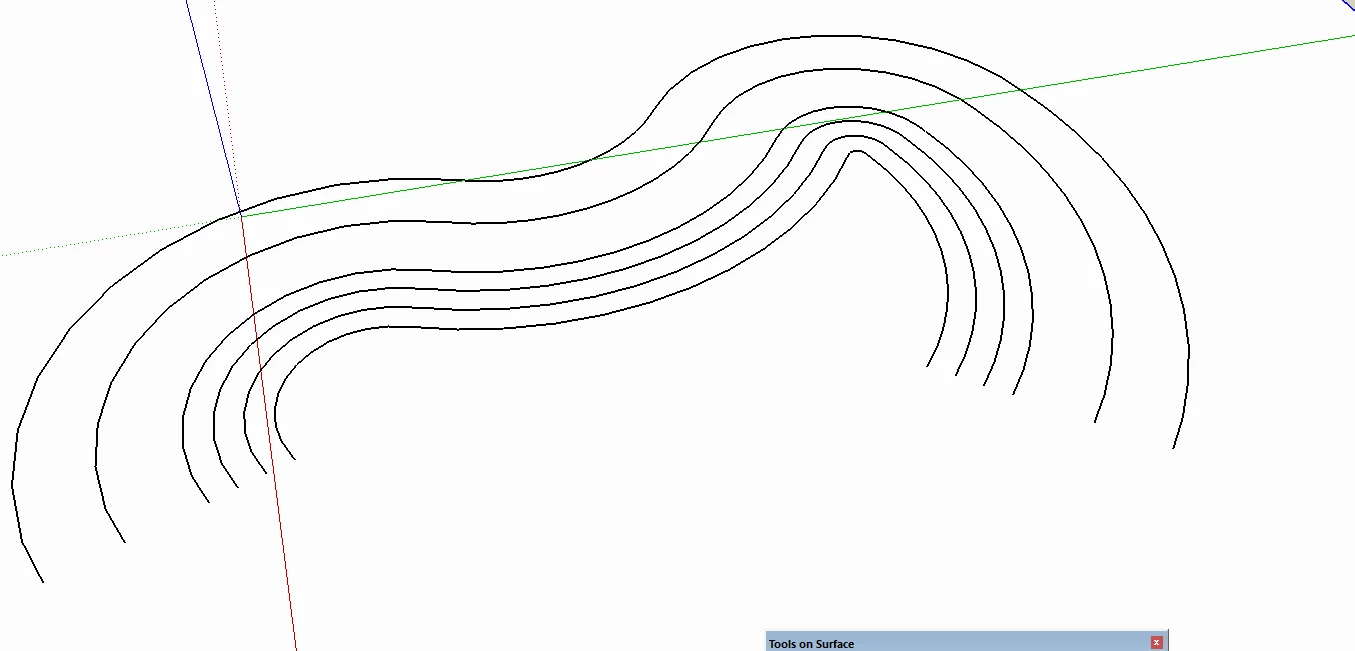
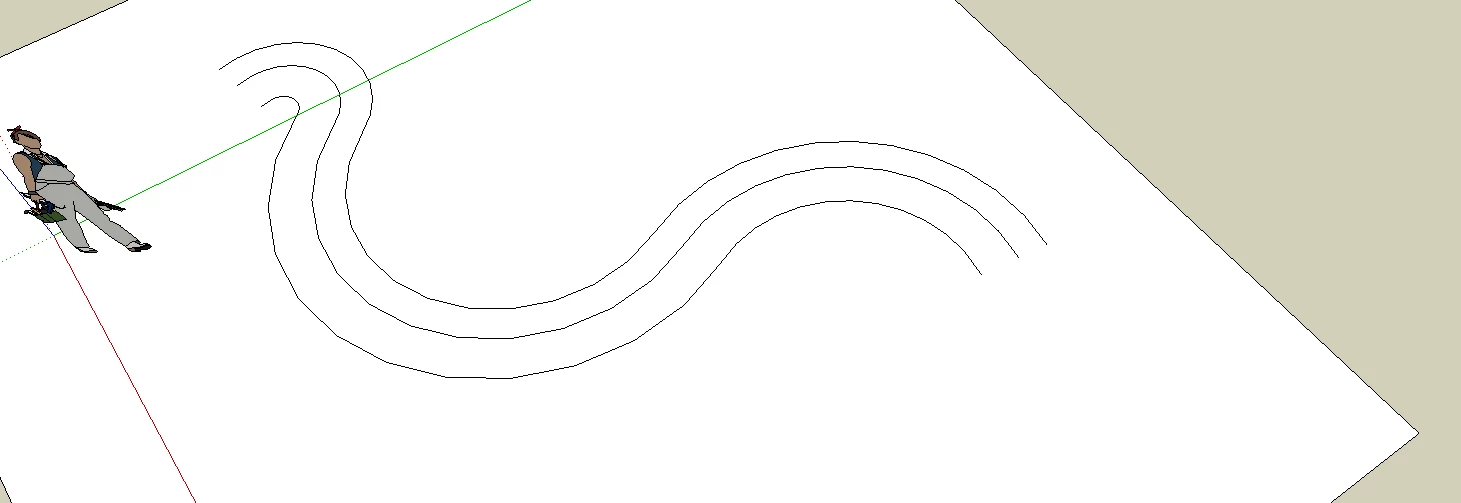
I want to create offsets like these in only one direction. What is a fast and effective method to create such offsets? I also want better and individual lineweight and stroke control on every offset that I make.. These are screenshots from SketchUp. It offers a very easy and flexible to do offset command.

I know the brush method but that's quite rigid. I want to do offset after I make a curve.
    Este tema ha sido cerrado para respuestas.

    1 respuesta

    Myra Ferguson
    Community Expert
    Community Expert
    May 9, 2017

    Select your path then go to Object > Path > Offset Path... and enter the amount of offset you want. The offset will enclose the path, so if it's not a closed shape, then you'll want to select the parts you want to remove and delete them.

    If you want to make the effect live so that you can modify the path and have the offset update, then select your path and in the Appearance panel add a new stroke at whatever weight you want, then go to Effect > Path > Offset Path... and set the offset there. The offset applied this way will also enclose your path, so if you want to delete part of it, you'll have to go to Object > Expand Appearance to make it selectable. However expanding it will also make it no longer live, so if you change the original path afterward, the offset won't update.

    It might work best to start your path from the center of where you want them, then keep the offsets on either side. Then select the portion you don't want and remove that, so in the end you have your set of open paths.

    dzgnr89
    dzgnr89Autor
    Inspiring
    May 10, 2017

    https://forums.adobe.com/people/Myra+Ferguson  wrote

    Select your path then go to Object > Path > Offset Path... and enter the amount of offset you want. The offset will enclose the path, so if it's not a closed shape, then you'll want to select the parts you want to remove and delete them.

    If you want to make the effect live so that you can modify the path and have the offset update, then select your path and in the Appearance panel add a new stroke at whatever weight you want, then go to Effect > Path > Offset Path... and set the offset there. The offset applied this way will also enclose your path, so if you want to delete part of it, you'll have to go to Object > Expand Appearance to make it selectable. However expanding it will also make it no longer live, so if you change the original path afterward, the offset won't update.

    It might work best to start your path from the center of where you want them, then keep the offsets on either side. Then select the portion you don't want and remove that, so in the end you have your set of open paths.

    Well, of course I tried that. I should have written about it. Unlike sketchup, or AutoCAD, I cannot break a rectangle into 4 lines. Using scissor tool is quite tedious and doesn't give quick and accurate results of breaking a shape into its component lines.

    John Mensinger
    Community Expert
    Community Expert
    May 10, 2017

    https://forums.adobe.com/people/Monika+Gause  wrote

    Will you please show screenshots of your artwork and tell us exactly what is going wrong?

    Thank you.

    Instead of just breaking at end points, my curve breaks in between also.


    The thread started as a discussion of offset possibilities, but has devolved into a breaking-up-of-shapes debate. Presumably, the latter issue is really about how to delete the unwanted parts of a bi-directional offset. If that's the case, set aside the notion of "breaking up" anything, and just consider selecting for deletion. Simply use the Direct Select tool and marquee-select...

    (I'll step through it here for demonstration purposes, tapping the Delete key in-between, but you can just hold down Shift to keep adding anchors and segments to the selection, then tap Delete once):

    (This time holding Shift)