
Participating Frequently
November 10, 2023
Resuelto

Einzelne Textzeilen eines Flächentextes mit Hintergrundfarbe versehen

  • November 10, 2023
  • 3 respuestas
  • 3956 visualizaciones

Hallo zusammen,


folgende Ausgangssituation in Illustrator:


Ich habe einen Flächentext mit 5 Zeilen.

Ich möchte entweder

a) Jede der 5 Zeilen mit einer eigenen Hintergrundfarbe versehen

oder

b) Alle Zeilen mit derselben Hintergrundfarbe versehen.


Wenn der Text editiert wird, soll der Hintergrund um die Zeichen erweitert bzw. reduziert werden.


Ich möchte ungern mit einzeln angelegten Flächen hinter den einzelnen Zeilen arbeiten, da sich der Text immer wieder ändert und sich dann auch der Hintergrund mit ändern muss.
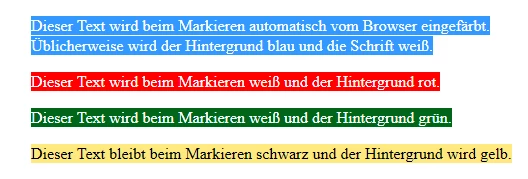
So ungefähr soll das Ganze am Ende aussehen.


Wer kennt die Lösung?


Wichtig: Ich möchte NICHT das gesamte Textfeld in einer Farbe hinterlegen, das weiß ich wie das geht.


Este tema ha sido cerrado para respuestas.
Mejor respuesta de Kurt Gold

You can download a .zip file here:


Type Highlighter 1


The .zip file contains a sample Illustrator file and an action set file.


Instructions:


- Download the .zip file and unzip it.
- Open the sample Illustrator file (text_line_highlighter_sample_001.ai).
- In the Actions palette, import the action set file (Type Highlighter.aia).
- In the sample Illustrator file, select all and run the action (type_highlighter_001).


The action will highlight each text line with a yellow filled rectangle. You can then change the colour according to what is desired.


Note that the action uses a helper graphic style called "r". That is, if you want to use the action in other files, first make sure that "r" is in the Graphic Styles palette. Otherwise the action will fail.


3 respuestas

Kurt Gold
Community Expert
Community Expert
November 11, 2023

Jacob's proposal does work pretty well if you have separate type objects that represents the lines of area type objects.


It rather does not work if you have one or several multiple line area type objects whose lines are going to be highlighted separately. Well, it can be done, but it may get very complicated, depending on the nature of the type objects.


In Illustrator it's difficult to create a native technique to get the highlights automatically, given that they are supposed to flexibly adapt to the amount of text.


I once created a couple of actions that do highlight the lines of area type objects or even single characters. They are not dynamic, though. That is, if you change your text, the actions would have to be rerun.


In case that would be okay for you, I may take a look into my archives and create a sample Illustrator file to demonstrate it.


----------------------


PS: Sergey Osokin has a Highlight Text script for Illustrator. I haven't tried it, but you may have a look here:


https://sergosokin.gumroad.com/l/hgltext


DerCoeAutor
Participating Frequently
November 12, 2023

Hallo Kurt,


wäre super wenn Du mir eine abeispoeldatei mit deiner Aktion zeigen könntest.


Grüße

Marko

Kurt Gold
Community Expert
Kurt GoldCommunity ExpertRespuesta
Community Expert
November 12, 2023

You can download a .zip file here:


Type Highlighter 1


The .zip file contains a sample Illustrator file and an action set file.


Instructions:


- Download the .zip file and unzip it.
- Open the sample Illustrator file (text_line_highlighter_sample_001.ai).
- In the Actions palette, import the action set file (Type Highlighter.aia).
- In the sample Illustrator file, select all and run the action (type_highlighter_001).


The action will highlight each text line with a yellow filled rectangle. You can then change the colour according to what is desired.


Note that the action uses a helper graphic style called "r". That is, if you want to use the action in other files, first make sure that "r" is in the Graphic Styles palette. Otherwise the action will fail.


Jacob Bugge
Community Expert
Community Expert
November 11, 2023
  • DerCoe,


As I (mis)understand your a) and b) options, it can be done natively, as follows:


1) With the normal Type Tool create the text as live Type;
2) In the Window>Appearance palette flyout click Add New Fill, then drag that fill down below Characters in the main Appearance palette and click it to have it selected; it will be highlighted;
3) Set the desired background colour, you may use the Window>Color palette or something else;
4) Effect>Convert to Shape>Rectangle (or Rounded Rectangle), then Click Relative and set the width and height to be added to the live Type; you may try different values in Preview to see how it works.

This will give you the text as live Type so you can edit it (you may add text, even more lines), and the background will adapt to the text.


With option b), you can do this for the entire text, either in separate instances or in one instance with multiple paragraphs.


With option a), you can do this for the first text instance, then copy the instance and replace the rtext and the background colour.


Monika has kindly made an exquisite wbsite with names of terms in many languages here,

https://www.vektorgarten.de/illustrator-polyglott.html


With regard to the choice between white and black Type, you may (re)consider whether to use white or black on the (bright) red background (and the same if you switch to a bright green).


Monika Gause
Community Expert
Community Expert
November 10, 2023

In InDesign geht sowas problemlos. In Illustrator nicht.

DerCoeAutor
Participating Frequently
November 11, 2023

Hallo Monika,


danke für die schnelle Antwort. Also bleibt mir nur der manuelle Weg indem ich die Textzeilen mit einer Fläche hinterlege?

Monika Gause
Community Expert
Community Expert
November 11, 2023

Muss es wirklich unbedingt Illustrator sein?

Wenn der Kunden/Dienstleister nicht unbedingt die offene Datei haben müssen, würde ich sowas in InDesign machen.