Inspiring
March 22, 2024
Answered

Erase stroked bit from object behind

  • March 22, 2024
  • 2 replies
  • 713 views

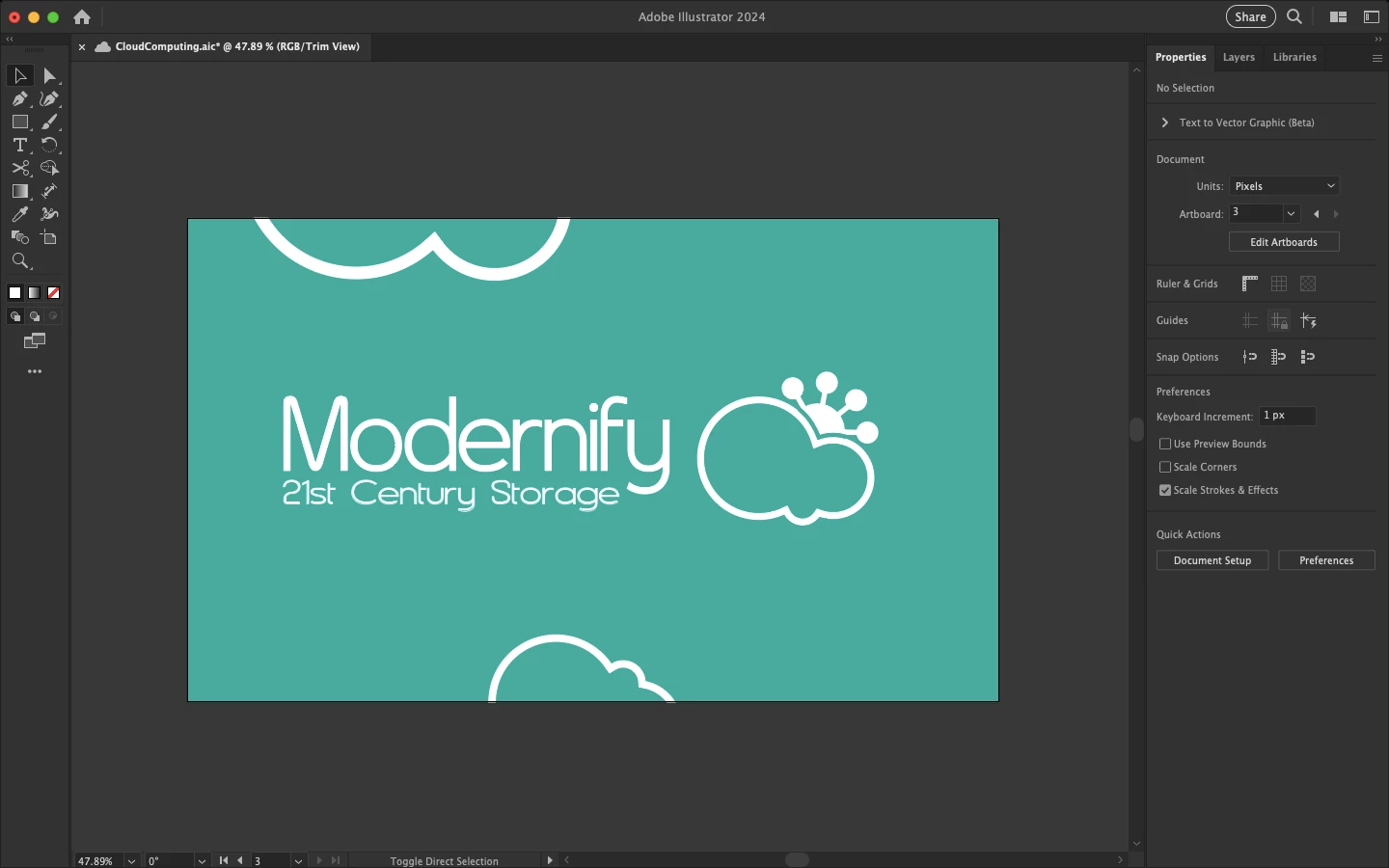
I wanted to erase part of this object, but the only way I can think to achieve this effect is to cover the part with a stroke that is the same color as the background. Is there some way I can actually erase that part? 

This topic has been closed for replies.
Correct answer Kurt Gold

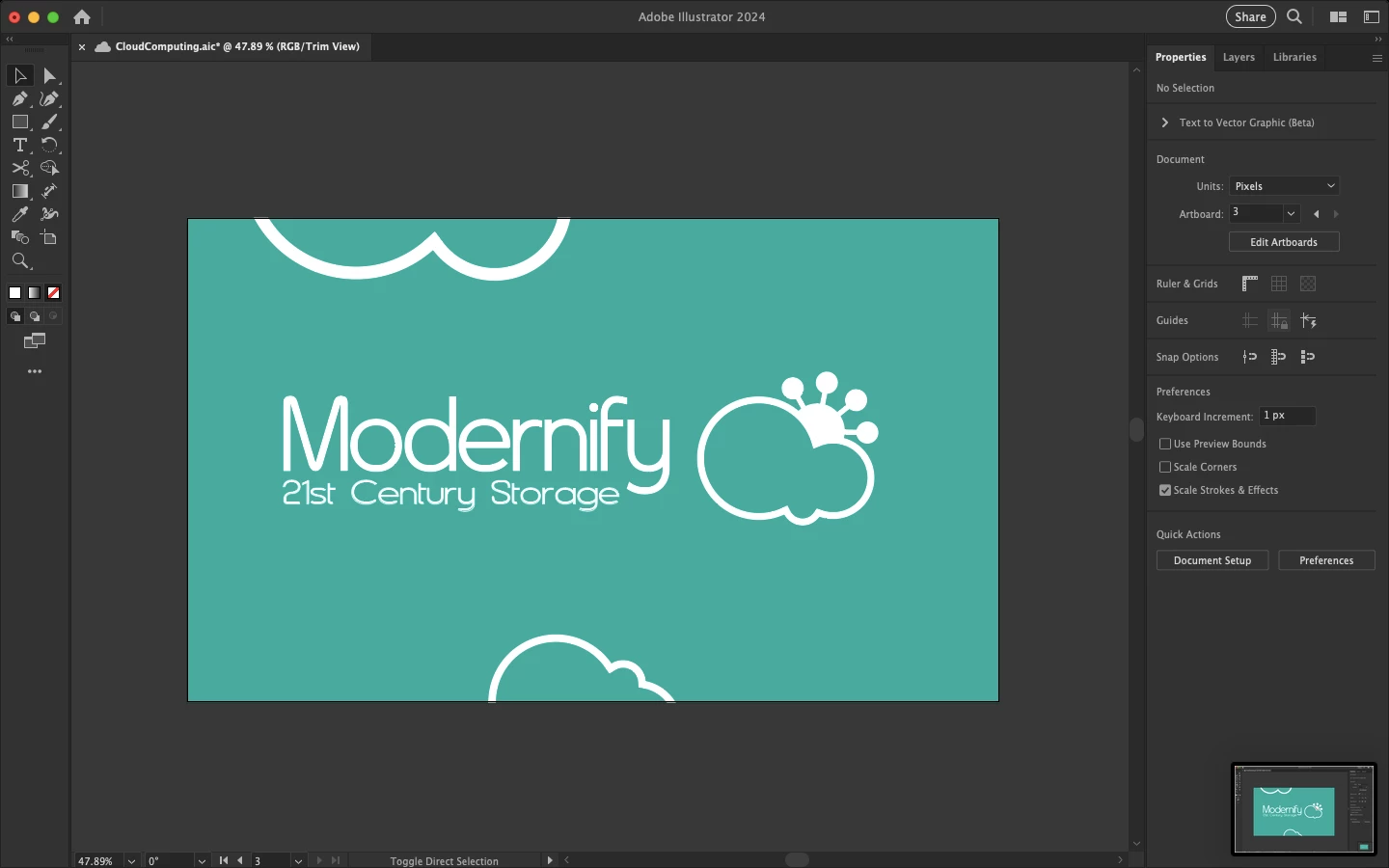
Thanks for the sample file. As mentioned, there are different ways.


One that is pretty versatile is to:


  • Make sure the cloud is the top-most object in the stacking order inside the group.
  • Direct select the cloud, then in the Appearance palette add a new stroke (about 4,6 pt) and in the Strokes palette set the new stroke to align to outside.
  • Select the entire group, then in the Transparency palette make a knockout group.
  • Direct select the cloud, then in the Appearance palette highlight the new stroke and set its opacity to 0 (zero) percent.

2 replies

Kurt Gold
Community Expert
Community Expert
March 22, 2024

There are certainly other ways.

Can you perhaps share this Illustrator file for inspection?

Inspiring
March 22, 2024
Kurt Gold
Community Expert
Kurt GoldCommunity ExpertCorrect answer
Community Expert
March 22, 2024

Thanks for the sample file. As mentioned, there are different ways.


One that is pretty versatile is to:


  • Make sure the cloud is the top-most object in the stacking order inside the group.
  • Direct select the cloud, then in the Appearance palette add a new stroke (about 4,6 pt) and in the Strokes palette set the new stroke to align to outside.
  • Select the entire group, then in the Transparency palette make a knockout group.
  • Direct select the cloud, then in the Appearance palette highlight the new stroke and set its opacity to 0 (zero) percent.
Monika Gause
Community Expert
Community Expert
March 22, 2024

Select that cloud object and Object > Path > Offset path

The result will be a group.

Ungroup and then subtract from the other thing (that other thing needs to be outlined - outline stroke etc) and then united for this to work


If you want this to stay editable, you could make a knockout group

Inspiring
March 22, 2024

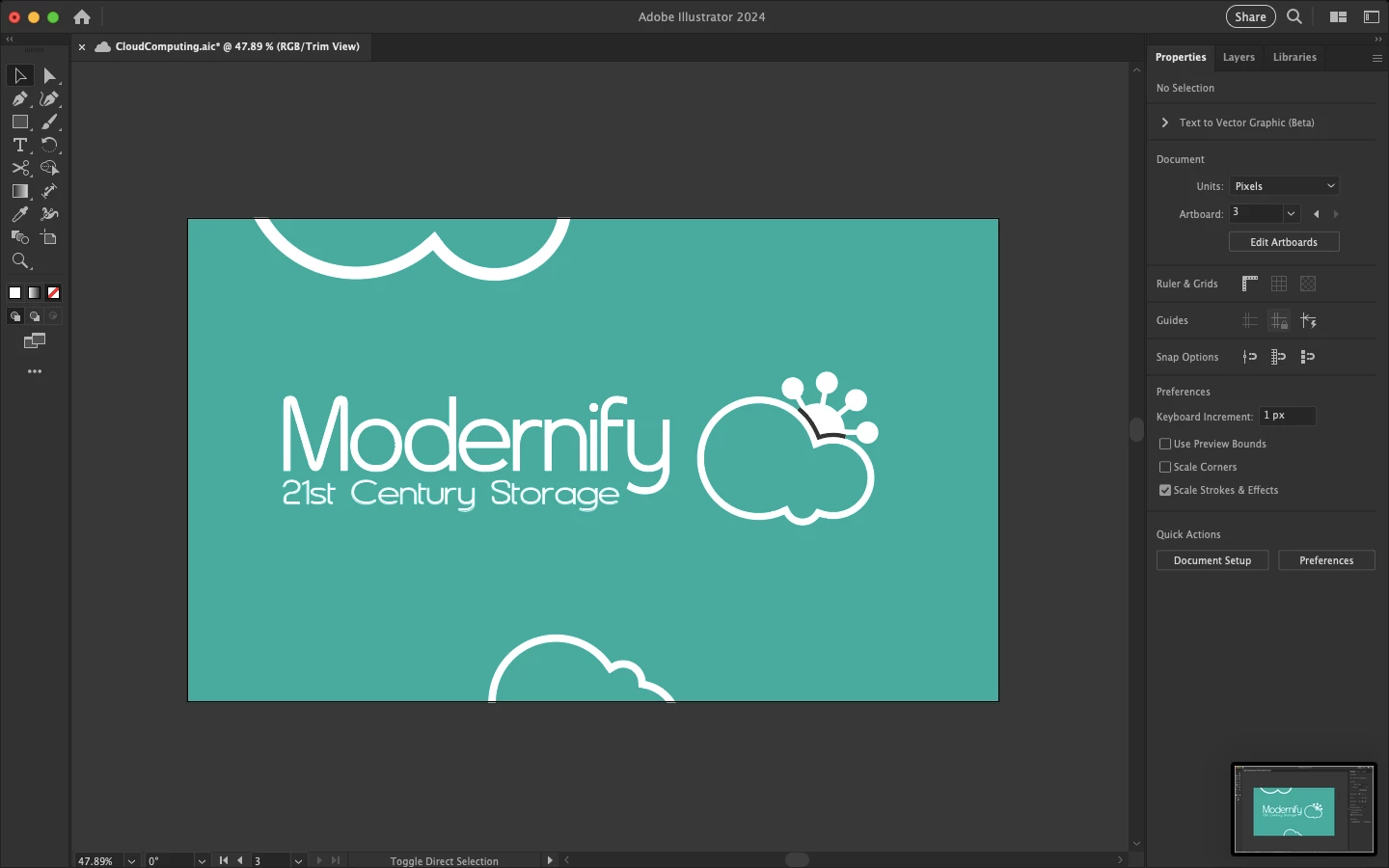
Okay, bear with me here. I added the offset path, although no group was made. Now, if you mean the other thing (let's call it a "sun") needs to be united by itself, then what I get is pictured below. If you mean the sun needs to be united with the cloud, it looks even worse. Also, I should mention that the sun is an ellipse with four strokes coming out of it, each of those strokes having a round "arrowhead" at the end of it. So whether or not this means that the sun is "outlined", I don't know.

Monika Gause
Community Expert
Community Expert
March 22, 2024

Do you need this really cut so it's ready for plotting?

Or do you need it editable?