
Known Participant
November 21, 2018
Answered

Eraser Tool won't erase despite heroic efforts & relentless pleading

  • November 21, 2018
  • 1 reply
  • 3028 views

I've got an unwanted blob sitting outside my much-desired icon that I'd like to erase. Nothing I've tried thus far works. Suggestions on how to get rid of the thing (signified by the dark-gray arrow in the uploaded image (note: the arrow isn't part of the desired final graphic))?

Things I've tried:

- The eraser tool (on each layer)

- Targeting each layer and using the eraser tool

- The Path Eraser Tool

- Object > Path > Clean Up Stray Points (with all options checked)

- Double-clicking the Eraser Tool and setting the brush to a larger size

- Erasing with the ShapeBuilder Tool

- I've expanded things, turned things off, turned things on, begged the universe ...

I thought that the problem might come from having a linked layer in the design, but I've had the same problem with a graphic that has no linked layers. There's some step I'm missing, obviously.
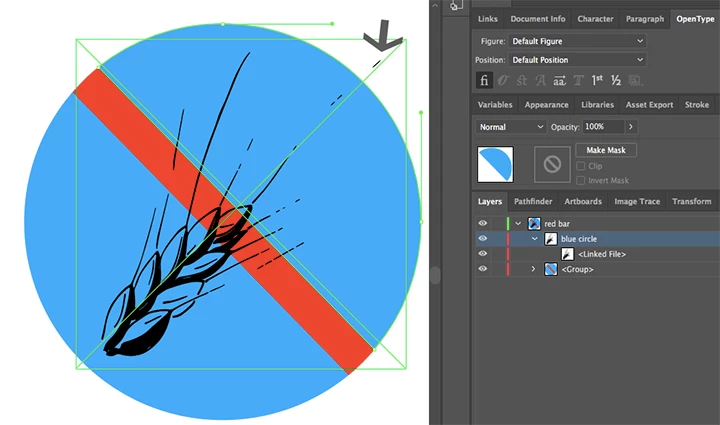
Thank you.

    This topic has been closed for replies.
    Correct answer tromboniator

    Yes, it's a linked file, and you won't be able to edit it as it is. How you deal with it will depend on what kind of file it is and how you want to handle it.

    If you want it to remain a linked file, go to the Links panel (Window > Links), select the file in its list, and click on the Edit Original icon (looks like a pencil). This should open the appropriate app to edit the original or give you a choice of possibilities. Edit as needed.

    If you have the item selected, you will see the Crop Image button in the Properties panel or the Control bar. Click that and you can do a rectangular crop on the image, which may do visually what you want, but it will embed the image.

    If you are expecting the Eraser tool to function in the same way as the Photoshop eraser, you are in for a frustrating time. Read the information in the help files.

    Peter

    1 reply

    tromboniator
    Community Expert
    tromboniatorCommunity ExpertCorrect answer
    Community Expert
    November 21, 2018

    Yes, it's a linked file, and you won't be able to edit it as it is. How you deal with it will depend on what kind of file it is and how you want to handle it.

    If you want it to remain a linked file, go to the Links panel (Window > Links), select the file in its list, and click on the Edit Original icon (looks like a pencil). This should open the appropriate app to edit the original or give you a choice of possibilities. Edit as needed.

    If you have the item selected, you will see the Crop Image button in the Properties panel or the Control bar. Click that and you can do a rectangular crop on the image, which may do visually what you want, but it will embed the image.

    If you are expecting the Eraser tool to function in the same way as the Photoshop eraser, you are in for a frustrating time. Read the information in the help files.

    Peter

    Known Participant
    November 21, 2018

    That fixed it, Peter. Awesome. You saved me a lot of grief, and now I'm going to study linked files in some depth. Thank you.

    jane-e
    Community Expert
    Community Expert
    November 21, 2018

    Here’s the Help file on cropping in case you want to look at that as well:
    Crop images in Illustrator