
Participant
December 21, 2017
Answered

Erasing parts of type outline

  • December 21, 2017
  • 3 replies
  • 604 views

Hello,

I want to delete some little pointy bits on a type outline, but I have no idea how.  Tried the eraser tool, which obviously didn't work. Also tried the scissor and knife tools.  Thanks!

(I want to delete the little pointy bit beneath the 'D' and the '!'.  The white outline part and the gradient text are two separate type layers. They are basically the same thing/text....I just added a stroke to the bottom (the white) and increased the points until the letters where no longer legible.)

    Correct answer Bill Silbert

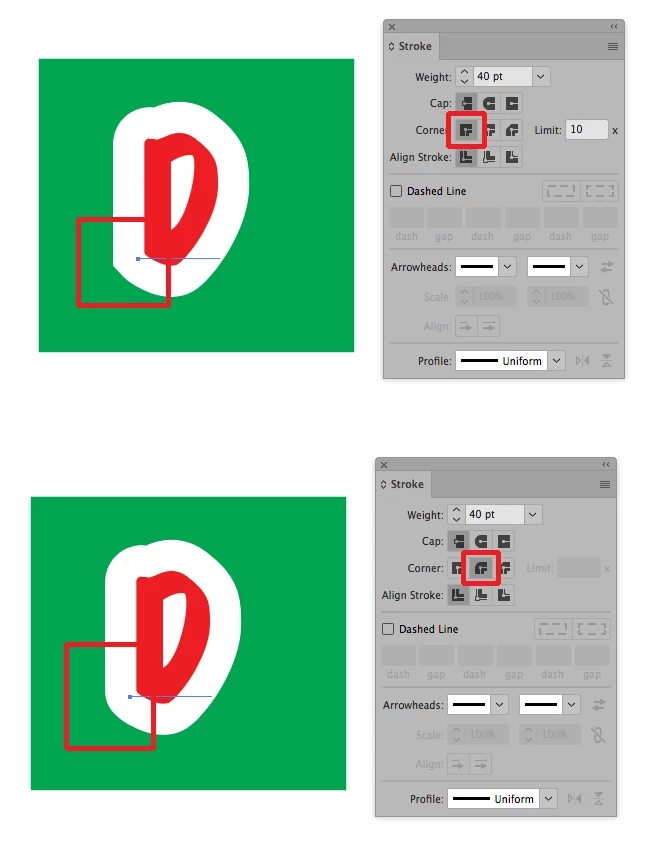
    Assuming that your letters are live type (although they may also have to be separate letters as well) then try the method shown in the screen shot below:

    The default corner join method is shown in the top picture (all joins come to a sharp point). In the second picture the Corner join is changed to a rounded corner which will smooth out the joint as shown.

    3 replies

    Bill Silbert
    Community Expert
    Bill SilbertCommunity ExpertCorrect answer
    Community Expert
    December 21, 2017

    Assuming that your letters are live type (although they may also have to be separate letters as well) then try the method shown in the screen shot below:

    The default corner join method is shown in the top picture (all joins come to a sharp point). In the second picture the Corner join is changed to a rounded corner which will smooth out the joint as shown.

    Monika Gause
    Community Expert
    Community Expert
    December 21, 2017

    You will need to expand the text and convert it to outlines.

    Inspiring
    December 22, 2017

    As Monika suggests - converting the text to outlines is a good start. But then you'll need to ungroup, and then select the path that contains the pointy part that you want to delete. Switch to the pen tool, and then hover near the point that you want to remove - the pen tool will show a small minus sign - click the point and it will disappear. You can use the open selection tool (the arrow that isn't filled in) to move points on the path, and you can use the Smooth Tool (it's under the pencil tool) to adjust the outline paths as needed.

    Doug A Roberts
    Community Expert
    Community Expert
    December 21, 2017

    on the one with the white stroke, select the stroke and either decrease the mitre limit or set corners to Rounded.