New Participant
October 24, 2022
Answered

Error- Localized resources files could not be loaded..... MAC | OS X Monterey I INTEL

  • October 24, 2022
  • 1 reply
  • 5612 views

Hi, after I unstalled the new illustrator version 27.0  I get this massage

"Localized resources files could not be loaded. Please reinstall this application to solve the problem."

when trying to start Illustrator I reinstalled 26.x  and now I get this error whinhin every illustrator installation,  I deleted illustartor cache | adobe illustrator prefs... and still get this massage for all 27,0 - 26.x versions , Is there anything else I could do? to fix it?


This topic has been closed for replies.
Correct answer Anshul_Saini

Hi @ccn9693696,


We are sorry for the trouble. This could happen due to various reasons:

  • The installation is corrupted.
  • Installation location is not the default C: drive or Applications folder on Mac.
  • Drive name or username contains a special character.


Would you mind clean uninstalling the whole Creative Cloud apps using the Cleaner tool (https://helpx.adobe.com/creative-cloud/kb/cc-cleaner-tool-installation-problems.html) and reinstalling them from the Creative Cloud Desktop app (https://helpx.adobe.com/download-install/using/download-creative-cloud-apps.html)?


Also, remove any residual Adobe folder & files from the following location:


Windows:

C:\Users\<username>\AppData\Roaming

C:\Users\<username>\AppData\Local

C:\Users\<username>\AppData\LocalLow

C:\Program Files\Adobe
C:\Program Files\Common Files\Adobe
C:\Program Files (x86)\Adobe
C:\Program Files (x86)\Common Files\Adobe
C:\ProgramData\Adobe


macOS:

  1. (Clear user library) Shift + CMD+ G [Go to Folder]~/Library
     - Delete folder:~/Library/Application Support/Adobe & any com.adobe files in the Application Support folder
     - Delete folder: ~/Library/Caches/Adobe & any com.adobe.plist files in the Caches folder
    - Delete folder: ~/Library/Preferences/Adobe & any com.adobe.plist files in the Preferences folder

  2. (Clear system library) Shift + CMD+ G [Go to Folder] /Library
     - Delete folder: /Library/Application Support/Adobe & any com.adobe files in the Application Support folder
     - Delete folder: ~/Library/Caches/Adobe & any com.adobe.plist files in the Caches folder
     - Delete folder: ~/Library/Preferences/Adobe & any com.adobe.plist files in the Preferences folder

  3.  Delete all Adobe Folders from Applications > Utilities


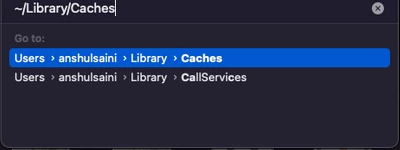
Note: Location starting with this "~" sign indicates the User Library, which is hidden. So, you need to copy & paste the exact path in spotlight search or from Finder Menu > Go > Go to Folder > Paste the location in the dialog box like this:
 

Let us know how it goes. I will be looking forward to your response.


Thanks & Regards,

Anshul Saini

1 reply

Anshul_Saini
Community Manager
Anshul_SainiCommunity ManagerCorrect answer
Community Manager
October 28, 2022

Hi @ccn9693696,


We are sorry for the trouble. This could happen due to various reasons:

  • The installation is corrupted.
  • Installation location is not the default C: drive or Applications folder on Mac.
  • Drive name or username contains a special character.


Would you mind clean uninstalling the whole Creative Cloud apps using the Cleaner tool (https://helpx.adobe.com/creative-cloud/kb/cc-cleaner-tool-installation-problems.html) and reinstalling them from the Creative Cloud Desktop app (https://helpx.adobe.com/download-install/using/download-creative-cloud-apps.html)?


Also, remove any residual Adobe folder & files from the following location:


Windows:

C:\Users\<username>\AppData\Roaming

C:\Users\<username>\AppData\Local

C:\Users\<username>\AppData\LocalLow

C:\Program Files\Adobe
C:\Program Files\Common Files\Adobe
C:\Program Files (x86)\Adobe
C:\Program Files (x86)\Common Files\Adobe
C:\ProgramData\Adobe


macOS:

  1. (Clear user library) Shift + CMD+ G [Go to Folder]~/Library
     - Delete folder:~/Library/Application Support/Adobe & any com.adobe files in the Application Support folder
     - Delete folder: ~/Library/Caches/Adobe & any com.adobe.plist files in the Caches folder
    - Delete folder: ~/Library/Preferences/Adobe & any com.adobe.plist files in the Preferences folder

  2. (Clear system library) Shift + CMD+ G [Go to Folder] /Library
     - Delete folder: /Library/Application Support/Adobe & any com.adobe files in the Application Support folder
     - Delete folder: ~/Library/Caches/Adobe & any com.adobe.plist files in the Caches folder
     - Delete folder: ~/Library/Preferences/Adobe & any com.adobe.plist files in the Preferences folder

  3.  Delete all Adobe Folders from Applications > Utilities


Note: Location starting with this "~" sign indicates the User Library, which is hidden. So, you need to copy & paste the exact path in spotlight search or from Finder Menu > Go > Go to Folder > Paste the location in the dialog box like this:


Let us know how it goes. I will be looking forward to your response.


Thanks & Regards,

Anshul Saini

New Participant
November 2, 2022

Hi Anshul, thank you very much for your respond on this topic - I tryed everythink finally I had to deinstall  and install the hole cc applications including creative cloud    - now its  working 🙂 - Thanks & Regards

Chris   

Anshul_Saini
Community Manager
Community Manager
November 3, 2022

Glad to hear that, @ccn9693696.


Please feel free to reach out if you run into any issues or queries in the future. We'd be happy to help.


Thanks,

Anshul Saini