Participating Frequently
November 13, 2016
Answered

Expand not working as expected
  • November 13, 2016
  • 1 reply
  • 5997 views

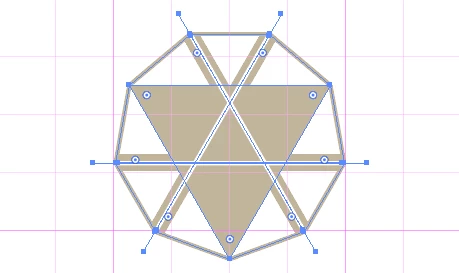
I have a design consisting of a triangle, a polygon and some lines.
I want to convert this whole thing as a single new object so I can use Live Paint to color all the white open spaces.

I thought this was called "Expand", but when selecting all the elements and selecting "Expand", nothing happens.

😕😕

    This topic has been closed for replies.
    Correct answer Ton Frederiks

    I think that you will see the difference between Live Paint or not in my two first messages in this thread.

    But I can share an image og how I want the design to be when expanded. The open white spaces is what I want to fill.
    The design consists of a 9-sided polygon with a stroke, three lines with a fat stroke and three lines with a thin white stroke as well as the filled triangle.


    Like Monika said: first expand strokes then convert to Live Paint.

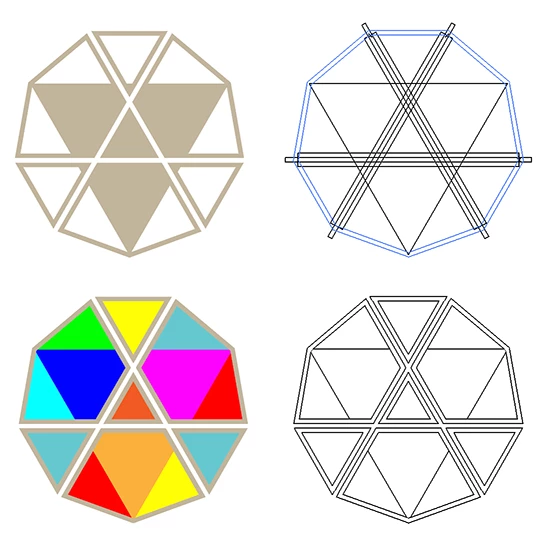
    In this image above the logo made of fills and strokes and after Object > Path > Outline Stroke

    Below the result with Live Paint and after Live Paint > Expand  cleaned up with the PathFinder.

    1 reply

    Ton Frederiks
    Community Expert
    Community Expert
    November 13, 2016

    As far as I can see there are no effects applied to this design, so there is no need to Expand.

    To use Live Paint select the design and choose: Object > Live Paint > Make.

    joakimblAuthor
    Participating Frequently
    November 14, 2016

    Thanks! You were right. But now the live paint didn't behave as expected.

    Small triangles were added. Might be because of some overlap?

    Ton Frederiks
    Community Expert
    Community Expert
    November 18, 2016

    I marked your answer as the correct one although I didn't understand everything you said. Maybe you want to break down how you achieved the different results? For now I found a quick hack to make it into a unified design on a transparent background:


    1. I saved the design "for web" at a really large size (4000px wide).
    2. I opened the saved image in Illustrator.

    3. I traced it with Object/Image Trace/Make.

    4. I deleted a lot of white spaces and even an object that had the whole design in it,

    until I had just the design in it's simplest form on a transparent design.


    Here you can download the Illustrator file that shows the various steps:

    Adobe Creative Cloud