robinv26133553
Participant
January 13, 2021
Answered

Export an SVG with grain texture

  • January 13, 2021
  • 1 reply
  • 3576 views

Hello ! I have learned recently a new method to add grain texture on my illustration. I want my output file was an SVG to use such as a design for a website. The method is to add a mask on a copie of the form, and to add gradient and grain fx on this mask. The problem is, when I export the file in SVG the layer with the mask have totally disappeared. If I try to export in SVG the layer with mask lonely is not working.

The goal:
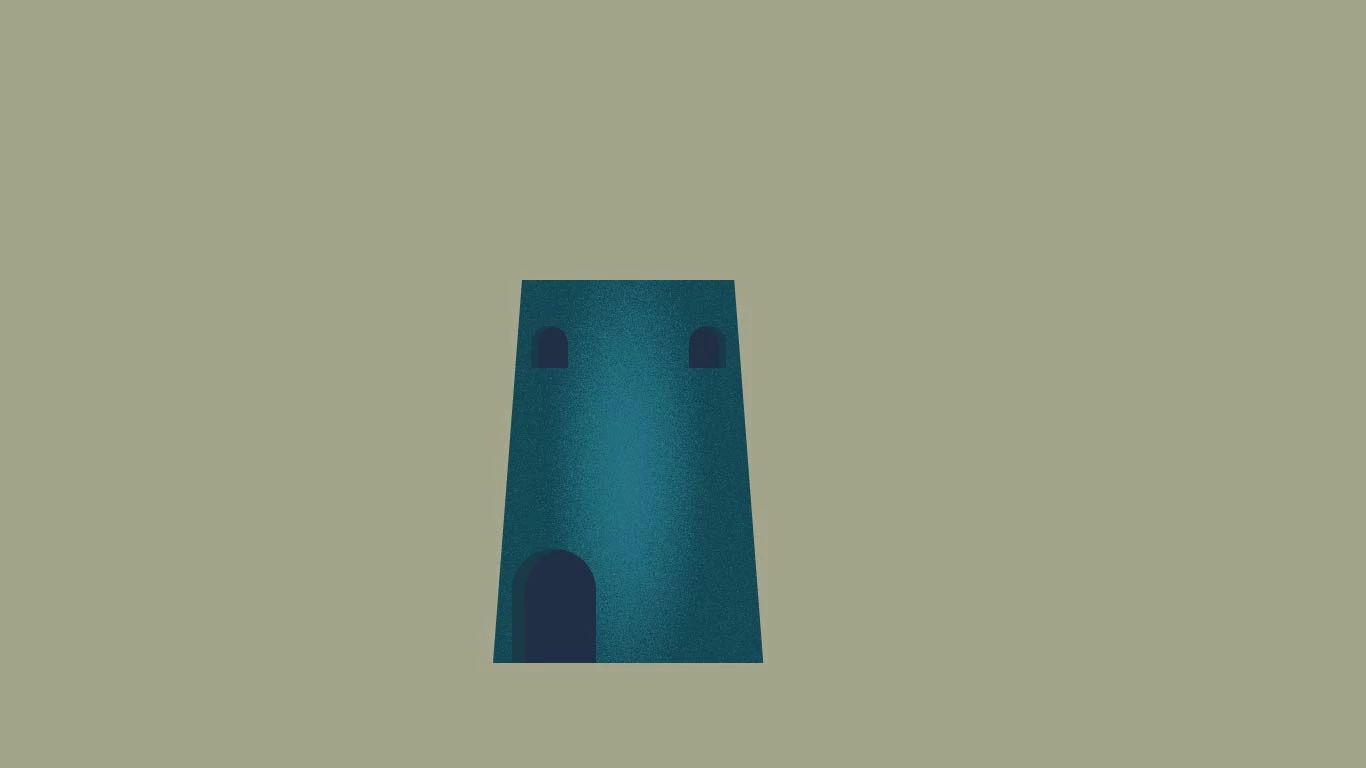
The result when I export in svg :
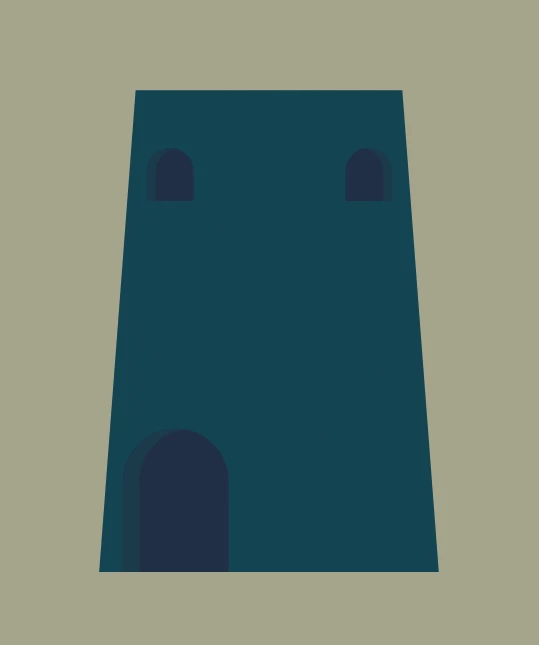
 

If you take time to read this, thank you very much !
This topic has been closed for replies.
Correct answer robinv26133553

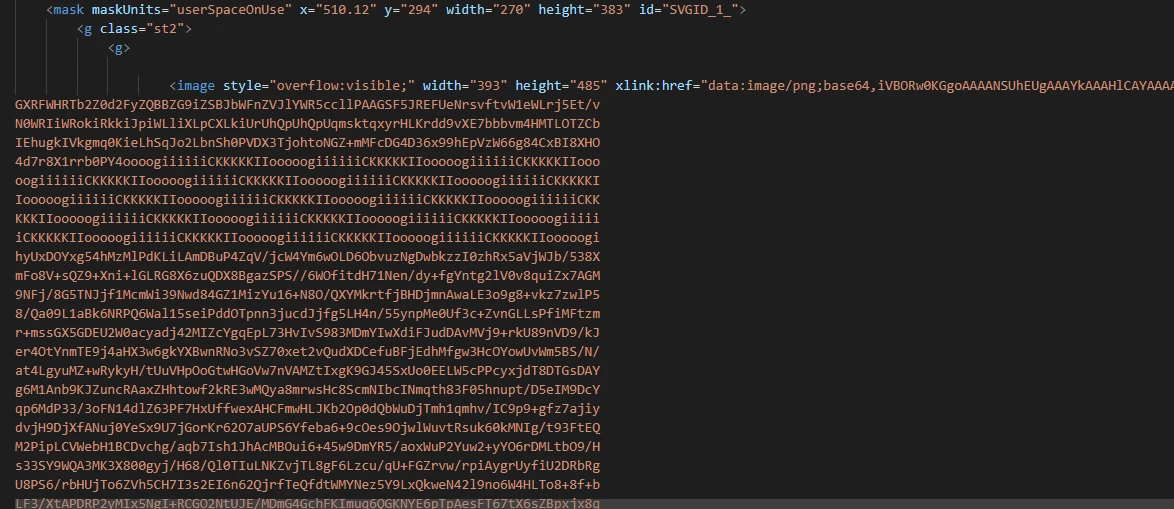
Ok, I found a solution ! Illustrator export the mask, we can see the mask in the SVG code, but I think SVG not supports Superposition (in French, maybe layering in English) transparence mode. To counter that, we can adjust the opacity and color of the layer mask (image 2). 

The mask code in SVG :

Image 2, modify the fill color and add opacity: %; :

the result:


Thank you for your reply !


1 reply

Monika Gause
Community Expert
Community Expert
January 13, 2021

When making an SVG, you are exporting code. So you can only create in Illustrator what the SVG specifications support. SVG supports alpha masking, but it looks like Illustrator cannot export it correctly.

So your only options seems tobe tocreate this by coding it, or to convert the whole thing into pixels and then of course make a feature request on Uservoice.

Please post feature requests to http://illustrator.uservoice.com


robinv26133553
robinv26133553AuthorCorrect answer
Participant
January 13, 2021

Ok, I found a solution ! Illustrator export the mask, we can see the mask in the SVG code, but I think SVG not supports Superposition (in French, maybe layering in English) transparence mode. To counter that, we can adjust the opacity and color of the layer mask (image 2). 

The mask code in SVG :

Image 2, modify the fill color and add opacity: %; :

the result:


Thank you for your reply !


Monika Gause
Community Expert
Community Expert
January 13, 2021

Glad you could solve it and thank you for the added information.