


- Home
- Illustrator
- Discussions
- Export options do not work correctly after latest ...
- Export options do not work correctly after latest ...

Copy link to clipboard
Copied
I'm all for creative new ways of doing things as long as they work. So far Illustrator's new export options are slowing down our department's workflow.
When we export graphics, our company has a complicated and strict filename convention and the file must be exactly 300dpi. When we export to a PNG, we expect the filename to stay the same. With Illustrators new Export for Screens option, we have to find the exported PNG and rename it. Half the time we have to crop out blank space Illustrator creates for no reason. On top of that, setting the dpi to 300 is next to impossible with the Export for Screens Scale settings.
Let export Mr. Pickle here as a 5" x 5" 300 dpi PNG.


First, there is no way of saving the filename. With this option we're forced to use the "suffix" box to name files otherwise it saves the filename as Asset1.png or Artboard1.png. This is unacceptable. Second, there is no way of selecting 300 dpi. Instead we're required to enter 4.16x to get something close to that dpi size. I think 4.16X gives us 299.519 dpi. This is a ridiculous way to set the dpi.
For my company, Export for Screens is useless.
Now lets use Export As... (the option we've been using for years)
Here we have a 16.53 x 6.85 artboard.
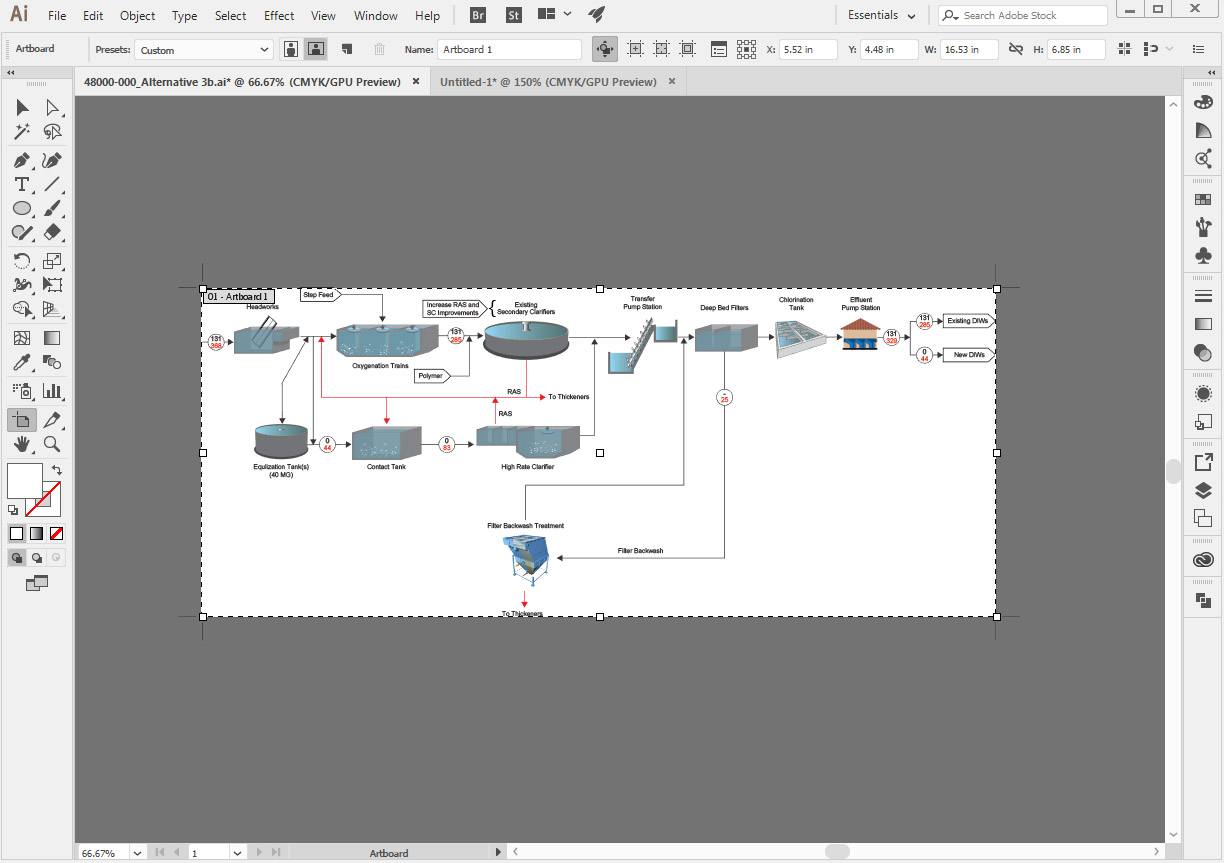
Without selecting "Use Artboards" (because it alters the filename), let see what Export As does.

At least the filename convention is working this time. Let's export.

I can already see this doesn't look right. There is additional blank space being added above the artboard. I have checked this file a dozen times and there are absolutely no objects locked or unlocked above the artboard. Here's the result.

So what new Hell is this? Now the exported image needs to be cropped in Photoshop. Oddly this doesn't happen on every document, but it happens enough to annoy the Hell out of us.
As far as I'm concerned, this is sloppy programming and far from an improvement over the previous methods of exporting.


 1 Correct answer


To answer your Export for Screens problem:


Explore related tutorials & articles
 12
Replies
12
12
Replies
12

Copy link to clipboard
Copied
To answer your Export for Screens problem:

Copy link to clipboard
Copied
I cannot reproduce your second problem with Export As...
Maybe there are some stray points outside the artboard.
You can try Object > Path > Clean Up... to get rid of them.
To check and get rid of objects outside the artboard:
Select > All on Active Artboard
followed by Select > Inverse
Delete the selection.
Copy link to clipboard
Copied
Thanks Ton. That helps with the dpi setting.
Unfortunately double-clicking the asset name and retyping a filename that sometimes exceeds 100 characters is not an effective solution for most companies. Many of the files we open are from links or recently opened files. To change the filename we would have to track down the actual folder, copy the long filename, double-click the asset name and paste the long name in....every time we export. Once again Export for Screens drastically slows down the workflow.
I tried your suggestions for removing stray points with Clean up and inverting and deleting the selection. Unfortunately that did not work. I'd be more than happy to send you one of the files that causes the extra space error if you want to experiment.
Thanks for the quick reply.
Copy link to clipboard
Copied
Hi Mikey,
if you can share such a problem file, I'm happy to have a look.
Regarding track down the filename of an open file:
File > File Info... gives you the Document Title.
Copy link to clipboard
Copied
Thanks again. I think we'll have to stick with Export As for the time being since it doesn't require a filename workaround.
Is it possible to send you the file via email? I'm not allowed to post our company's FTP links on public forums.
Thanks.
Copy link to clipboard
Copied
You can use Drop box or a similar file sharing service.
Since you have CC you can also share it from within your Creative Cloud folder and post the url.
Copy link to clipboard
Copied
Thanks again Ton.
Copy link to clipboard
Copied
I think the Oxygenation Trains object causes the problem.
It contains lots of unnecessary points (although that should not be causing this).
There is a large rectangle in the background that causes the export to be larger than expected.
If you release cilpping masks, you can select and delete it, but that causes other problems.

Copy link to clipboard
Copied
I see what you mean. Do you think a clipping mask should dictate the dimensions of the exported PNG though? That seems like a major problem.
Copy link to clipboard
Copied
No, normally it doesn't.
This seems a strange kind of clipping mask, because you cannot easily select it.
I guess that the object and clipping mask are not created in Illustrator, but imported/converted from another app.
Copy link to clipboard
Copied
Strange doesn't even come close. That oxygenation train was either poorly designed or imported from God knows where. There has to be 1,000 unseen garbage objects behind what we're actually seeing. Anyway, thank you for finding that. Now I can redesign it.
Copy link to clipboard
Copied
Glad I could help.


Get ready! An upgraded Adobe Community experience is coming in January.
Learn more
 AdChoices