
LiisaPI
Participant
March 22, 2019
Answered

Exporting as PNG in Illustrator won't export as transparent

  • March 22, 2019
  • 8 replies
  • 35574 views

Hello Everyone, I was hoping to get some assistance.

Right now I'm in the process of editing some company logos and I need to export them as PNG's with different backgrounds.

I make my edits with the logo and make sure that there is no background by showing the transparency grid:

As shown above there is no background behind the logo, so when I go to export the AI file, I select export as -> then select PNG from the file list -> I don't select anything from the artboards option:

Then I get the preview in Adobe Illustrator for my export, I select transparent from the drop down and it shows in the preview that it will show up transparent:
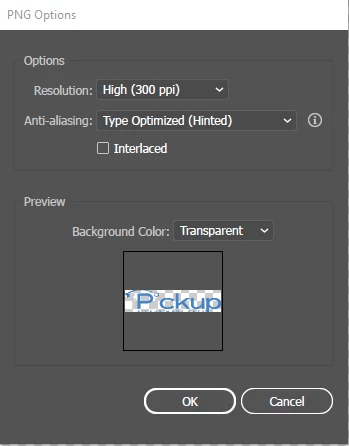
But when I go to the file, no matter what I open it with, it has a white background only. This also happens when I select black background.

Any help would be hugely appreciated because this is very frustrating.

    Correct answer p_r_media

    Never mind, just figured it out. There was a white box that was somehow linked to the artboard I think. Fixed now!

    8 replies

    Participant
    August 6, 2025

    I am having this same issue. I see people saying that you can use the "Asset Export" panel but I am trying not to use that because if you go to file>export>png you can get higher resolution. When I do the assest export, it has a transperent background but with the other way, even when it is set to transperant background, it is still white. I saw someone said it was the Apple Preview app but I opened it in PS and it still has the same white background.

    p_r_mediaCorrect answer
    Participant
    August 6, 2025

    Never mind, just figured it out. There was a white box that was somehow linked to the artboard I think. Fixed now!

    Inspiring
    November 10, 2024

    Hello,

    I just had this issue with the newest version of Illustrator. 29.0.1 ( November 2024 ).

    Go to the "Asset Export" panel and click on the hamburger menu and choose "Format settings".

    This will open a new panel with options for each format. PNG, SVG, etc.
    For some reason transparent background was OFF on my system. Just turn it on.


    This should be the default.

    Participant
    November 18, 2024

    thanks scottmadore..

    the latest update should make transparent bg as the default.

    Participant
    June 12, 2024

    change the color mode from CMYK to RGB, this wored for me

    Najah Hasan
    Participant
    April 28, 2024

    I have same this issue,  if have fix it please help me.

    Monika Gause
    Community Expert
    Community Expert
    April 28, 2024

    Please show your artwork.

    Community Manager
    May 3, 2024

    Hello @Najah370420985hmq,

    We understand that encountering technical issues can be frustrating. Would you mind sharing some more details, like the exact version of the OS/Illustrator, screenshots of the settings used for exporting your work, and public links to a sample Ai and PNG file you're having trouble with, after uploading them to Dropbox/Google Drive/etc., so we can investigate this further?


    Looking forward to hearing from you.


    Thanks,

    Anubhav

    Participant
    February 4, 2023

    I had this same problem too. When I exported from Illustrator, the preview was fine but when I opened the file, the background was black not transparent. So I opened in photoshop, background transparent, beautiful!! But resaved as a  out of Photoshop? Black background again. So I ran a basic test print, no black background printed, which tells me...the problem is NOT the Adobe software, but the Apple Preview software we use to view the PNG file.

    Easy fix!!

    Go to Preview->Preferences->General tab, you'll see background color, click the rectangle of the background color swatch so it has a white box around it, and when the color changer pops up? Slide that opacity slider all the way to the left. Make sure you have the black background PNG file open when you do this and it will end up changing in tandem with you adjusting the slider and you'll see a white background, but its actually transparent. I hope this helps everyone experiencing issues. Sure is a lot easier than some of the solutions posted here. Good luck!

    Participating Frequently
    April 1, 2022

    Hi there, did you ever figure out a solution? I'm having the same issue now and it's super frustrating.

    Dave Creamer of IDEAS
    Community Expert
    Community Expert
    April 1, 2022

    It's working on my system--however, it didn't work the first time even though the settings were set to "Transparent". The second time, I changed the background to white and then back to transparent, which worked. 

    David Creamer: Community Expert (ACI and ACE 1995-2023)
    Ton Frederiks
    Community Expert
    Community Expert
    March 22, 2019

    What do you open it with? Did you try Photoshop?

    Did you try to place the PNG in Illustrator on a colored background?

    Jacob Bugge
    Community Expert
    Community Expert
    March 22, 2019

    kyler,

    For crisp and clear artwork, it is important that you create the PNG at exactly the final pixel x pixel size, and the safest way to do that is to use the Legacy Save for Web because you can see the Image Size.

    And that may rid you of the issue as a pleasant side effect.

    LiisaPI
    LiisaPIAuthor
    Participant
    March 22, 2019

    the white background even appears when I do the save for web option when transparent is selected and the preview shows it.

    Monika Gause
    Community Expert
    Community Expert
    March 22, 2019

      schrieb

    the white background even appears when I do the save for web option when transparent is selected and the preview shows it.

    Which application do you use to view your PNGs?