
Copy link to clipboard
Copied
Hey all!
I had a problem with exporting in Illustrator before, then changed settings accordingly the feedback, but now when I export, it happens again. (I'll post the previous question link here: https://community.adobe.com/t5/illustrator-discussions/colours-change-when-exporting-illustrator/m-p...)
Every time I export a file, the colours change. Now, I wanted to export several files to SVG/PNG to use in another program but the colours get dull. Can anybody help me out? My steps now are as following:
- export
- export as...
- PNG (use artboards):
-
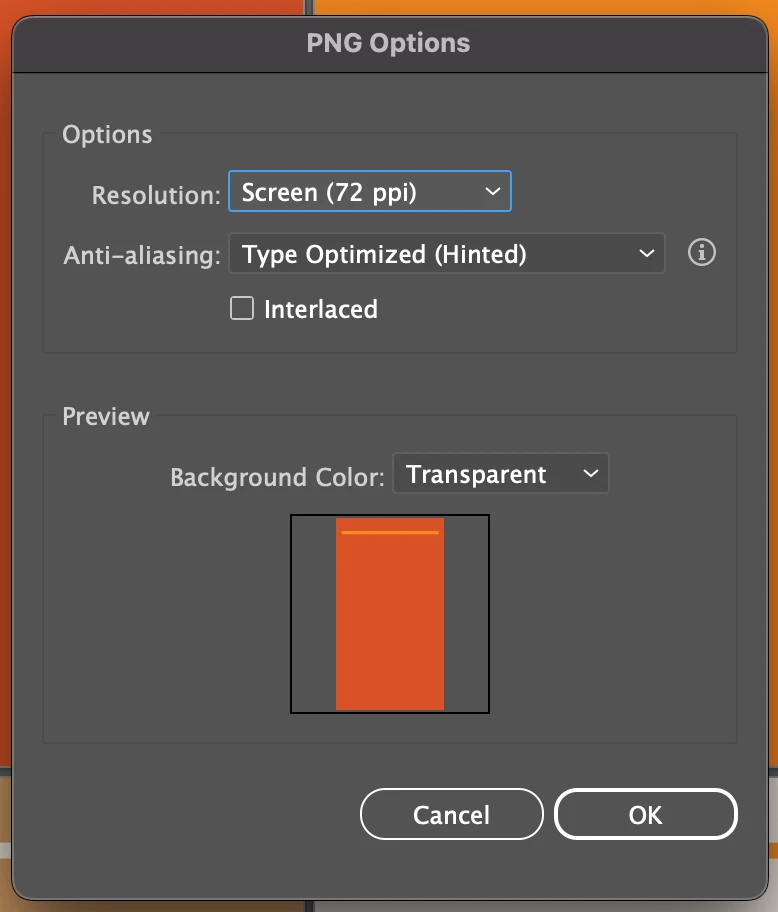
OR
- SVG (use artboards)
-
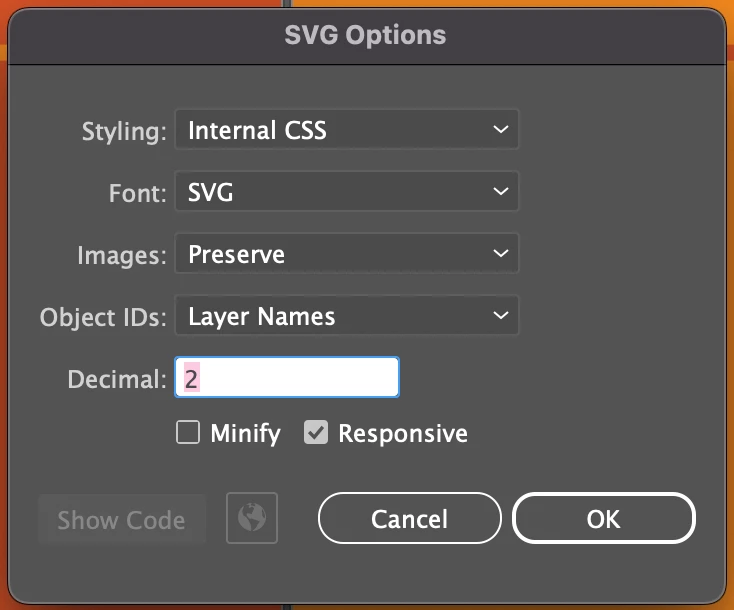
(I must say that here i have no idea what all the settings mean).
My colour settings are set as following:
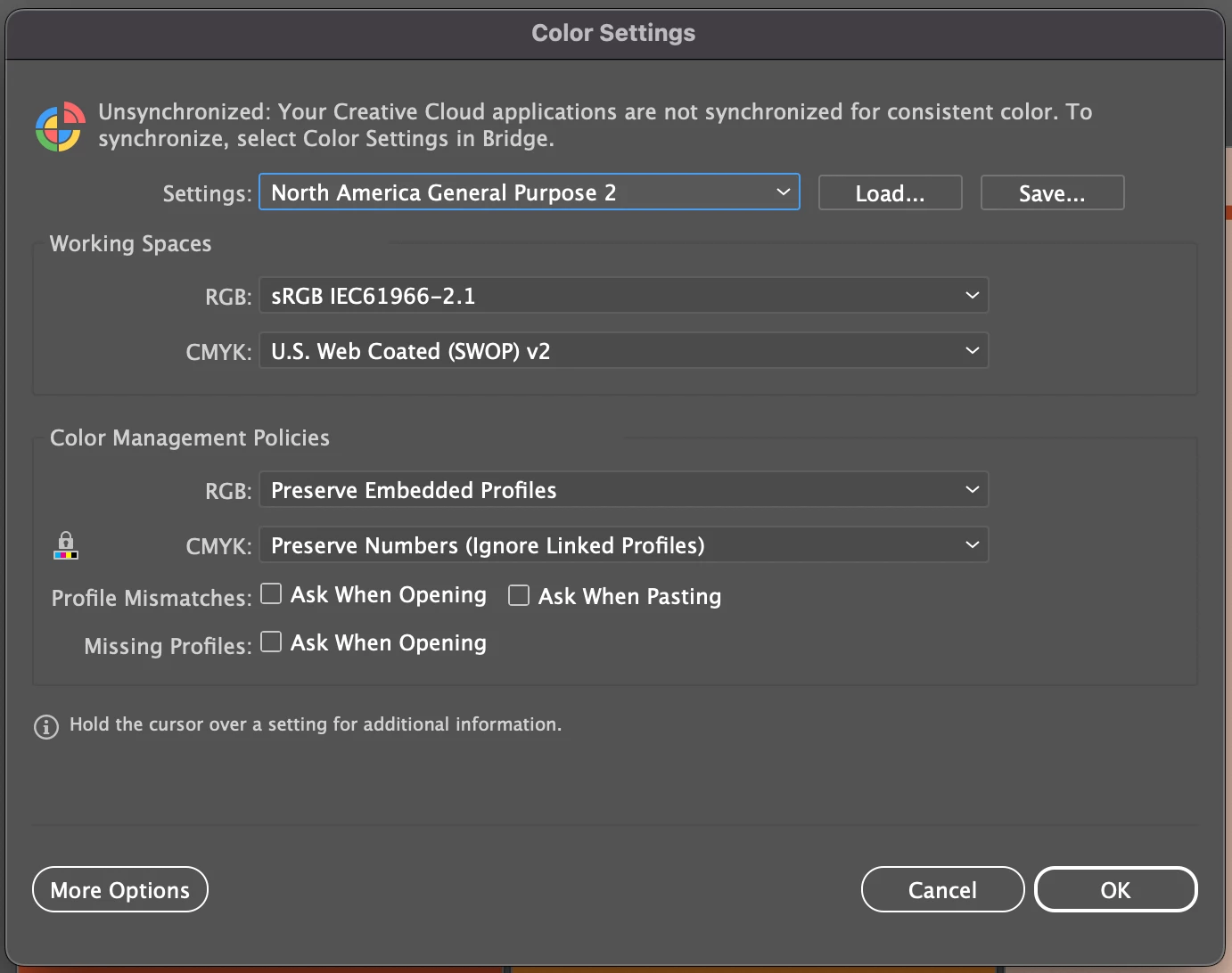
Assign profile is like this:
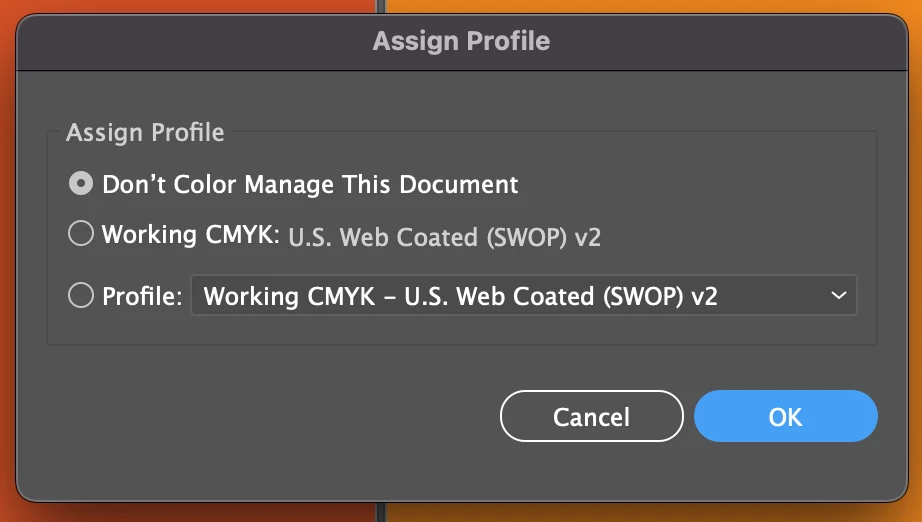
Is there anyone who can help me out? It is much appreciated!
Copy link to clipboard
Copied
If you export a PNG, then Illustrator doesn't embed a color profile and then indeed when other applications render it with the wrong profile, it might get dull.
Which other applications do you use for opening the exported files? ANd can you show screenshots?
In Illustrator do you work in CMYK or in RGB color mode?
Copy link to clipboard
Copied
Hey! Ah okay. I imported them in canva. I will add a screenshot here. I work in CMYK since I will use this work for online purposes only.
this is the correct colours
this is how they turn out.
left is more dull and right is more vibrant (left is a screenshot now though so looks maybe a bit different in the export) (L = #BB6240 R= #C75C35)
Copy link to clipboard
Copied
If you only use it online, you will want to work in RGB, not CMYK.
And if you export it as a PNG, make sure to open it in Photoshop afterwards and attach the sRGB profile.
But actually, nobody knows how Canva handles profiles and if it was even built for the purpose of correct color.
Copy link to clipboard
Copied
Okay I will, thank you. If i now change 'assign profile' to RGB, the colours also turn dull... is there a way to overcome this? the colour # codes stay the same...
I will try the Photoshop sRGB profile, never did that before! Thanks
Copy link to clipboard
Copied
@Fauve270195403ngw schrieb:
Okay I will, thank you. If i now change 'assign profile' to RGB, the colours also turn dull... is there a way to overcome this? the colour # codes stay the same...
Can you please details in which app and in which file you assign profile?
BTW: you have a Mac - do you perhaps have 2 monitors?
Copy link to clipboard
Copied
I am working in Adobe illustrator (both 'old' version and Beta) and in one of my working files i now want to change from CMYK to RGB.
I have a Mac, but do not have 2 monitors.
Copy link to clipboard
Copied
I'll add a screenshot now. If i put the eyedrop tool on the on top orange screenshot, it says that it is the same colour as the square below... Obviously, the colours are different.
Copy link to clipboard
Copied
Can you turn on the warnings in your color management?
It could be that the screenshot has a color profile attached which is used to display it. SInce you do not have the warnings on, you do not notice.
Copy link to clipboard
Copied
is that over here? I think i have warnings turned on because if i open a new file, a yellow warning sign pops up
Copy link to clipboard
Copied
i will add how the collor settings are set up, in case that helps.
Copy link to clipboard
Copied
The warnings are the check boxes in Edit > Color settings.
Copy link to clipboard
Copied
Ah ok, as you can see in the screenshot they are turned on!
Copy link to clipboard
Copied
I was looking at a screenshot further at the top where they were off, sorry.
So when you placed that screenshot in your file, did a warning pop up? And also: can you turn off the proof color?
And then also export a file and check the colors in Photoshop?
Copy link to clipboard
Copied
No worries! No there was no warning. This is in a new file i created, since i do not want the colours in the 'original' file to change... the colours still look different than in the original file:
( original file + colours)
(same colour # in the file where I did the changes (RGB, no proof color, etc.)
but i will make the export and check in photoshop now.
Copy link to clipboard
Copied
I get the pop up that my scratch disk is full, i have this almost every time i want to use photoshop, so i cannot open it in Ps 😣
Copy link to clipboard
Copied
THen you need to make room on the disk that you have specified as a scratch disk.
Do you reboot the computer daily? You should.
I can not follow anymore as to what exactly you did. You need to learn color management. And also set it up properly on your computer. There are courses available on LinkedIn Learning that you might be able to watch via your local library. Unfortunately the Illustrator documentation only covers the bare basics. It works the same in all the apps, so here's it in Acrobat: https://helpx.adobe.com/acrobat/using/color-management.html
Copy link to clipboard
Copied
I have never specified a scratch disk but I will make sure to find out what is it and try and make some space.
I do not, but gonna do it!!! thanks for the tip.
And i think i will try and set up a meeting with Adobe where someone looks at your computer and all the settings to see if they can find out. I have no clue on how to fix it, since even with your tips the export is different... Thank you so so much for all your effort!
Copy link to clipboard
Copied
Hello @Fauve270195403ngw,
Thanks for reaching out. I hope the suggestions shared by Monika helped resolve the problem. If not, kindly share more details, like the exact version of the OS/Illustrator and sample Ai and output files (https://adobe.ly/3RCCXLo), so we can investigate this further.
Additionally, try recalibrating your monitor for sRGB (https://adobe.ly/3GV2nz3), reboot your computer, and then relaunch Illustrator and share your observations.
Looking forward to hearing from you.
Thanks,
Anubhav
Get ready! An upgraded Adobe Community experience is coming in January.
Learn more