Participating Frequently
May 31, 2012
Answered

exporting seamless pattern tile for output?

  • May 31, 2012
  • 8 replies
  • 62132 views

Hi,

The new Pattern Maker is great in Illustrator CS6 but can it be of any use for textile design? Once the pattern is created I just need the actual pattern tile which I can send for output as seamless pattern. There does not seem to be any export option for the actual tile? Hope this makes sense. Tried creating an artboard to match the size of the pattern tile and fill that with that pattern but that does not work and the pattern is not seamless afterwards

This topic has been closed for replies.
Correct answer Ton Frederiks

hi Wade,

I played around with it over the last two days and it can work on simple patterns, with more complex ones it's a bit of a pain deleting all the paths, fitting the artboard and seeing more need deleting as small gaps appear around the edge. Moreover, this does not work on strokes- if an object with a stroke is on the overlapping edge than after using Path- divide objects below command the stroke will be automatically filled and thus not produce the seamless result.

the tile needs to be absolutely seamless, and the fact that you can piece it manually in a different program does not help. I need to send to printers a seamless file wihich means that it fills the artboard accuratelly with no white gaps on the edges- otherwise the gaps will be reproduced as well and it will be clear where the tile finishes and where it ends

On a positive note it seems to work quite smoothly when you use the basic grid option ( rather than brick repeats etc)- then it seems to be enough to create an artboard of precisely the same size like the pattern tile and fill the tile with the pattern- so as long as the grid is used for repeat all seems rather fine though I have not inspected results in actual print yet. Strangely though, when I output the file the repeat works with my printers software on ai file only, not eps


I think it can be even simpler to save the pattern tile only. No need to delete paths (that can indeed be tricky).

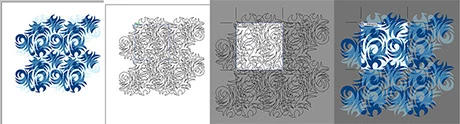
I created a new Web document. Dragged the pattern named Jive to the artboard.

This is a complex pattern. To see the rectangle that defines the pattern it's easier to go to Outline View.

Select all and Ungroup.

Select the rectangle.

Select the Artboard tool (zoom in enough to be able to only click the rectangle) and double click the selected rectangle.

Or go to Object/Artboards/Fit to Selected Art.

That's it! The artboard becomes the size of the rectangle.

Save the file or export it as an image.

regards,

Ton
8 replies

Participant
March 20, 2019

Thank you so much! I was totally stuck till I found your share!

Participant
August 9, 2015

Using Illustrator CC, I have been trying to create a seamless pattern tile for use with spoonflower.com who unfortunately do not accept .AI files. So a .PNG was necessary. I ran dozens of tests in .AI: tried different dpi, tried adding a fill color (black) when creating the tile, when exporting, etc. Got the pattern to tile seamlessly *within* AI, but upon Exporting, a white line would appear at the base of my tile.

Realizing the issue lay with Illustrator's Export settings options, I tested a variety of tiles —very methodically, notes and all—using different export as .PNG settings in .AI. The *only* one that worked (i.e. no white lines) was when I Exported using Optimization:  "None" (versus Type Optimized, Art Optimized) BUT... that meant that my line art looked jagged ('cuz there was zero anti-aliasing or optimizing happening).

I do not want jagged-looking artwork. So I am giving up and starting from scratch in Photoshop (as advised by spoonflower tech support).

BlazinBuffalo
Participant
April 13, 2015

Someone may have said this already but this works for me:

Once the pattern swatch is made, drag the swatch out into an empty part of your canvas. what appears will not be seamless YET. if you select it you will see that there is a box with no fill and no stroke in the back of the art. Make an artboard in the exact place of that box. If you export that artboard, it will be seamless. I know its a bit tedious and I wish there was an easy export pattern option or something, but hey it works for now.

side note: to those saying things like, "why would you want to do this? just apply the pattern to objects" your responses are just cluttering up the forum. If you don't have an answer why write in?

Participant
August 3, 2013

THIS IS MY METHOD

You need to use IL and PS

Basically you make the pattern in IL then paste it in PS and define the pattern.

.

Participating Frequently
October 17, 2012

I ended up on this thread because I have been using Illustrator since Illustrator88, but this new "feature" has me stumped.  Is there a way to simply make patterns the way we could before???    I have TONS of patterns in AI that I sometimes need to create simple pattern fills from to use when designing other products. 

Before, I would simply create a bounding box the size of the page (now artboard), choose "create pattern" and be done with it.  Is there a way to do that now? 

I see that in the pattern editor you can choose to make the pattern tile the same size as the artboard which in essence *should* tile only what is on the artboard, but it shifts it ever so slightly so this is not the case and I cannot find a way around that.  Anybody?  Any help is apreciated. 

I love it (not) when Adobe so over-engineers an "upgrade" that, instead of just working, you have to spend time finding out how to do something you used to do effortlessly.....

Monika Gause
Community Expert
Community Expert
October 17, 2012

You can still create patterns the old way. Just create everything and drag into swatches panel.

Participating Frequently
October 17, 2012

Thanks, Monica.  That does work, however it does leave a hairline where the edges of the pattern are.  Also, I have a few that simply will not drag into the swatch pallete..I make sure everything is unlocked, that there is a bounding box, that everything is selected and when I grab to drag to the swatch pallete, they just continue to drag across the workspace, not into the pallete....  Still, however curious about how to not get the pattern maker tile box to offset when using that particular tool.  Just seems odd that it does that.  

Participant
August 28, 2012

Triggered by this discussion I've uploaded a tutorial, dealing with a situation where you like to create your pattern swatch & artboard in a specific size.

I hope this is helpful: http://www.youtube.com/watch?v=IEt7Q0iqONE

Regards, Wim

Inspiring
June 1, 2012

Drag the swatch to the artboard from the swatch panel there's your tile.

kociara7Author
Participating Frequently
June 1, 2012

Hi Wade,

No this does not solve the problem, you will end up with a white background of your 'art board size' which means the pattern will not tile seamlessly when used by printers.

The previous work around was to create a tile to by making the artboard to the tile size required and make sure all elements are perfectly aligned to left and right ( to overlap when producing a seamless pattern) and up and down as well to achieve the seamless effect. I thought this Pattern maker will do just that but it doesn't! Or am I getting soemething wrong? Can you drag the pattern to the background and make the background invisible somehow? So that the printer just picks up the pattern rather than the background?

It looks this pattern maker is juzr a gimmick, maybe useful to make fills for an artwork but not useful as 'pattern maker' for textile or web designers who need seamless patterns

Ton Frederiks
Community Expert
Ton FrederiksCommunity ExpertCorrect answer
Community Expert
June 5, 2012

hi Wade,

I played around with it over the last two days and it can work on simple patterns, with more complex ones it's a bit of a pain deleting all the paths, fitting the artboard and seeing more need deleting as small gaps appear around the edge. Moreover, this does not work on strokes- if an object with a stroke is on the overlapping edge than after using Path- divide objects below command the stroke will be automatically filled and thus not produce the seamless result.

the tile needs to be absolutely seamless, and the fact that you can piece it manually in a different program does not help. I need to send to printers a seamless file wihich means that it fills the artboard accuratelly with no white gaps on the edges- otherwise the gaps will be reproduced as well and it will be clear where the tile finishes and where it ends

On a positive note it seems to work quite smoothly when you use the basic grid option ( rather than brick repeats etc)- then it seems to be enough to create an artboard of precisely the same size like the pattern tile and fill the tile with the pattern- so as long as the grid is used for repeat all seems rather fine though I have not inspected results in actual print yet. Strangely though, when I output the file the repeat works with my printers software on ai file only, not eps


I think it can be even simpler to save the pattern tile only. No need to delete paths (that can indeed be tricky).

I created a new Web document. Dragged the pattern named Jive to the artboard.

This is a complex pattern. To see the rectangle that defines the pattern it's easier to go to Outline View.

Select all and Ungroup.

Select the rectangle.

Select the Artboard tool (zoom in enough to be able to only click the rectangle) and double click the selected rectangle.

Or go to Object/Artboards/Fit to Selected Art.

That's it! The artboard becomes the size of the rectangle.

Save the file or export it as an image.

regards,

Ton

Inspiring
June 1, 2012

kociara7 wrote:

The new Pattern Maker is great in Illustrator CS6 but can it be of any use for textile design? Once the pattern is created I just need the actual pattern tile which I can send for output as seamless pattern. There does not seem to be any export option for the actual tile? Hope this makes sense. Tried creating an artboard to match the size of the pattern tile and fill that with that pattern but that does not work and the pattern is not seamless afterwards

Preface: I do not presently own CS6. Given that, here are my 2 cents, if I am wrong in my statements below I would like to be corrected and advised otherwise. They are solely based on things I have read and seen regarding the new Pattern Maker Tool in Illustrator CS6. Thanks everyone.

------------

IMHO:

The "Adobe Illustrator CS6 Pattern Maker Tool" is a great concept of a feature, however its seems somewhat underdeveloped in certain areas, even though its being touted and used as a major selling point for Illustrator CS6. The lack of a direct method from with in the Pattern Maker Tool to export your pattern(s) is certainly a glaring drawback. I would certainly expect for the ability to save the pattern swatch as a vector .eps , .pdf ,  as well as a high-res bitmap .png , .tif , .psd , etc…

Here is a recent thread about using "Save for Web" with the Pattern Maker Tool:

http://forums.adobe.com/message/4395971

But even that seems to be rather non-conformed to any standard or ease of use. I truly hope Adobe refines and matures the "Illustrator CS6 Pattern Maker Tool" in a timely manner as it seems like it was rushed to market as an under developed tool and needs refined and improved upon quickly and an update released to improve upon its current status.

Another major drawback is the inability to easily target all 17 wallpaper groups.

http://en.wikipedia.org/wiki/Wallpaper_group

I feel and assume that all 17 groups should be be natively supported as well as the built in export options from the Pattern Tool itself, as mentioned above.

kociara7Author
Participating Frequently
June 1, 2012

HI,

many thanks for this. I looked at the export for web forum discussion you recommended and that is exactly what I need, I am glad others noticed the problem too!

I haven't tried the complex work around yet but I can see that having this tool is probably not going to be much of a help for me. I am surprised that Adobe actually added it as is, though perhaps it is good for creatimng patterns for fills, not actual seamless patterns... What a shame! This would hae been a deal maker for me to upgrade. Now I am thinking, perhaps, I should save my money and invest in proper pattern making sotware...

I will try to try the solution from the web forum, complex as it is,  to see whether it works for me after all