
Copy link to clipboard
Copied
I am working on a office scene in Illustrator and for some reason whenever I create a shape like a rectangle or round rectangle, I get a bigger shape than what I wanted. For example when I create a path for steam on my coffee mug, I have extra padding around the path and I don't want that there.
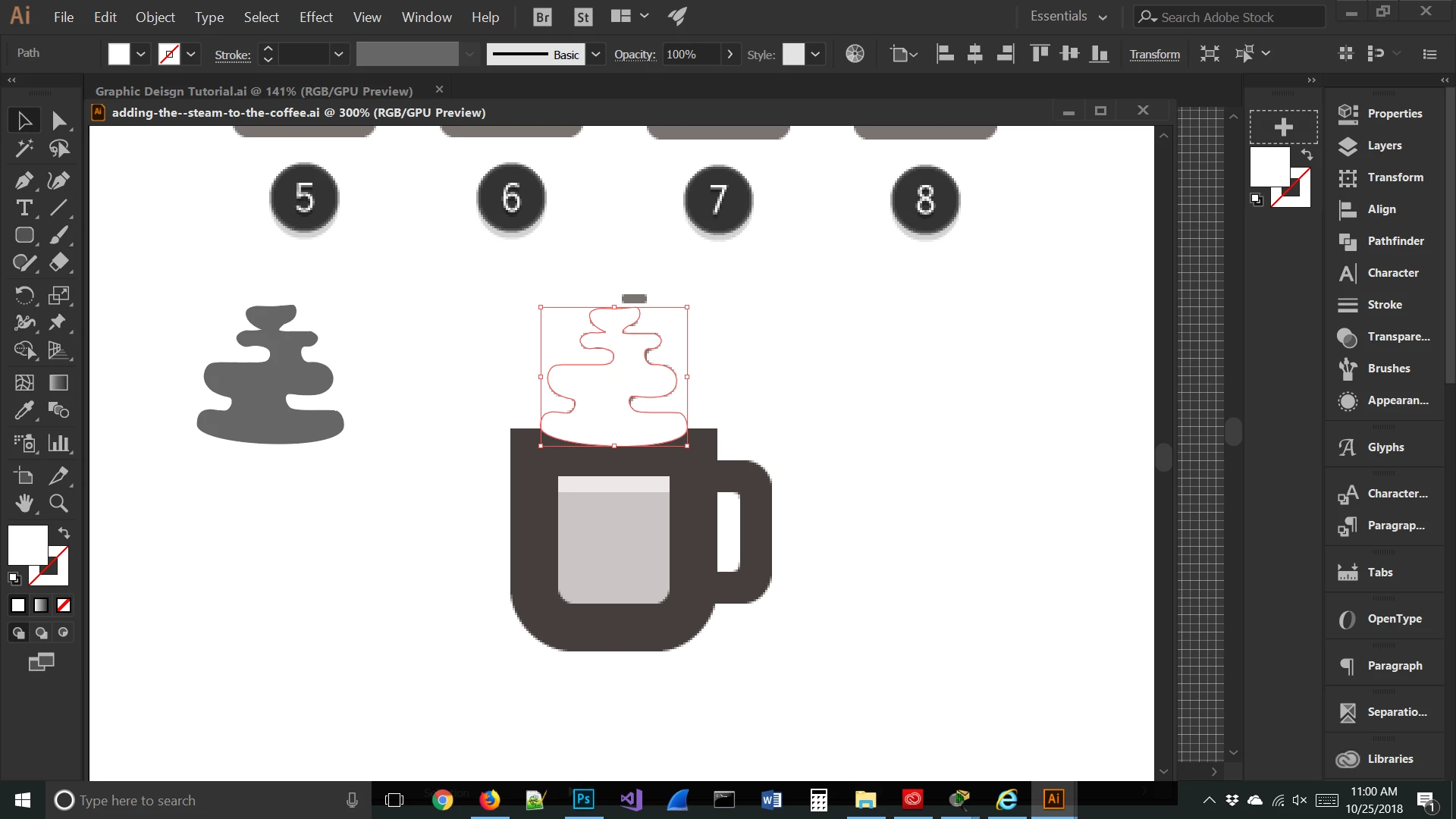
I created this path for the steam on my coffee mug and I pasted it into my actual working file (pictured below)
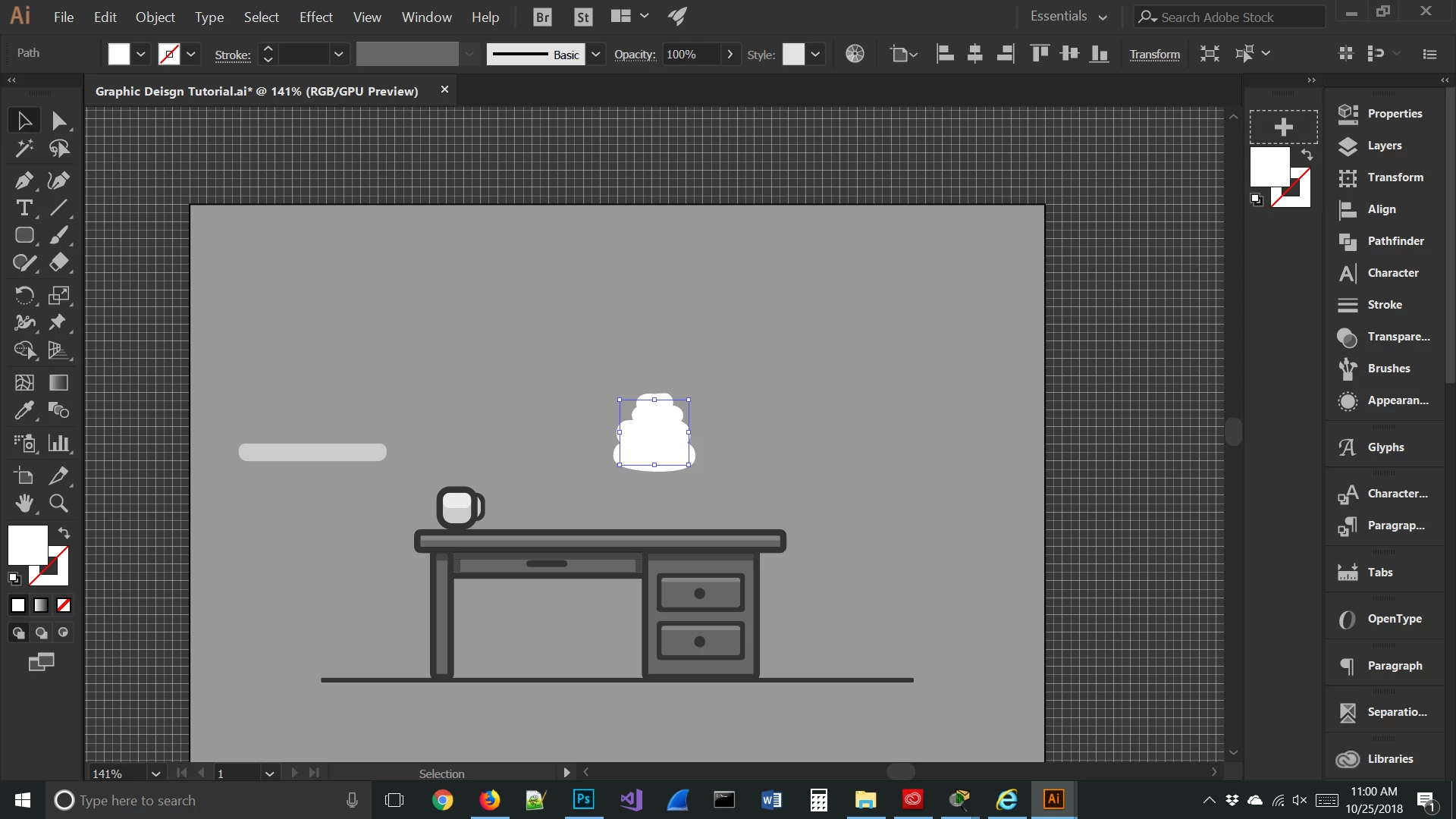
and there is padding around the entire path and I do not want that there, I just want the path.
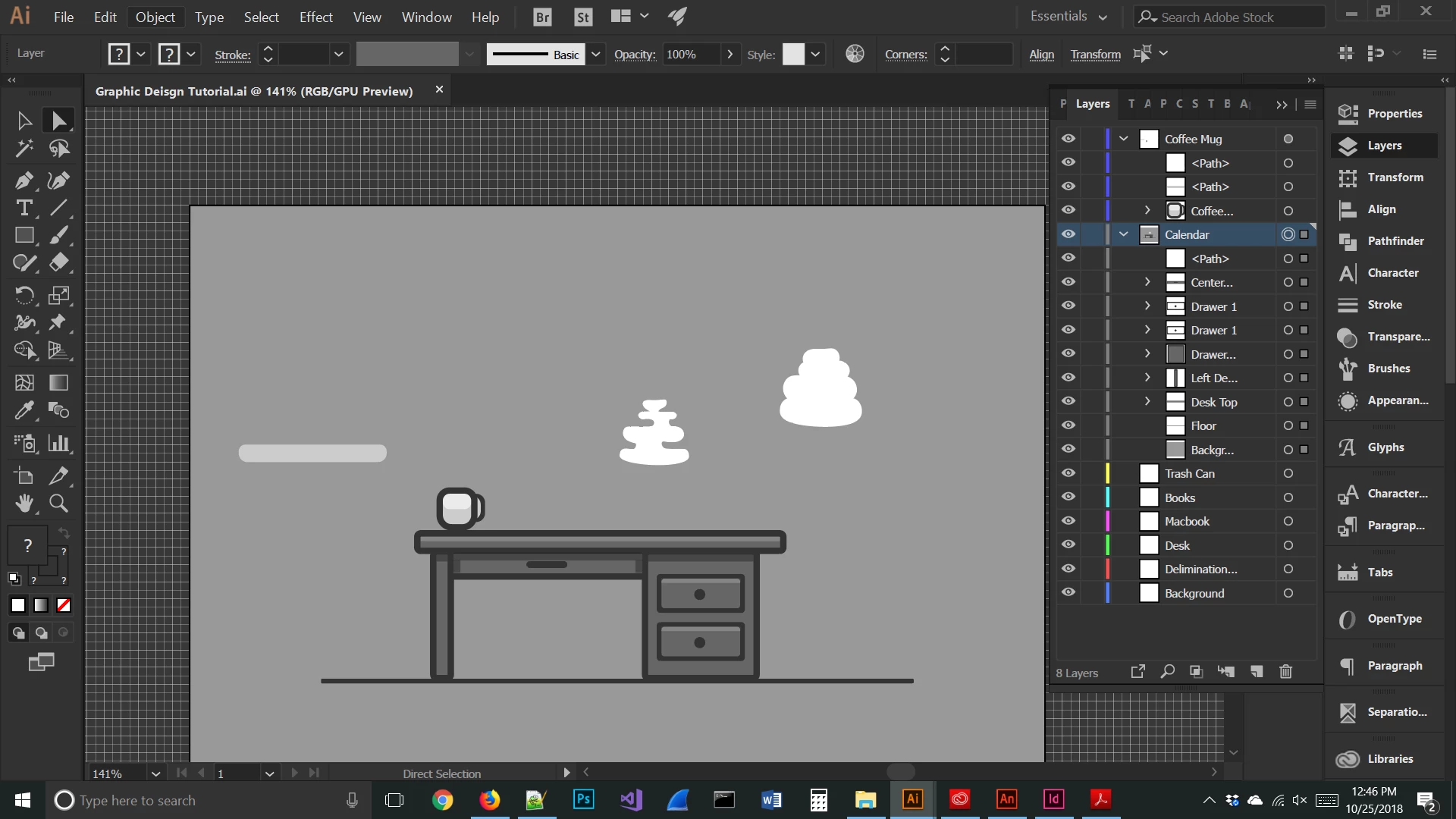
Somehow you added a thick stroke to the layer itself, so everything drawn on that layer will have that appearance. You need to go to the layer panel, click on the circle on the right side of the panel (where it is sort of filled in looking) and drag it to the trash.
Copy link to clipboard
Copied
It's hard to figure what might be going on there.
Are you saying that if you copy this:

...from one document, and paste it in this other document, it now looks like this?

Without any other actions on your part?
Can you make another screenshot of the problematic object, selected with Direct Select (white arrow), and with the Appearance panel in view?
Copy link to clipboard
Copied
Yes that is what I am saying!

Copy link to clipboard
Copied
So there appears to be an effect on the layer itself - that must be what is causing it.
Copy link to clipboard
Copied
Your right, how would I change this effect? I don't even know how it got this effect.

I pasted the same path into the calendar layer and it appeared correctly.
Copy link to clipboard
Copied
Somehow you added a thick stroke to the layer itself, so everything drawn on that layer will have that appearance. You need to go to the layer panel, click on the circle on the right side of the panel (where it is sort of filled in looking) and drag it to the trash.
Get ready! An upgraded Adobe Community experience is coming in January.
Learn more