October 18, 2018
Answered

Filling a letter with text

  • October 18, 2018
  • 3 replies
  • 3101 views

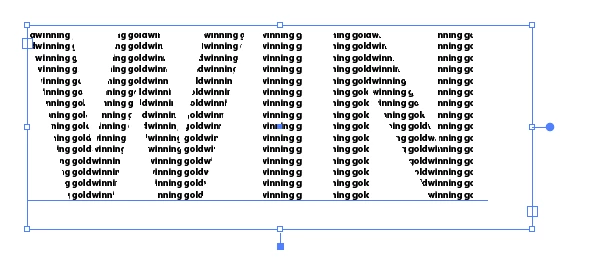
Good afternoon,  I am trying to fill a letter/s with the word "Winning Gold".  The word is not continuous near a line and breaks; "Winn-" etc.

Is there a way, where I expand the letter, then copy and paste an artboard of the words, behind the letter and it only fills the letter inside.

I saw some tutorials on You Tube, but they copy and paste Lorem Ipsum.

Thanks
This topic has been closed for replies.
Correct answer barbara_a7746676

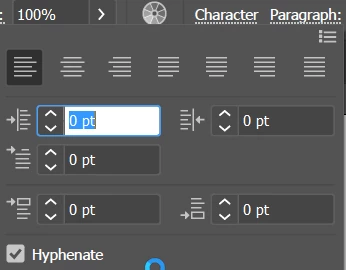
In the paragraph panel you can turn off Hyphenate.

However, if the word is too large to fit within the width of the letter it will still break. You may need to experiment with the font and the size of the type.

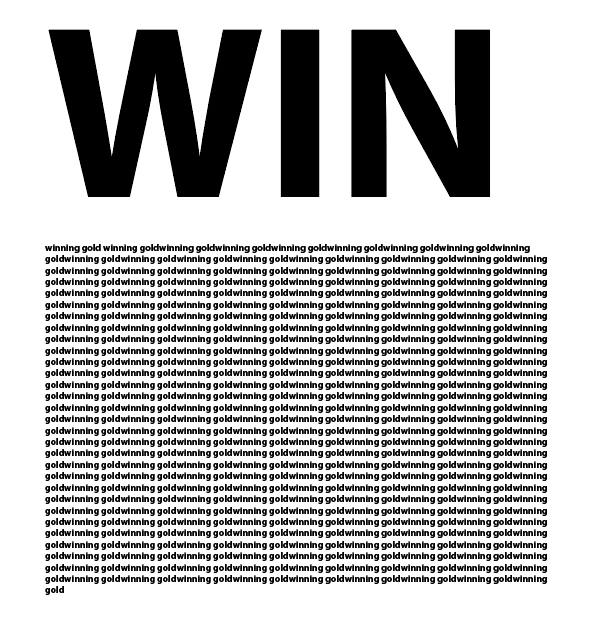
Another way would be to type the large text, and type "winning gold" repeatedly, like this. You don't need to create outlines of the text; it can be live text.

Put the large word on top of the "winning gold" text. It must be on top.

Select both. Then choose Object > Clipping Mask > Make.

3 replies

barbara_a7746676
Community Expert
Community Expert
October 18, 2018

If you need to edit the large text or the winning gold text after making the compound path, you can select just the large text with the Direct selection tool. You can also choose Object > Clipping Mask > Edit Contents or Object > Clipping Mask > Edit Mask, depending on which is selected.

October 18, 2018

Can I add a shape within the text line.

I have the word DARK, with Winning Gold inside.

The letter A has been traced from a design as not a actual font with lines and Arc's.

If I select all the separate lines/arc's, can I merge, then insert into Dark and then apply Clipping Mask.

Thanks

Monika Gause
Community Expert
Community Expert
October 18, 2018

You can't paste artwork into a text in Illustrator. You would need to create a font out of your artwork first.

barbara_a7746676
Community Expert
barbara_a7746676Community ExpertCorrect answer
Community Expert
October 18, 2018

In the paragraph panel you can turn off Hyphenate.

However, if the word is too large to fit within the width of the letter it will still break. You may need to experiment with the font and the size of the type.

Another way would be to type the large text, and type "winning gold" repeatedly, like this. You don't need to create outlines of the text; it can be live text.

Put the large word on top of the "winning gold" text. It must be on top.

Select both. Then choose Object > Clipping Mask > Make.

October 18, 2018

Amazing, thanks Barbara Ash

rcraighead
Legend
October 18, 2018

Is there a way, where I expand the letter, then copy and paste an artboard of the words, behind the letter and it only fills the letter inside.

I'm not sure I follow you. You want to fill Text with other text? I don't think "Artboards" are involved.

You can:

  1. Create a pattern using text
  2. Edit pattern so there is blank area on the right (where you don't want the fill to appear).
  3. Add a "Fill" attribute to your original text.
  4. Assign the Pattern to that fill attribute.
  5. Scale ONLY the fill pattern by holding "~" while using any of the "Transform" tools ("S" for Scale, "R" for Rotate, "V" for Move)

Note: After activating any of the Transform tools you can click once on your artwork to assign the "Center of Transform" before "~+Dragging" to transform. Also hold "Shift" if you want to constrain transform proportionally or by defined increments.

Edit Pattern Mode:

October 18, 2018

Thanks RCraighead.

Apologises if I did not explain myself correctly.

If I type a letter, then I want to fill that letter with the text "Winning Gold".

I was typing it and when I got to the edge of the letter, the word broke and the remaining went to the next line.

I think I understand the pattern idea. If I choose a small font, do I need to type Winning Gold a few times, so that there are a number of lines of the said text.

Thanks again..