NeighborhoodOverlord
Participating Frequently
July 28, 2017
Answered

Filling in corner gaps between brush strokes

  • July 28, 2017
  • 5 replies
  • 3601 views

Hey folks,

I've been using illustrator for a while now but I don't use it for full-on illustration very frequently. I'm very efficient with the pen tool, use gradient mesh like a boss but little nitpicky things like this seem to elude me. I'm using an ancient off-brand tablet, company closed 5+ years ago, there are no updates for supporting drivers. As such, my pressure sensitivity only works in Photoshop, not in Illustrator, lending to frustration (and the is no option for Windows Ink, or any advanced preferences that I can find). I've sketched and traced an image using the pen tool, brush tool, and line tool. I've now expanded and merged the drawing after doing a little clean up and now I'm having to go through the image with the pen tool to remove and straighten out these little corners all over the image. Blob tool seems to be too squirrely to keep the lines consistent. For future reference, is there a way to prevent/clean up this mess more efficiently?

This topic has been closed for replies.
Correct answer Katie Houghton

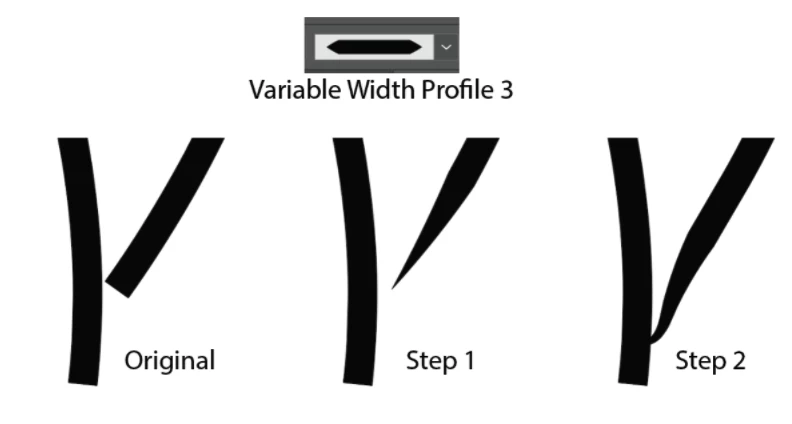
USING THE VIABLE WIDTH OPTION with PENCIL TOOL:

  1. Choose the Width Profile #3
  2. Then Use the Pencil tool to continue or change your line by selecting the line you want to change and drawing a new line close to the selected line. This will change the end of the old line and will not create a new one.

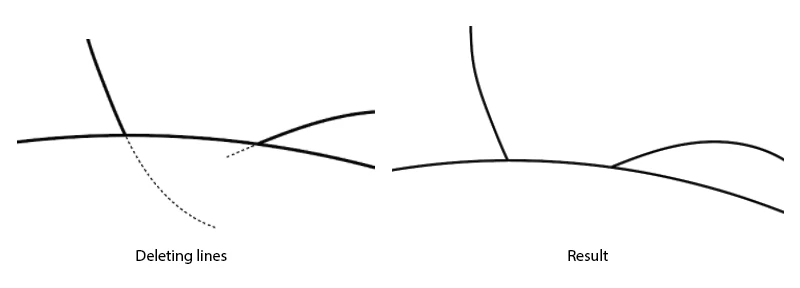
USING THE SHAPER TOOL:

If you go past the line and you want to clean it up try the shaper tool. Your image looks like you do not intersect so maybe not the best option for this drawing. (The dotted line is the part of the image that I deleted via the shaper tool by selecting the lines then making a squiggly over the part of the line I did not want with the Shaper tool)

5 replies

Katie HoughtonCorrect answer
Inspiring
July 28, 2017

USING THE VIABLE WIDTH OPTION with PENCIL TOOL:

  1. Choose the Width Profile #3
  2. Then Use the Pencil tool to continue or change your line by selecting the line you want to change and drawing a new line close to the selected line. This will change the end of the old line and will not create a new one.

USING THE SHAPER TOOL:

If you go past the line and you want to clean it up try the shaper tool. Your image looks like you do not intersect so maybe not the best option for this drawing. (The dotted line is the part of the image that I deleted via the shaper tool by selecting the lines then making a squiggly over the part of the line I did not want with the Shaper tool)

NeighborhoodOverlord
Participating Frequently
July 28, 2017

So it looks like its quicker and easier to just draw with overlapping lines and take care of it with the shaper tool, yeah? That's seems like the most convenient method so far, thank you!

The less dinking around with each individual end point, the better. Making tiny  adjustments to each end point seems extremely inefficient.

Mike_Gondek10189183
Community Expert
Community Expert
July 28, 2017

Are you sure you pressure sensitivity settings are not working. Have to ask cause many miss this. Double click on blob tool or brush tool

See this post also

illustraitor problem intersection

NeighborhoodOverlord
Participating Frequently
July 28, 2017

Yes I'm sure. All of the pressure options are greyed out. I've downloaded alternative software for this tablet as others have stated it worked for them, no result. Tablet issues are often associated with the Windows Ink settings, needing to reset Illustrator preferences to default after installation of tablet software, and old drivers. There hasn't been an update for this tablet in 6 years and there won't be. I need to purchase a new tablet but it will be a while before I have the funds to do so.

Monika Gause
Community Expert
Community Expert
July 28, 2017

THen have you tried variable width strokes?

JonathanArias
Legend
July 28, 2017

i use the direct selection tool and drag them in points to blend them in

NeighborhoodOverlord
Participating Frequently
July 28, 2017

This is what I've been doing after this section. I'd think Illustrator would have some other way of dealing with this? Cleaning these line intersections up can take longer than creating the artwork depending on the piece.

Jeff Witchel, ACI
Community Expert
Community Expert
July 28, 2017

If you want to fill in those "gaps" add  Round Caps to the Strokes in the Stroke panel.

NeighborhoodOverlord
Participating Frequently
July 28, 2017

I tried this and it only works on a few lines. This is hand drawn--the depth of where the lines cross and the angles are not consistent.

Monika Gause
Community Expert
Community Expert
July 28, 2017

That's how strokes work.

You could try if applying width profiles to your strokes can improve the situation or you could create custom arrowheads for this.

It has nothing to do with your graphic tablet.

NeighborhoodOverlord
Participating Frequently
July 28, 2017

Using pressure sensitivity makes for nicer looking lines and pressure adjustment of the size at connecting areas looks nicer at varied widths than straight lines. This is the replacement for creating a custom cap on each line. If that weren't the case, most designers wouldn't be using pressure sensitivity.

Customs line ends would only be feasible if the lines were connecting at consistent angles and this is not the case.