
Inspiring
March 8, 2024
Answered

Find and replace all instances of a PMS color

  • March 8, 2024
  • 4 replies
  • 1738 views

When I first started out on my current project I accidentally used uncoated PMS colors instead of coated. Unfortunately there are a few stragglers left in at least 75 extremely complex Illustrator files, and they are causing "phantom" colors to show up in InDesign. I cannot get rid of them in ID, and I assume they're buried in one of the linked Illustrator .PDFs.

Is there ANY way, within Illustrator, to find specific colors and replace them. For example, find all instances of PMS 154U and replace with PMS154C, 185U for 185C, 165U for 165C, Purple U for Purple, C and so on with all 17 PMS colors. I did manage to fix the vast majority of them last year, but it's the stragglers that are giving me fits in InDesign. In that program, I can find a specific color if it was generated within InDesign, but not if it's embedded in a graphic. Can anybody point me in the right direction? It could be something as simple as an accidentally-generated 1cm-long line that's impossible to see or find without a color finder of some kind.

Please and thanks!


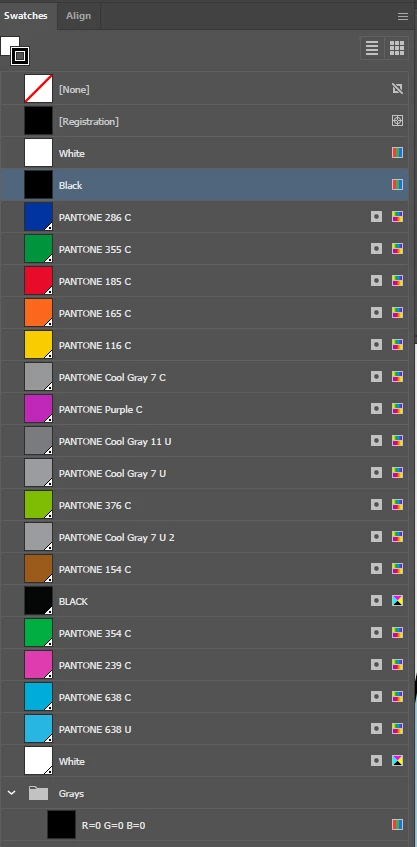
Here's my Swatches panel and there are a few 'U's in there, but how can I find where each one is?
This topic has been closed for replies.
Correct answer Brad @ Roaring Mouse

You don't need to find where it's used. To Replace the U spot with the C spot, use the Merge function in the Swatch panel. Make sure the C colour you want is in your swatches, select it, hold shift and select the old U colour so both are highlighted, then pull down Merge from top right. Done. The colour you want is the first colour you select.


4 replies

PeterD-NJAuthor
Inspiring
March 8, 2024

My logo? With respect, I think you might need to re-read the original post. This is about finding rogue PMS colours in a complex drawing and converting them to the correct ones since they are giving fits in InDesign (colors that can't be deleted), which can slow down or affect big InDesign documents.

Inspiring
March 8, 2024

The second way.
In the swatch window, find the Ink Manager in the drop-down menu. Using the Ink Alias option you can replace a given paint with another one. The samples will not disappear, but look at the output preview.

Ton Frederiks
Community Expert
Community Expert
March 8, 2024

That looks more like an InDesign solution. Illustrator has no Ink Manager.

Brad @ Roaring Mouse
Community Expert
Community Expert
March 8, 2024
Screen_Recording_2024-03-08_at_12-48-32_AM.mov
Brad @ Roaring Mouse
Community Expert
Brad @ Roaring MouseCommunity ExpertCorrect answer
Community Expert
March 8, 2024

You don't need to find where it's used. To Replace the U spot with the C spot, use the Merge function in the Swatch panel. Make sure the C colour you want is in your swatches, select it, hold shift and select the old U colour so both are highlighted, then pull down Merge from top right. Done. The colour you want is the first colour you select.


PeterD-NJAuthor
Inspiring
March 8, 2024

That got it done; thanks! I'm still seeing phantom colors in InDesign, but at least these ones are fixed.

Brad @ Roaring Mouse
Community Expert
Community Expert
March 8, 2024

They will stay in InDesign swatches. They won't be automatically deleted even if you purge your Illustrator files. You can select them and delete them from InDesigns swatch panel (e.g. use Select Unused Colours), although if you can't, the colour is still being used somewhere. It may not matter. You can use InDesign's Separation Preview to see if and where the colour might be used to narrow down the culprit. In any case, unless you are intending to output a spot colour job, it's a moot issue.