DrStrik9
Inspiring
January 11, 2019
Answered

Frustrations with Image Trace

  • January 11, 2019
  • 2 replies
  • 6650 views

I'm using AI 23.0.1. It's been a long time since I did any image tracing in AI, and what we have now seems to be, well, not very good -- or maybe I just don't know how to get the best out of it.

Years ago, with earlier versions of AI, you could scan a very detailed piece of line art at very high dpi (above 2400), place it in AI and "auto-trace" something quite impressive, with great detail. This is what I was expecting today when attempting to "image trace" some high-res art. But the result is really disappointing -- virtually unusable.  😕😕

It seems there is some kind of "blurring" process called "smart blur" that has been added (or increased?), and I "suspect" this is what may be making my very detailed original trace with very little fine detail. About 50% of small image areas are simply MISSING in the traced result. I would LOVE to be able to ADJUST that blurring function, to see if it would help at all. -- But this is only a guess.

One clue might be when you raise the "paths" setting to 100%. The result is something horrible, that looks like around 72 dpi raster edges (HUGE steps in what should be smooth curves), which could NEVER get the kind of detail I need. -- This is from an original scanned at 2400 dpi. If the trace routine is greatly reducing the art's resolution (combined with blurring), then this would account for the bad result.

So today I'm wondering if there is something I'm missing in AI, or whether I need to just give up and look for a better solution elsewhere.

Thanks for any intelligent advice.  :+)

This topic has been closed for replies.
Correct answer Monika Gause

Well, this forum can't accept a zip or ai file, so this, although marginal, will have to do.

Above is a jpeg version of a comparable image (900 dpi)

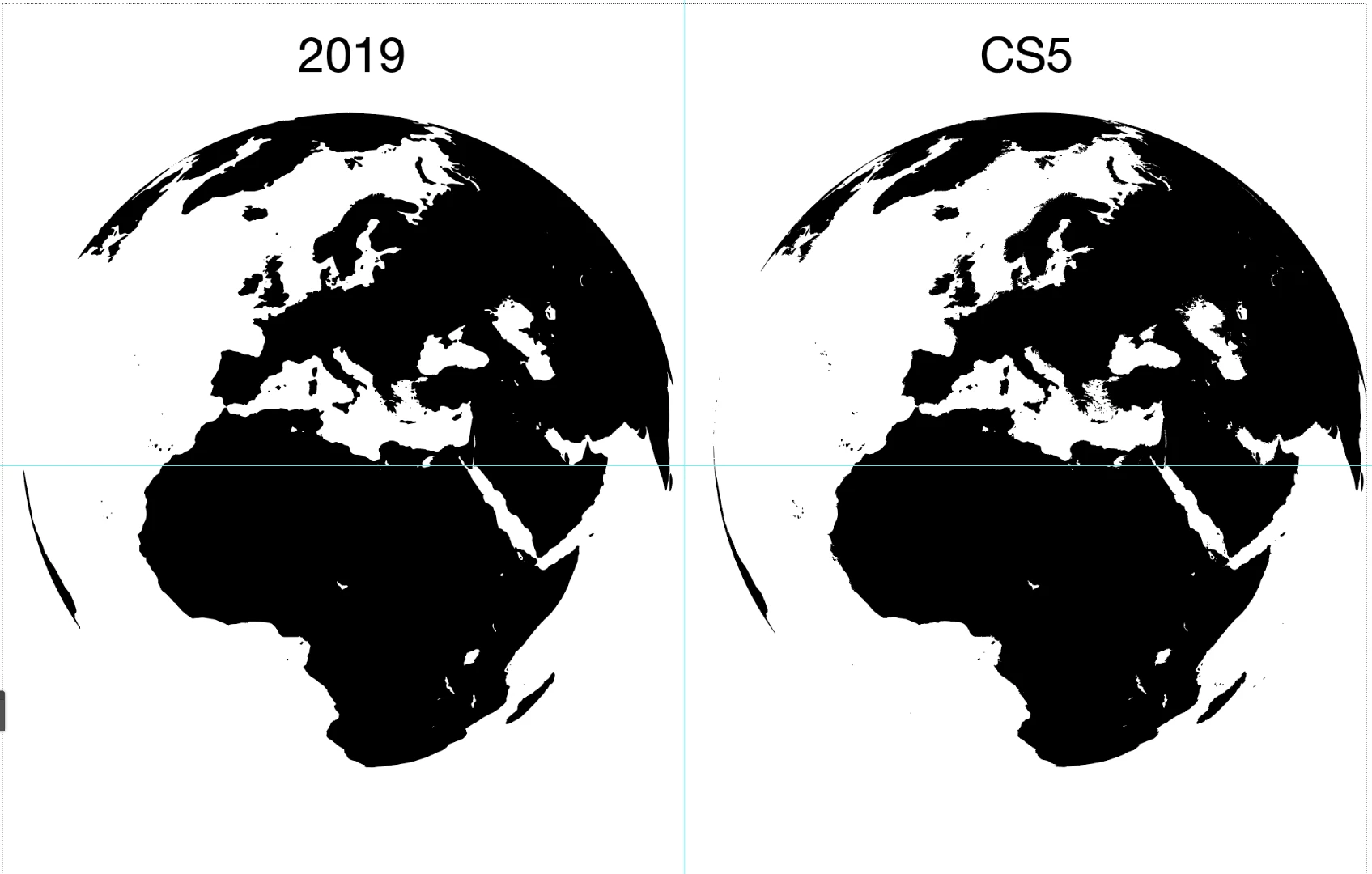
And this is a screenshot of the default tracing result (B&W, ignore white). If you could see it at size, it is OBVIOUS CS5 is FAR SUPERIOR in retaining fine details.


Yes this is a known issue. You might want to post it on http://illustrator.uservoice.com. Most probably there is already a thread on it.

2 replies

marliton
Community Expert
Community Expert
January 11, 2019

I think that the detail resulting is a mix of Threshold, Paths and Corner values and that values depend of the original image. Maybe, if you share the image, someone can make the test.

Marlon Ceballos
DrStrik9
DrStrik9Author
Inspiring
January 11, 2019

Sorry, due to non-disclosure, I cannot share the images.

I did many tests in 2019 with those controls, and NEVER got anything even close to acceptable. Right now, I have both 2019 and CS5 open, and am getting EXACTLY what I need, with DEFAULT settings from CS5 (plus "ignore white").

Maybe you can show us a highly detailed ink drawing and demonstrate what you do in the 2019 trace settings you mentioned to get the perfectly acceptable result?

If there's a way in 2019 to get good traces of highly detailed high-res scans of B&W originals, I would love to know!  But as an AI user for many years (since v. 0.9b), I could not find it in 2019. In CS5 it's a no-brainer.

DrStrik9
DrStrik9Author
Inspiring
January 11, 2019

As a test, I opened AI CS5, and successfully traced the same art there, and got a HUGE improvement in fine detail. The result is totally acceptable!

You can't COPY the paths into AI 2019, but you CAN save the CS5 file and open it in AI 2019.  :+)

One thing CS5 has that 2019 is missing is a control to adjust the blurring. I left it at its default of 0. Also, "ignore white" is also there!  :+)

CS5's tracing is INFINITELY SUPERIOR to 2019's!  (My only test so far is for pre-scanned B&W artwork only, so far.)

--

This really requires that AI 2019 developers NEED to go back to what CS5 made possible, and BRING it FORWARD!  As OS versions move forward, CS5 may not work for much longer. (In MacOS, I got a warning that CS5 needs to be "updated." But the app does still run in MacOS 10.13.6.

barbara_a7746676
Community Expert
Community Expert
January 11, 2019

Have you tried adjusting the Noise setting? As Marliton suggested, if you post the scan someone may be able to make suggestions.

DrStrik9
DrStrik9Author
Inspiring
January 11, 2019

Sorry, due to non-disclosure, I cannot post the images.

There is no noise in these scans. But I tried adjusting that control anyway, along with all the others. As I said in an earlier post, I literally tried everything with the limited controls in 2019, and could not get anything acceptable. In CS5, the DEFAULT settings work acceptably. I think it's because the blur setting's default is set to 0. There is no such control in 2019. (I suspect the "smart blur" thingy isn't all that smart, but that's only a guess.)

I really believe the developers need to take a fresh look at what CS5 had in its "Live Trace" that 2019 is missing, and bring some of those things forward. It was quite a shock, actually, to get such an acceptable result from a 7-year-old AI version.