



Generative Shape Fill: Fill outlines with detailed vectors in 3 simple steps

Push your imagination to new limits with Adobe Illustrator. With the new Generative Shape Fill, you can fill shapes with detail and color in your own style. With enhanced Text to Pattern (beta), you can ideate on new seamless patterns.
See how generative AI can accelerate your workflows.
With the latest update, you can toggle prompt suggestions on or off for greater control. Options to reset Style Reference, Effects, and Color & Tone can be done individually or all at once. The "Auto Style Reference" feature is turned off by default to avoid unintentional influence and enhance output quality. You may turn it on if required.
 |
Try it in the app Follow along with a sample file to learn how to quickly generate a vector shape fill. |
|
|
Note: |
Generative Shape Fill is only available for Illustrator version 28.6 or later. |

Check out our tutorial for a first-hand look at it in action.
Accelerate existing workflows by quickly adding detailed vectors to shapes in just 3 simple steps.
- Choose the shape or path you want to fill in.
- Look for the contextual HUD that appears after selection. Write the prompt in the HUD, or you can leave the prompt section empty.
- Click the 'Gen Shape Fill' button.
The best part is that your original artwork stays untouched, and you can create as many variations as you want.
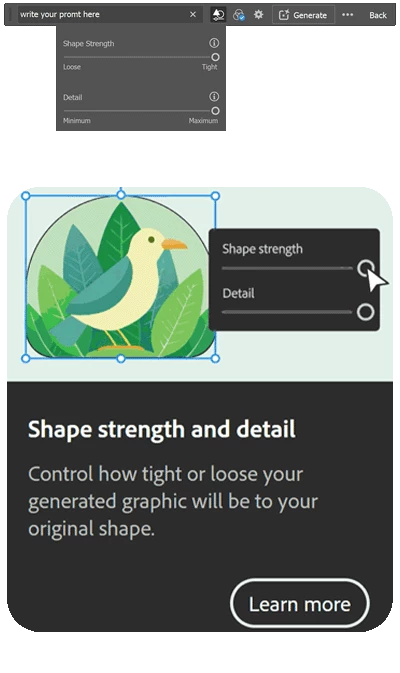
Shape Strength and Detail
|
Shape Strength:
|
 |
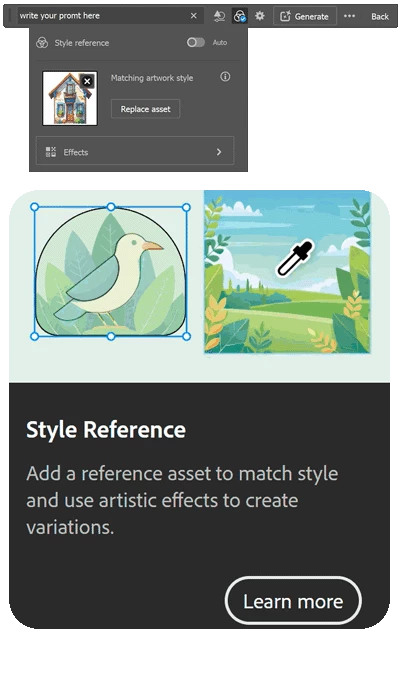
Style Reference and Effects
|
Style Reference:
Effects:
|
 |
Other Settings
|
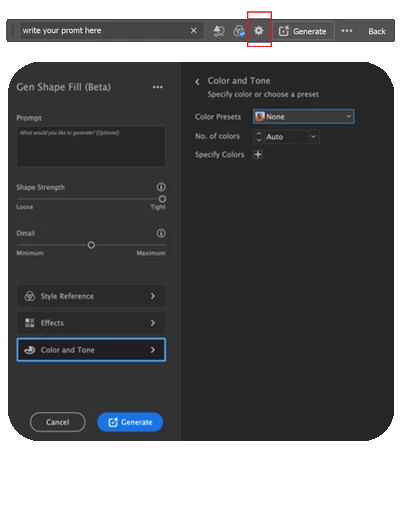
For additional settings like tone and color, click on "View all settings" to open the Gen Shape Fill dialog box. Color Presets:
Number of Colors:
Specify Colors:
|
 |
Key Considerations for Best Results
- The input shape takes precedence over the text prompt for variations.
For example, if you create a bird shape and use the prompt "birds," the fill will complete the appearance of that single bird rather than adding multiple birds within the shape. -
Some effects applied to the input shape may not be preserved in the output variations.
For example, if you apply an effect to a shape and then use Generative Fill, the effect might disappear in the created fill.
-
Using Generative Shape Fill on a line segment results in empty variations. If you create a line and attempt to use Generative Shape Fill on it, the output will be empty.
For more details & FAQs about this new feature, please click here.
We’d love to hear from you!
Try out the new "Generative Shape Fill" feature and let us know your thoughts. Feel free to reach out if you have any questions or need more tips!
Have questions? Click 'Reply' below to ask.
Click 'Follow' below to bookmark this post for easy reference.
 AdChoices