


Ghost Lines WILL NOT GO AWAY!

Copy link to clipboard
Copied
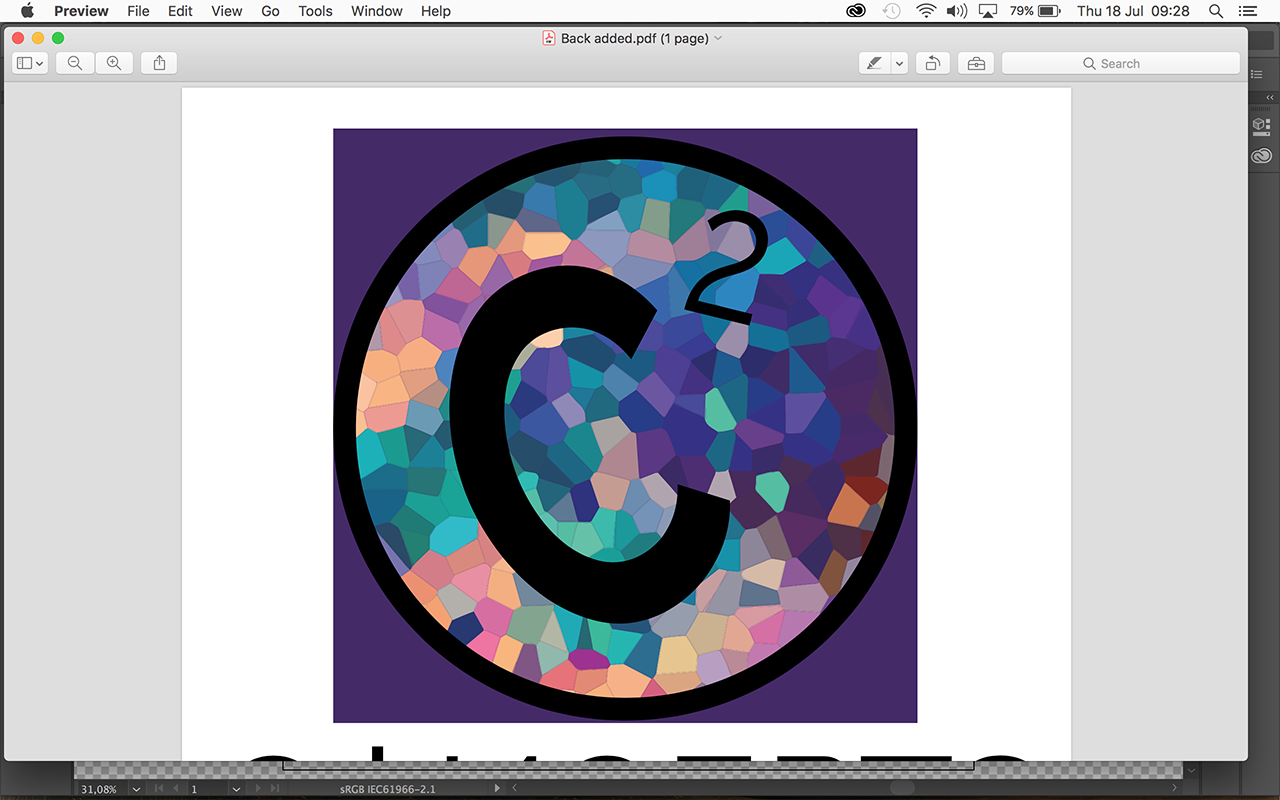
I am working on a logo for a customer and after a lot of hard work, i saved my file as a pdf, opened it up and saw ghost borders around each shape that completely ruins the picture. This problem only happens when you save it as any vector file and i simply cannot send this to my customer without her being incredibly confused. I have checked every solution on here with no luck, I have attached a google drive link with my AI file and PDF export https://drive.google.com/openid=1DoZVASxxwnVdAV4GvFBVFGCa6jCKLpIu 



Explore related tutorials & articles
 7
Replies
7
7
Replies
7




Copy link to clipboard
Copied
It looks fine when viewed with Adobe Acrobat (Reader).
But looks bad in Apple Preview, which is not the best to view PDF files.
Copy link to clipboard
Copied
You may try to add a filled circle in the background, (I added a rectangle), which seems to please Preview.
Copy link to clipboard
Copied
The problem is that those dark lines in between the cells, on illustrator, there is no lines whatsoever, all i can do is reduce them after they are exported. This cant be the case that illustrator always displays these lines after saving it for a client, right?
Copy link to clipboard
Copied
michaelh30898213 wrote
The problem is that those dark lines in between the cells, on illustrator, there is no lines whatsoever, all i can do is reduce them after they are exported. This cant be the case that illustrator always displays these lines after saving it for a client, right?
Did you try to add a dark filled circle in the background?
The problem is with Apple Preview. Did you try Acrobat to view it?

Copy link to clipboard
Copied
These are antialiasing issues.
They won't be visible when doing offset printing.
They might get you into trouble when exporting raster images or when printing via raster images (on office printers or inkjet)
The only workaround is to put objects behind that have (roughly) the same color. Or slightly enlarging every second (or so) shape

Copy link to clipboard
Copied
PDF proofs (rasterized) often show oddities like this. You'll also see ascenders thicken and thin according to the pixelation.
The "blob" shapes are from a filter in Photoshop so you'll want to fix the problem in photoshop if possible. The easiest thing you can do is select each shape and give it a .25pt - .75pt stroke in the same color as the fill. If they are gradients then select and grow selection 1 pixel. It's time consuming but easy as pie to do.
If the gaps are filled but still showing up in your Illustrator or PDF make a note to your prepress person to note it (but it will almost certainly print fine).
-----------------
Alternatively, if the blobs are defined paths with an outline:
1. Open your document in Adobe Acrobat
2. Print Production (tool)
3. Click Preflight - then fix hairlines.

Copy link to clipboard
Copied
I agree with Ton and Monika. I see no sign of the problem in Illustrator or Acrobat, but it does show up with the antialiasing in Apple Preview. I still see it if I put a solid color in back of it. But: if you copy the circle of multi-colored shapes, paste in back, and rotate it by two or three degrees, the problem goes away in Preview.
Peter


Get ready! An upgraded Adobe Community experience is coming in January.
Learn more
 AdChoices