


- Home
- Illustrator
- Discussions
- Gradients turning black - Illustrator 22.0.1
- Gradients turning black - Illustrator 22.0.1

Copy link to clipboard
Copied
I'm having an issue where no matter what I do my gradient keeps going from 3-colors to all black. I've removed all spot colors and am working in CMYK. Is there a solution to this?


 2 Correct answers


It is even easier.
Select All.
Object > Path > Clean Up...
That removes the 2 stray points that seem to cause this problem.

https://forums.adobe.com/people/pixxxel+schubser wrote
Ok. The problem is solved.
But there are easier ways to detect it.
Because of: Object > Path > Clean Up... always change your path (with the given tolerance)
Object > Path > Clean Up... does not change your path.
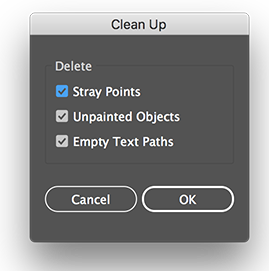
You probably mean Object > Path > Simplify, which has a tolerance and does change it (but that's not useful in this case).

Explore related tutorials & articles
 38
Replies
38
38
Replies
38


Copy link to clipboard
Copied
Ok. The problem is solved.
But there are easier ways to detect it.
Because of: Object > Path > Clean Up... always change your path (with the given tolerance)
Better possibilities
- Looking for little crosses:
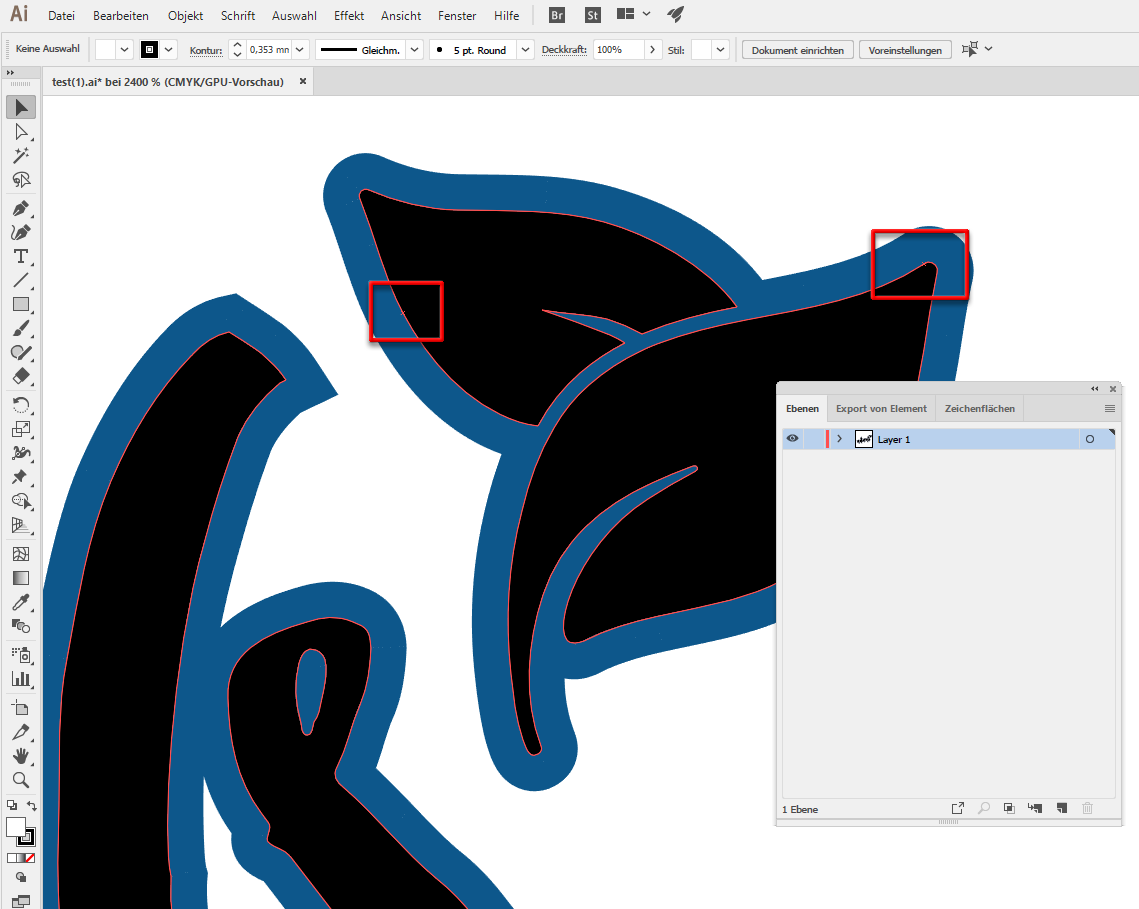
- Or
select single anchor points
menu: select > object > single anchor points
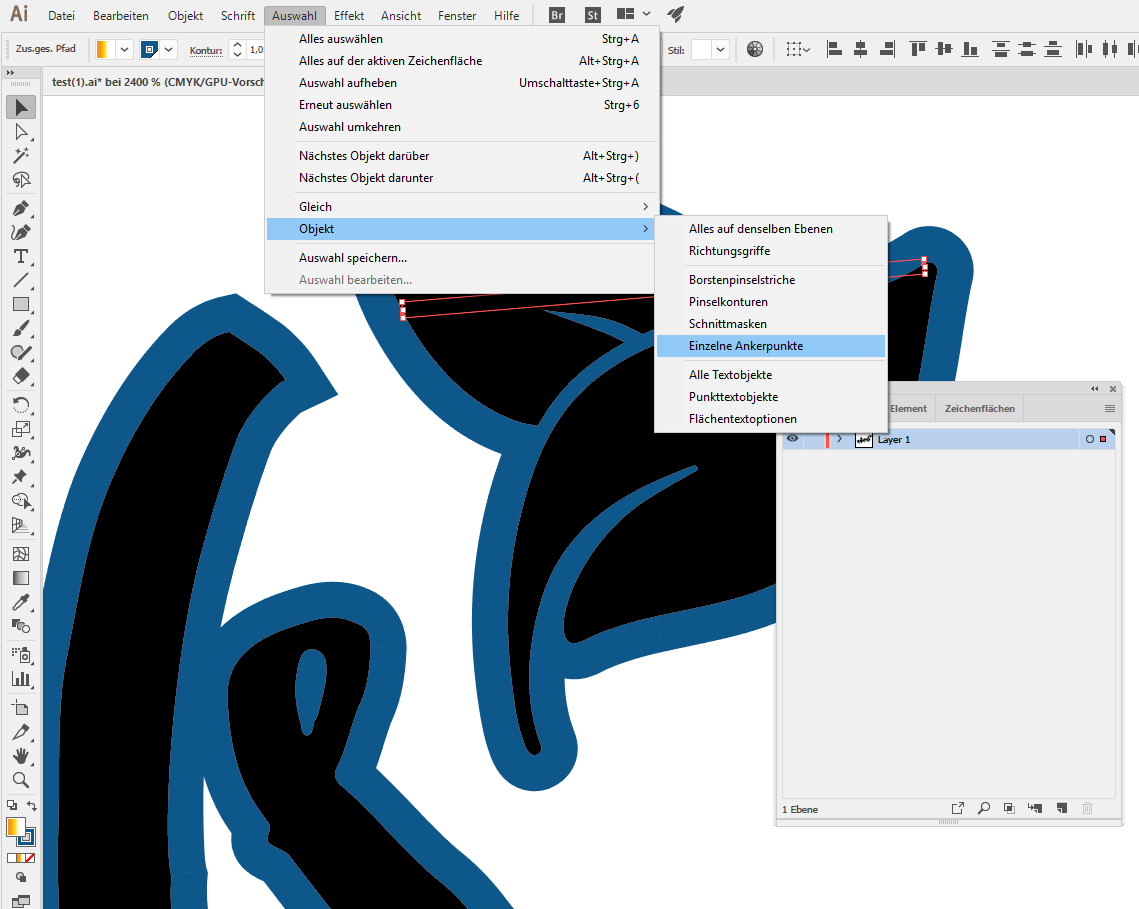
- This is the same selection in path view
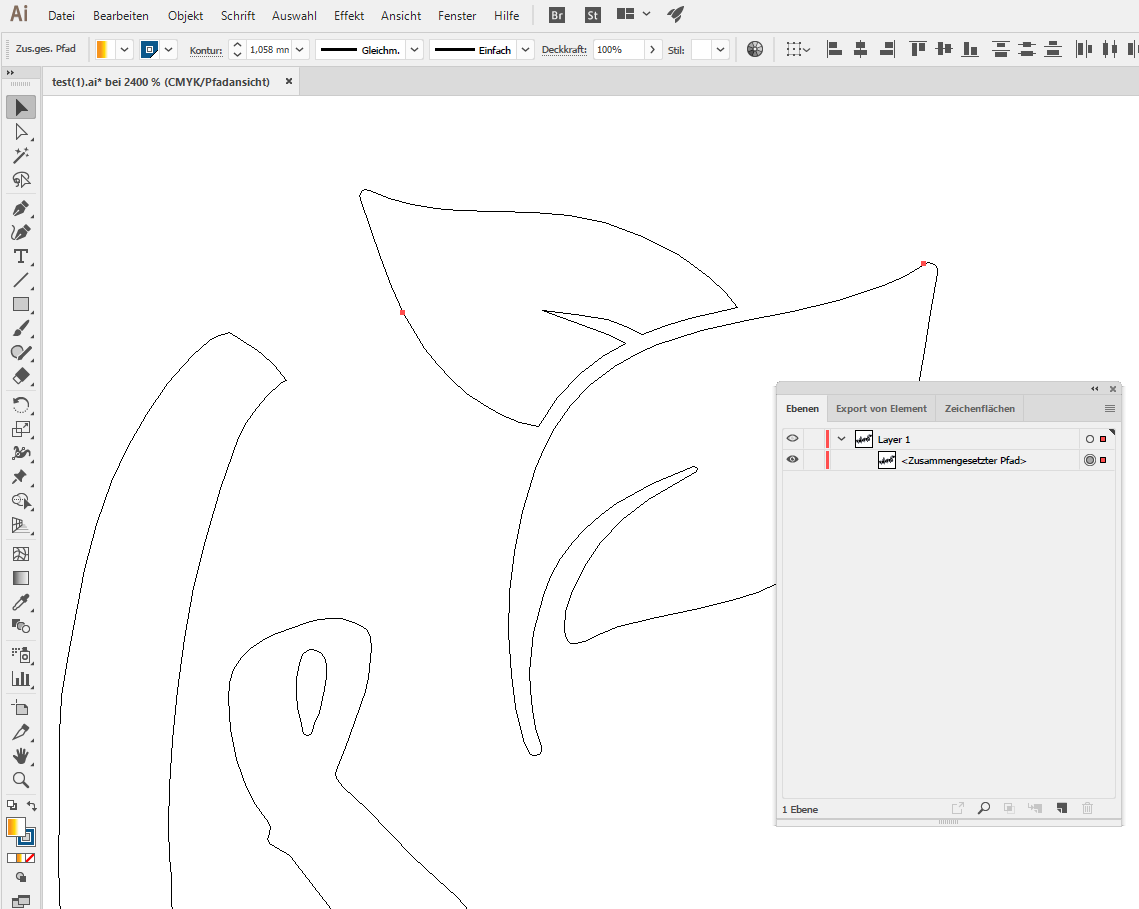
- Or
release (a copy of your) compound path
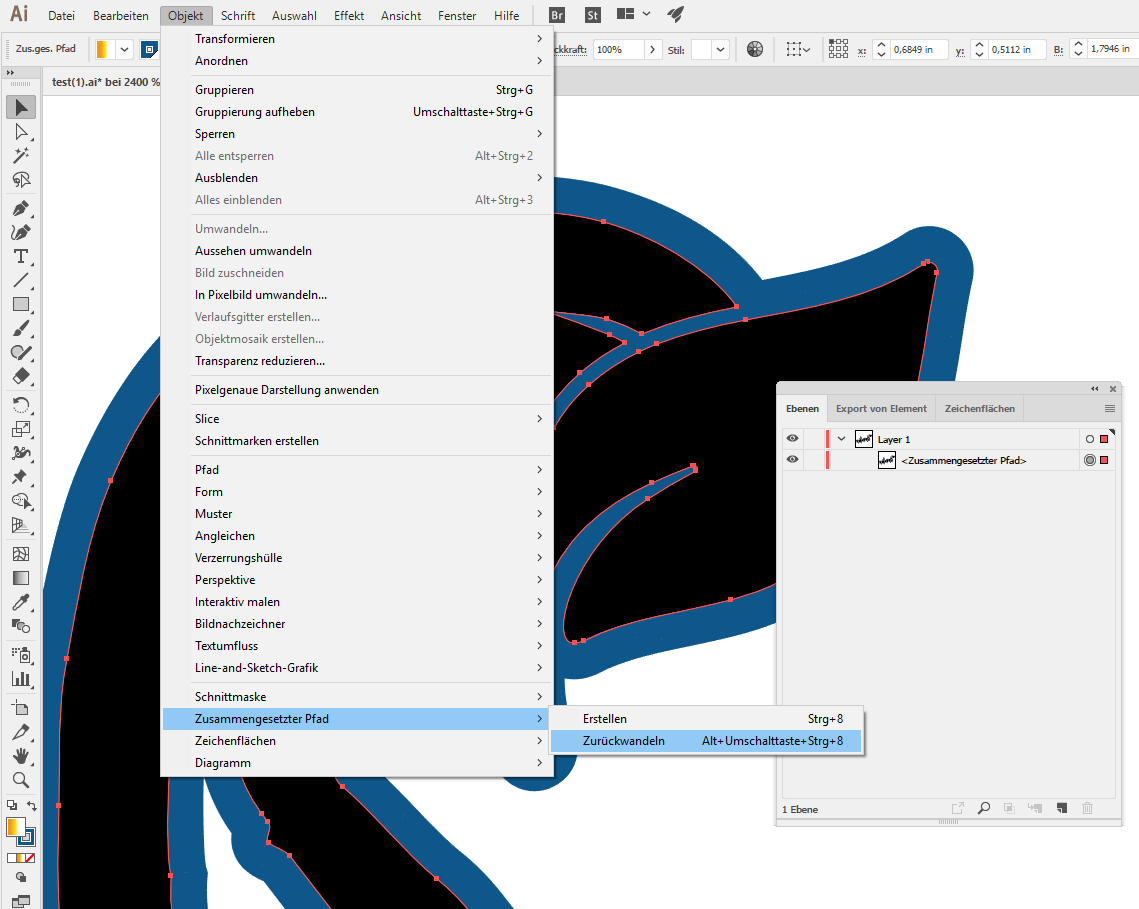
- Now you can see paths or anchor points without dimensions directly in layers palette:
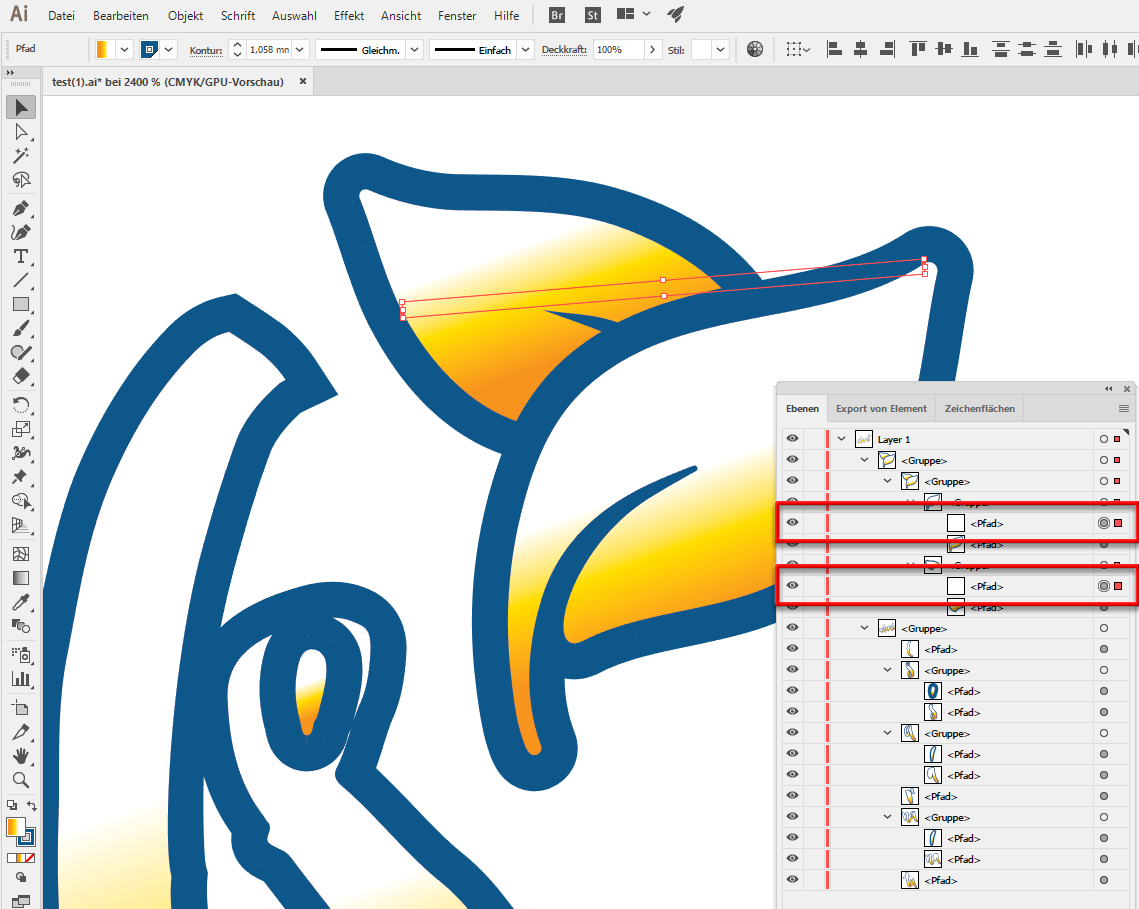
Delete them and
Have fun

Copy link to clipboard
Copied
https://forums.adobe.com/people/pixxxel+schubser wrote
Ok. The problem is solved.
But there are easier ways to detect it.
Because of: Object > Path > Clean Up... always change your path (with the given tolerance)
Object > Path > Clean Up... does not change your path.
You probably mean Object > Path > Simplify, which has a tolerance and does change it (but that's not useful in this case).
Copy link to clipboard
Copied
https://forums.adobe.com/people/Ton+Frederiks schrieb
Object > Path > Clean Up... does not change your path …
… You probably mean Object > Path > Simplify, which has a tolerance and does change it (but that's not useful in this case).
Yes, you are right.
That was a translation mistake.
Copy link to clipboard
Copied
Awesome! Thank you!

Copy link to clipboard
Copied
WOW! Ton, you genius, you!
Copy link to clipboard
Copied


Copy link to clipboard
Copied
Thanks a lot..

Copy link to clipboard
Copied
Thank youuuuuuuuuuuuuuuuuuuuuuuuuuuuuuuuuuuu

Copy link to clipboard
Copied
Amazing! That worked! I tried everything I could think of.

Copy link to clipboard
Copied
That worked for me, too! Thanks

Copy link to clipboard
Copied
I have the exact same issue with my compound paths and gradients.
I cleaned up the paths, but Illustrator stated that no clean up was necessary.
So I was still stuck with gradients going to black.
I have just found discovered if you expand the fill to a gradient mesh it seemed to fix the issue. For me at least 🙂

Copy link to clipboard
Copied
I had the same issue, what I did is go to "APPEARANCE" and found out the fill was below the characters in the layering. I moved it to the top and it seemed to work after that.
EDIT: Oh shoot sorry, just saw your screenshot and can see it's not the same issue I had.

Copy link to clipboard
Copied
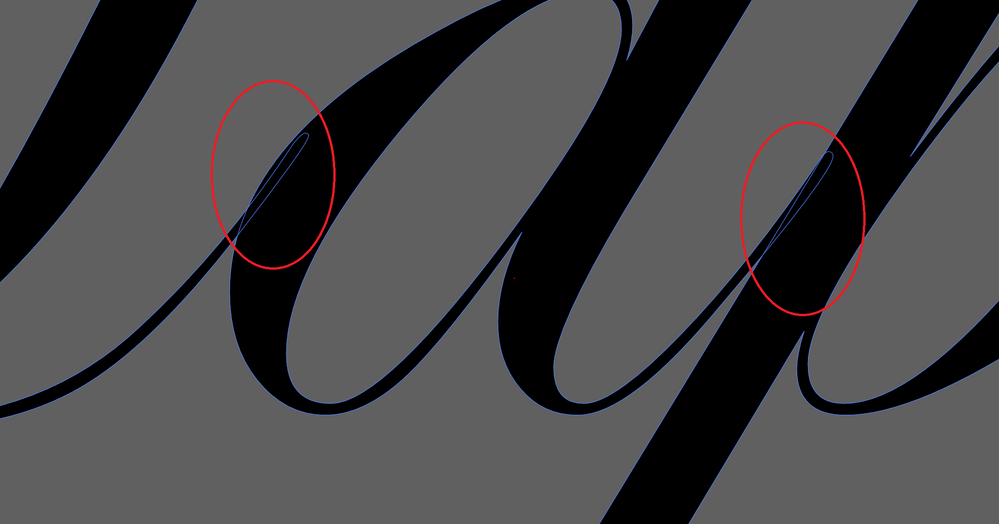
ALTERNATE SOLUTION HERE! I had this same issue, I wanted to use a gradient on cursive text, and even after converting to outlines, the gradient fill was showing as black. I tried the Clean Up command but nothing changed.
I have since learned that overlapping contours were the issue. My cursive font had slight overlaps to give the illusion of one constant handwritten word. The fix for me was converting the font to outlines (CTRL+SHIFT+O), and then using the Shape Builder Tool to join all the contours into one. You can easily do this on one letter, and if the letter instantly takes on the gradient appearance you want then you know it's working! If you want to keep the text editable, try adjusting the spacing betwen each letter in the Character Window until they aren't overlapping.

Copy link to clipboard
Copied
Yours is not an alternate solution to the problemdescribed above.
In order to apply a gradient to a text you don't even need to outline it.

-
- 1
- 2

Get ready! An upgraded Adobe Community experience is coming in January.
Learn more
 AdChoices