
anneh93244670
Participant
October 29, 2017
Frage

Graphics issue with Illustrator 2018

  • October 29, 2017
  • 2 Antworten
  • 1081 Ansichten

I just upgraded to Illustrator 2018. The ruler and artboard flashes every time i move my mouse.
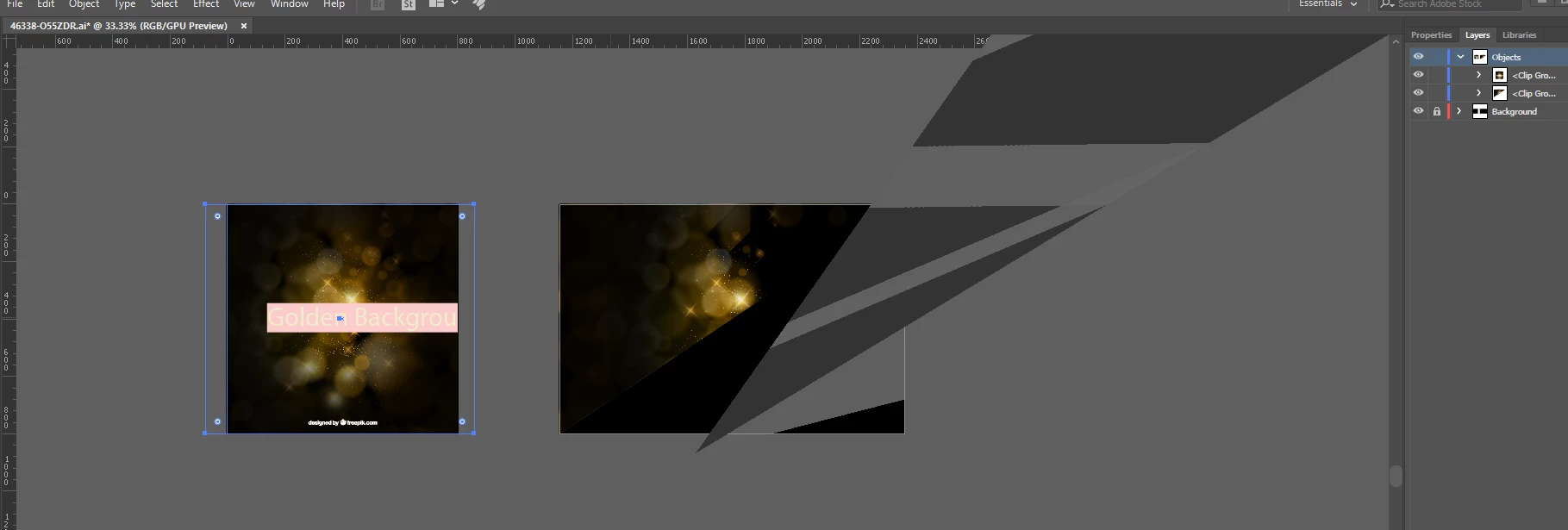
Portions of my graphics disappear and go all crazy

Illustrator 2017 was working perfectly fine.

Message was edited by: Ashutosh Chaturvedi Correcting a generic title to reflect the issue.

Dieses Thema wurde für Antworten geschlossen.

2 Antworten

AshutoshChaturvedi
Legend
October 29, 2017

Please get in touch with us at sharewithai@adobe.com  or any of the other support channels - https://helpx.adobe.com/support.html .

Since this is not a generic issue that we can reproduce at our end, we will need someone to look into your machine to figure out what is going on here.

Warm Regards,

Ashutosh Chaturvedi | Sr. Quality Engineering Manager – Illustrator

Participant
January 5, 2018

AshutoshChaturvedi​ it seems like this might be a bigger problem and maybe more generic than previously thought. I am running a brand new Macbook Pro and it is displaying similar symptoms to anneh. In addition to the problems anneh described, other problems include cmd+D not working, Reflect tool not working and fonts that looks like this when zoomed in past %200:

I have disabled GPU and pixel preview, which has helped but not eliminated the issues. Going to try a reinstall as mentioned above now.

AshutoshChaturvedi
Legend
January 6, 2018
anneh93244670
Participant
October 29, 2017

another example image.

Bill Silbert
Community Expert
Community Expert
October 29, 2017

When you installed CC 2018 did you have “Import previous settings and preferences” unchecked in the Advanced Options that are offered during the install (see screen shot)?

If you had that checked during the install then that may be the source of your problems. You will have to manually make sure that all previous preference files for Illustrator are deleted (or if on a PC renamed) making sure that Illustrator is closed when you do so. You can then open CC 2018, save a test file and then quit it so that a new CC 2018 only preference folder will be created. (This is all based on a test I did that showed that when an older preference file exists CC 2018 did not create a complete preference folder). At this point I would restart the computer and once rebooted launch Illustrator and hopefully your problem will be solved.

To manually delete preferences:

For Macintosh Users: With Illustrator closed launch a Finder Window in column view and click on your home folder. With the Option Key pressed choose Library from the Finder Go Menu. Within the Library folder find the folder called Preferences and within it find the following two files and delete them: “Adobe Illustrator <Version #> Settings” (earlier versions of Illustrator might just say “Adobe Illustrator”) and “com.adobe.Illustrator.plist”. When Illustrator is next launched it will create new preference files and the program will be restored to its defaults.

For Windows Users:

For Windows Users: You can try the quick way of resetting on a PC which is to hold down Ctrl + Alt + Shift when launching Illustrator and respond affirmatively when asked if you want to reset. There have been some recent reports that the window asking if you want to reset is not popping up but that the prefs are being reset anyway. If this works then great but if it doesn’t you may have to manually delete them.

On Windows 7 and above the preference files are hidden. To find them go to the Control Panel and open Folder Options and then click the View tab. Then select “Show hidden files and folders” or “Show hidden files, folders or drive options” in Advanced Settings (you may be able to skip the previous steps with Windows 10). Then delete (or rename) the folder at the end of this path: C:\Users\[User Name]\AppData\Roaming\Adobe\Adobe Illustrator [version number]\ Settings\<Language> for any versions that you have. Make sure that Illustrator is closed when you do this. When you relaunch the program it will create  new preference files and the program will be at its default settings.

After you’ve reset up the program (make sure that no document window is open) to your liking, it is a really good idea to create copies of your personalized “mint” preference files (make sure that you quit the program before copying them—that finalizes your customization) and use them in the future to replace any corrupt versions you may need to delete.