
Participant
January 2, 2025
Question

Group Objects into Single Object

  • January 2, 2025
  • 4 replies
  • 1783 views

Hi there and Happy New Year,


Looking for some help to combine multiple objects into a single object for laser cutting.

I am trying to create a roof line for a model I am scratch build. To do so, I drew a compound path shape (source two triangles), 4 elipses and used the Shaper Tool to cut away unwanted sections to the objects. The end result yielded the following:
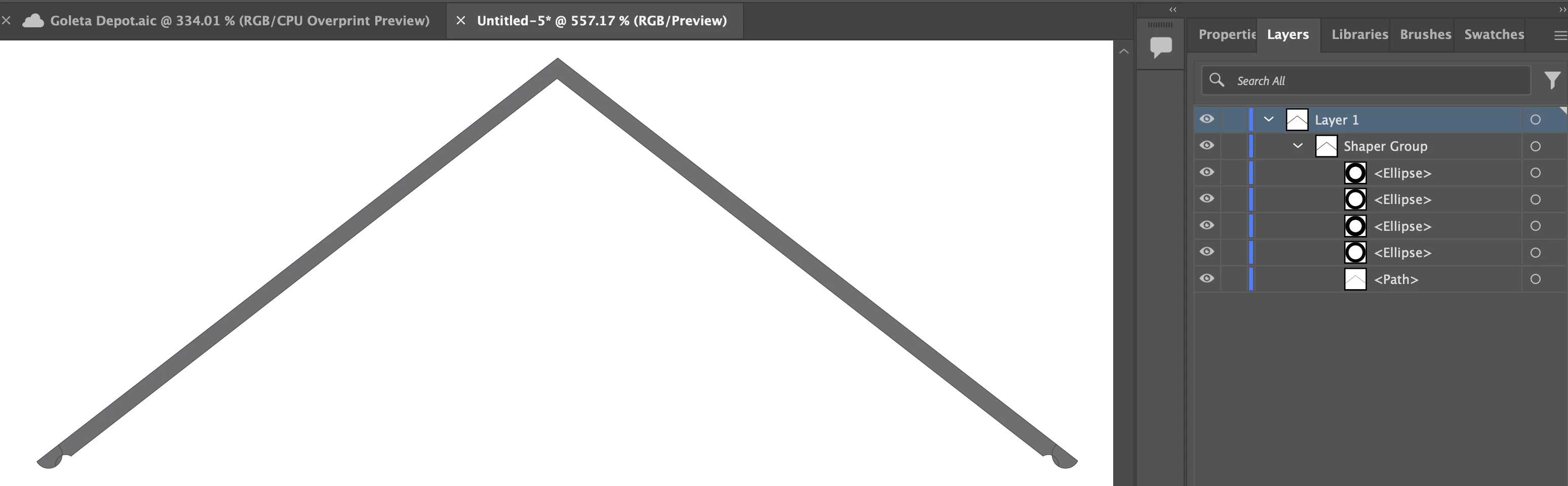
Upon closed inspection, I can see that the various objects after cutting away the unwanted portions, still seem to be individual objects.

However, I cannot select these or group these using the pathfinder mode and 'unite' the items.
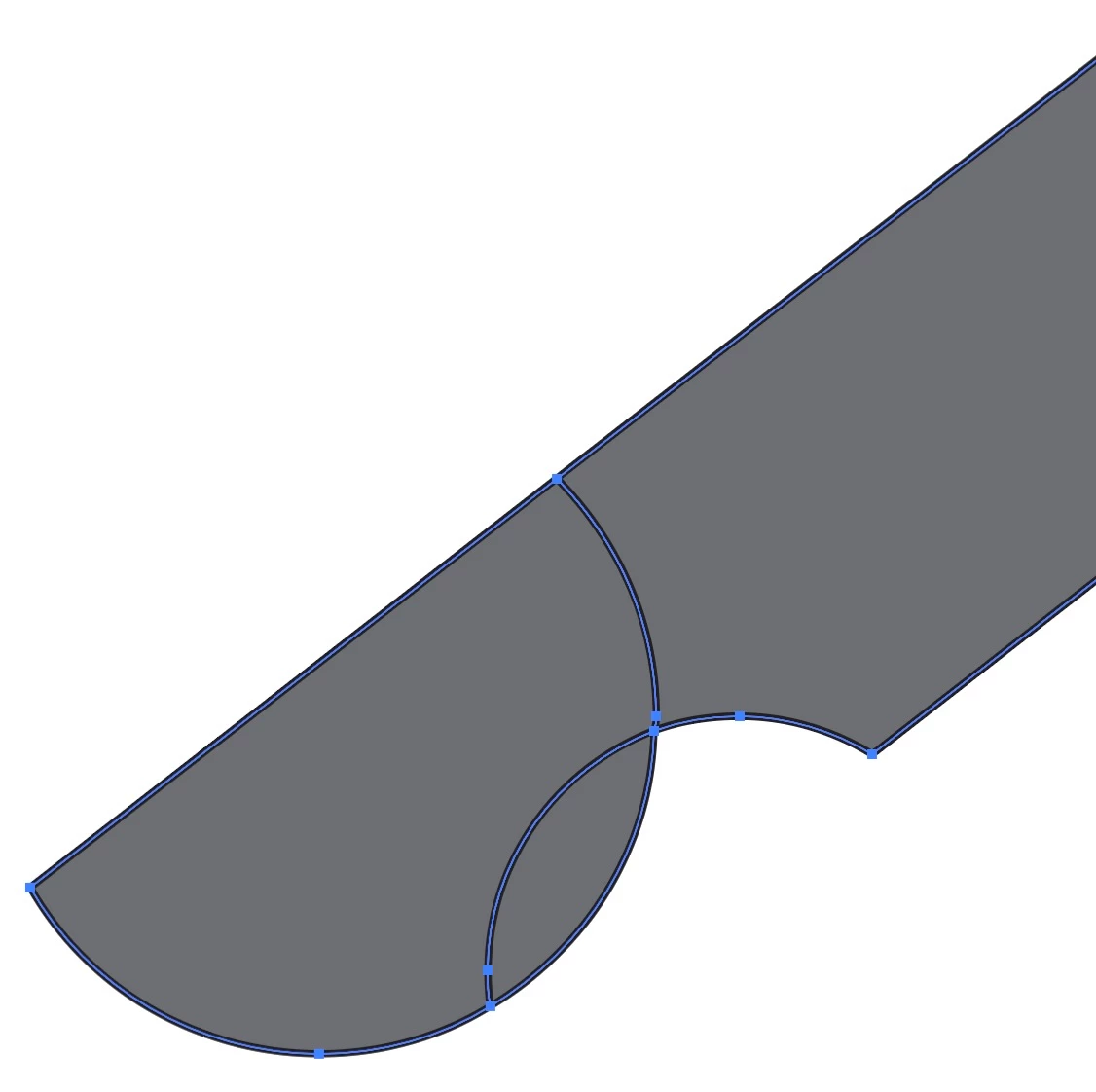
When burning this object on m laser cutter, it sees these items as individual objects and burns as such.

How do I combine these items into a single object? 


Any help is much appreciated,

-Tiest

4 replies

Kurt Gold
Community Expert
Community Expert
January 2, 2025

In case you have to create similar shapes frequently, I'd recommend to use the Shape Builder tool instead of the Shaper tool.


While the Shaper tool sometimes has some benefits, the Shape Builder tool usually works more straightforward for your purpose.

renél80416020
Inspiring
January 3, 2025

Bonjour,

Je ne vois pas où est le problème ?


René


pixxxelschubser
Community Expert
Community Expert
January 2, 2025

What do you really need?
All “visible bounds” or all “geometric bounds”?

Participant
January 2, 2025

I am simply trying to combine all the shapes together into one. Amazed how complex that is in AI.

As for your question, I do not know what the difference between these two bounds is.... Sorry! -Tiest

pixxxelschubser
Community Expert
Community Expert
January 2, 2025
  1. The (only) red areas (along the blue paths) are the geometric bounds.
  2. The red areas plus the yellow strokes are the visible bounds.


Monika Gause
Community Expert
Community Expert
January 2, 2025

There should be an expand option for the Shaper group in the Control panel.

You will need to inspect the result in outline mode, because you might need to combine it.

Participant
January 2, 2025

Monika - Here the image in outline mode, everything is still there...

How do I combine the pieces to become 1 piece? I cant select the circles individually anymore...

Seems that using the Shaper Tool; the images is not really 'removed'.

Please help as I am at a loss how to accomplish such seemingly simple task... Thanks! -Tiest

Participant
January 2, 2025

Did you expand it? 


Apologize but I dont know what that means... Tiest 🙂

Community Expert
January 2, 2025

Have you tried expanding the results (using the Expand Appearance command)?

Participant
January 2, 2025

Bobby - Thanks for your response. No I have not as I do not know how to do that. Ultimately I would expext a single path outlining my object. Can you explain to me how to use the Expand Appearance command? -Tiest