Participating Frequently
October 19, 2018
Question

HELP: Different/Weird Live Artwork Preview on Latest Illustrator Update

  • October 19, 2018
  • 2 replies
  • 661 views

Hi Adobe Community, I just need help and suggestions on how to fix this problem i have on this latest update on Illustrator. I'm a graphic design illustrator, my style is vintage and i use crosshatching technique on doing my illustrations.

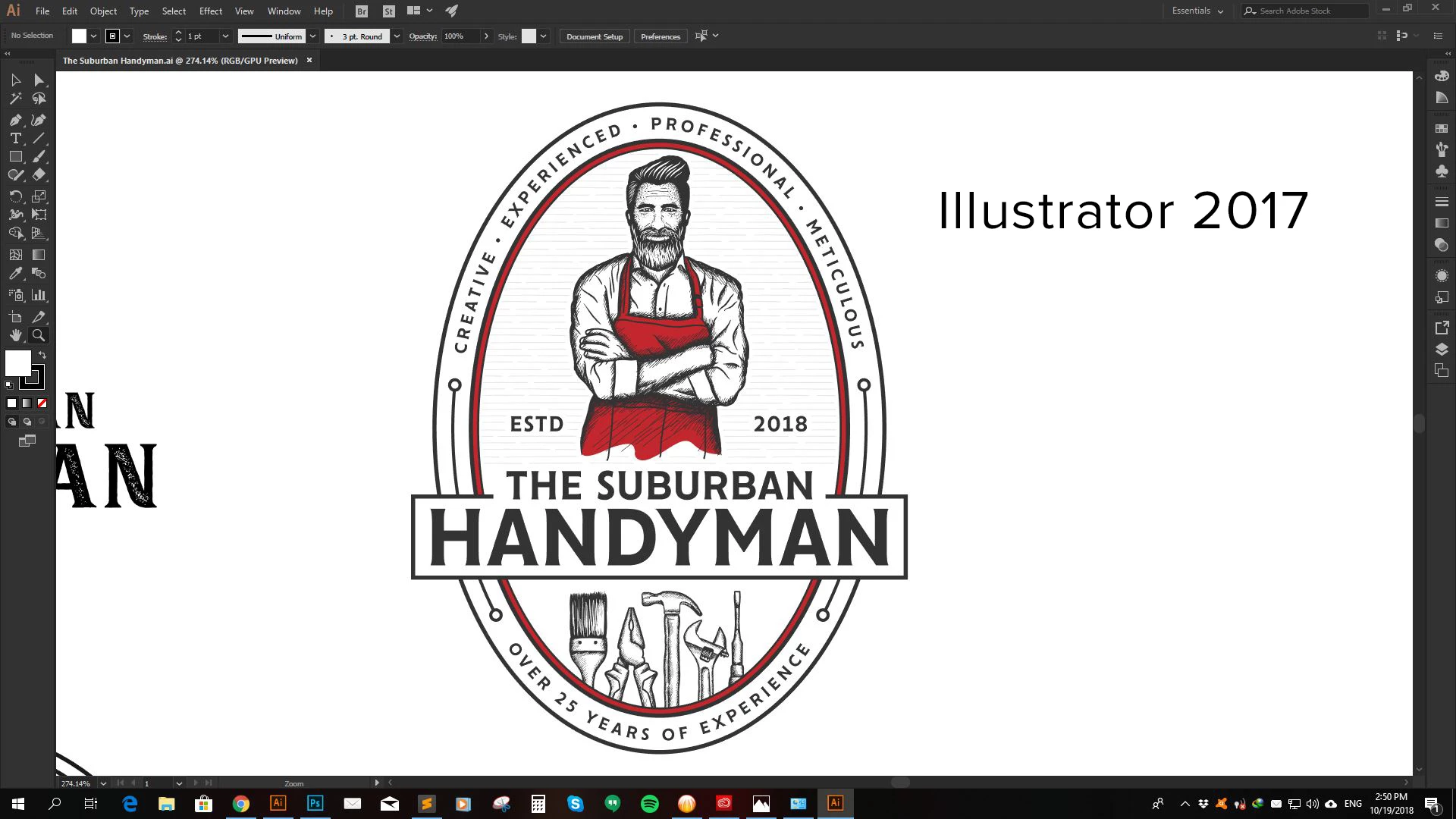
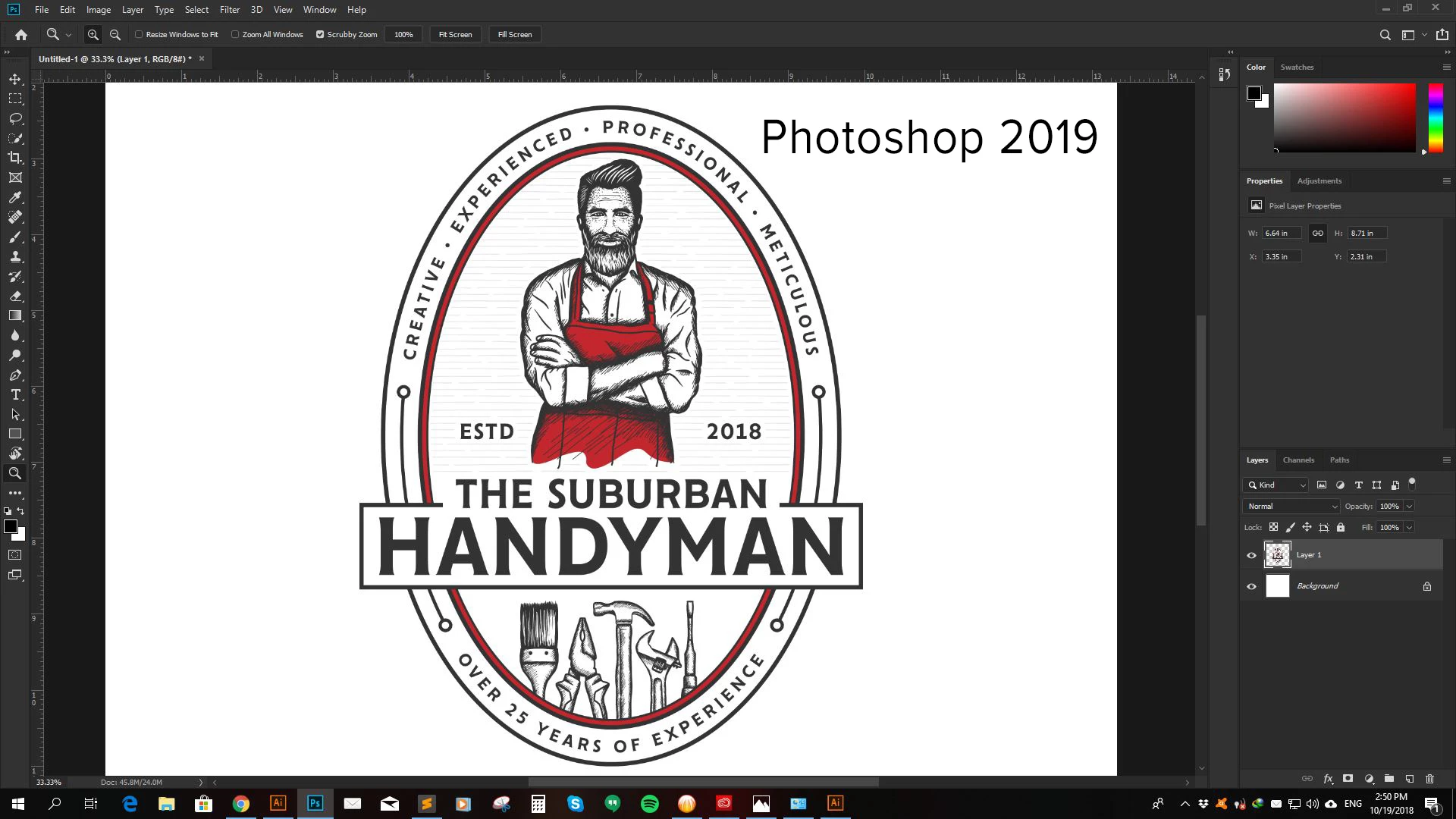
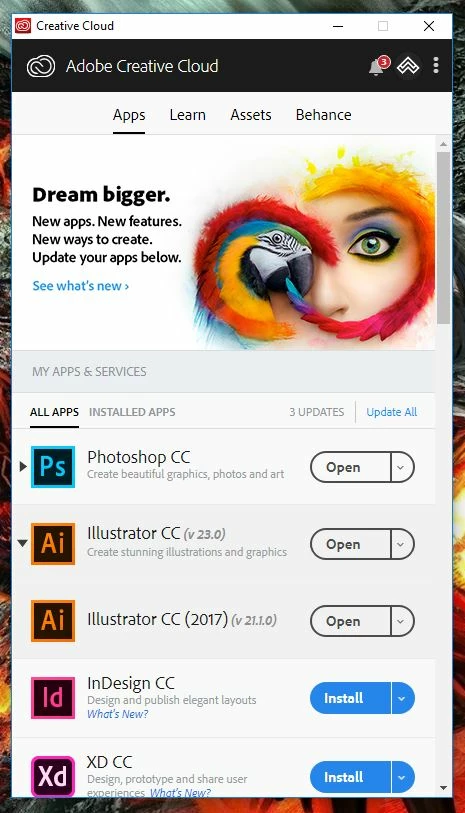
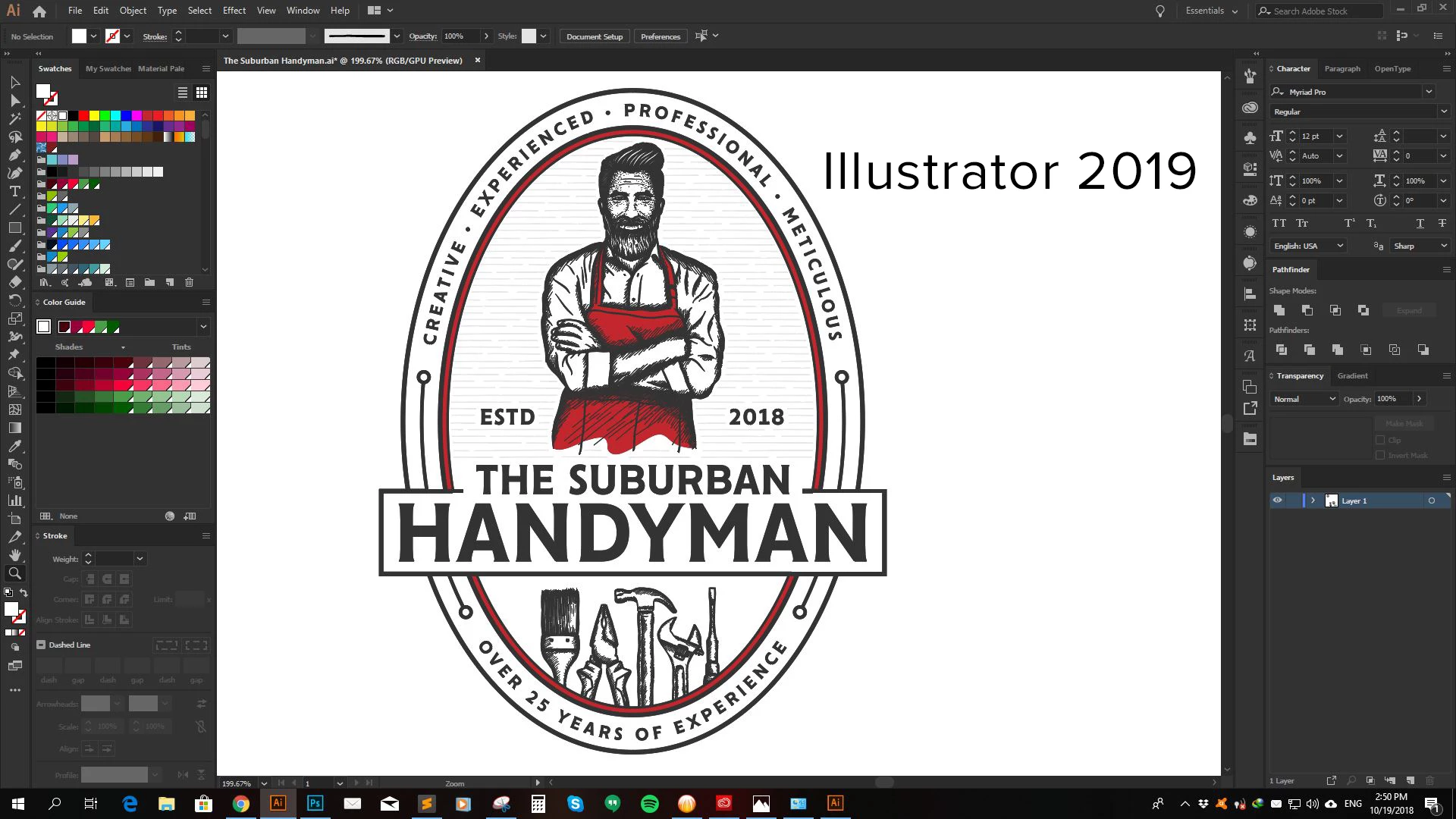
My problem is that i'm having a weird live preview on my illustrations, specifically on the thin line crosshatches i made. As you can see on my screenshots below, the latest update has different live preview compare to the other screenshot which is the older version (2017) of AI. The supposedly thin crosshatch stoke lines are showing as bold lines ( high contrast).  I also copied my artwork from the updated AI and pasted it on Photoshop document and it shows similar preview with the older AI (screenshot provided). This problem is the same i had on Adobe Illustrator 2018 so i'm using 2017 version as it's the best working version so far for me.

Below are things i've done so far:

1. Updated my Windows 10

2. Updated my Nvidia to latest Driver Update

I'm hoping that someone could help me on my problem as i really want to use updated Adobe programs, specifically AI. Looking forward for your replies. Thank you so much!

Shan
This topic has been closed for replies.

2 replies

Ton Frederiks
Community Expert
Community Expert
November 3, 2018

Your 2017 version is zoomed to 274,14%, so you see more detail than your 2019, which is 199,67%. That could make a difference.

It could also be caused by the GPU preview.

What happens if you turn it off?: Ctrl E

Monika Gause
Community Expert
Community Expert
October 19, 2018

Please point out which part exactly is wrong. I don't find it.

Participating Frequently
November 2, 2018

Hi there! Sorry for the very late reply. If you look closely to the illustration, especially on the crosshatches, AI 2019 shows bolder lines which is supposedly to be thin just like 2017 preview.

I found out that if i turn on "Enhance Thin Line" on 2017 update, it will also show the same preview on 2019 so my conclusion is "Enhance Thin Line" is automatically turned on on 2019 update. How can i turn it off considering that the option to turn it on/off is removed on the preferences.

Monika Gause
Community Expert
Community Expert
November 2, 2018

artwizard24  schrieb

Hi there! Sorry for the very late reply. If you look closely to the illustration, especially on the crosshatches, AI 2019 shows bolder lines which is supposedly to be thin just like 2017 preview.

I found out that if i turn on "Enhance Thin Line" on 2017 update, it will also show the same preview on 2019 so my conclusion is "Enhance Thin Line" is automatically turned on on 2019 update. How can i turn it off considering that the option to turn it on/off is removed on the preferences.

That's an Acrobat setting.