Known Participant
April 29, 2025
Answered

Help me turn a filled shape into a stroked image please!

  • April 29, 2025
  • 2 replies
  • 1488 views

Hello,


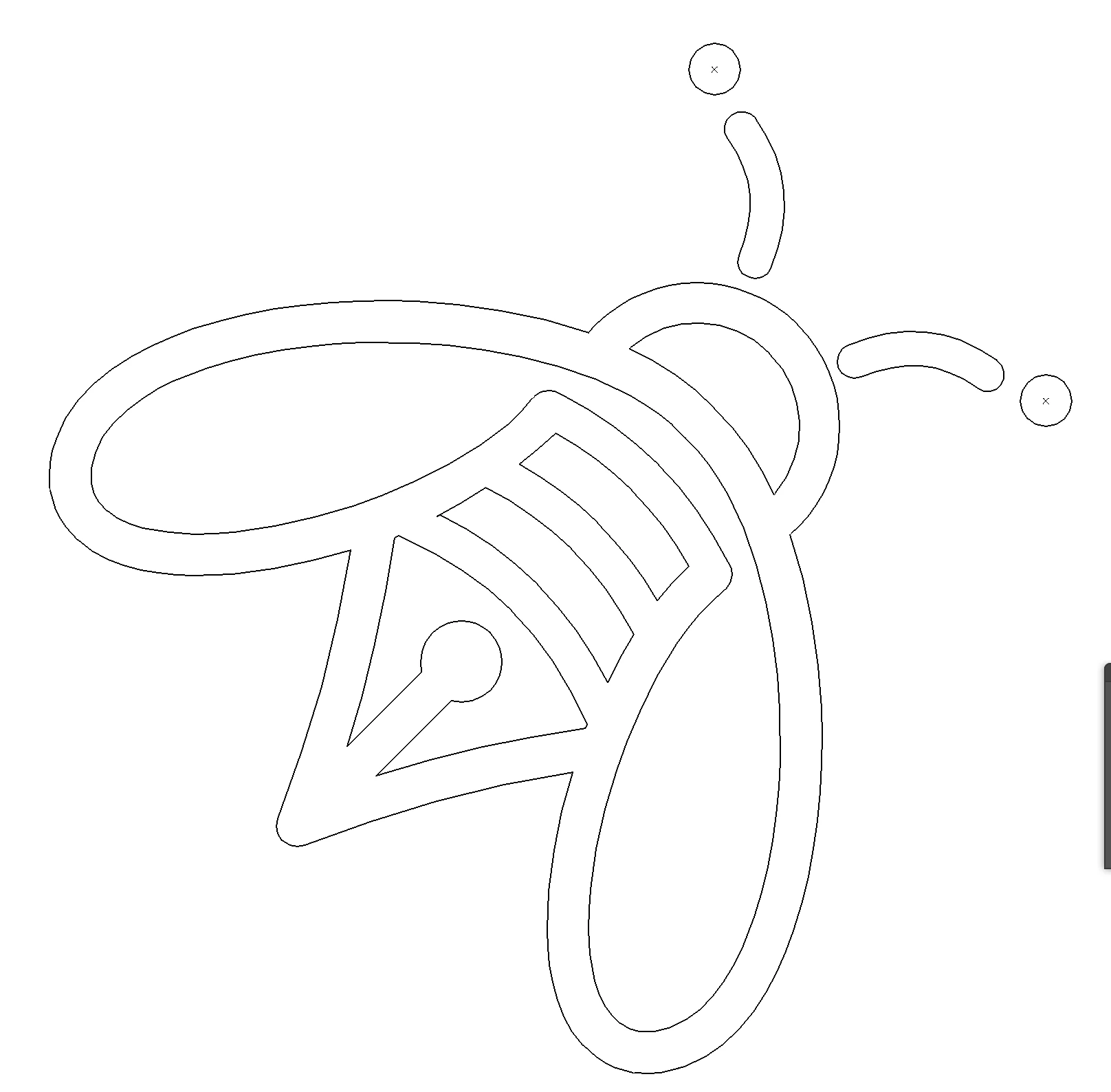
Please could anyone help me with this shape. The top shape is a filled shape that I need turning into a single stroke so I can change the width of the line. The 2nd image is there to just show the outline when I switch the view mode to make it clear all the lines I'm dealing with. I need to make the orange filled shape as a single stroke line that sits in the centre *not* the outer line.

I've watched tutorials, asked Chat GPT but cannot for the life of me do it. I hope that makes sense and any help will be greatly appreciated.

Thanks

Correct answer Jacob Bugge

Iain,


The Offset Path can sometimes move in mysterious ways, but often behaves well.


However its behaving well relies on a good quality/simplicity/efficiency of the original path(s), so a cleanup could be a good way to start; the screenshot by Monika shows a few flaws.


Such Compound Paths can be made from paths that were originally stroked and then outlined and assembled with Pathfinders (or Shape Builder/Live Paint, and thereby have constant distances suitable for Offset Path and/or 1 step Blends, maybe using both to create new stroked paths to assemble, or (literally) pieced together as described by Bobby.


The difficult part is obviously the Compound Path forming the wings/body/head.


Hopefully, you can work with Offset Paths most or all of the way, or at least get some initial parts as stroked paths to work with/use as guides as follows, after ungrouping from the separate parts, and using stroke/nofill paths as the the 2nd image, Smarts Guides being your friends:


1) Go through the paths and clean up/improve shapes, especially at corners, working with tools like the Remove Anchor Point Tool to get rid of funny extra Anchor Points and/or the Add Anchor Point Tool/Direct Selection Tool to reshape parts;

2) Select the Compound Path and release it;

3) Select the innermost path forming the wings/top of the body and apply Offset Path with Offset equalling half the distance to the corresponding parallel outer/inner paths to create the crucial first simple full stroked path; hide the original path;

4) Select the outermost path forming the outer shape of wings/body/head and apply Offset Path with the same Offset as in 3) only negative; hide the original path;


Now you have the two basic (Offset) stroked paths that form crucial parts of the bee; you can get rid of the parts of the the outermost path from 4) that run parallel to the innemost path from 3) as follows:


5a) Cut the outermost path from 4) at the corners where the head meets the wings and the corners where the wings meet the tail of the body; delete the paths that form the shape of each wing (more or less coinciding with the corresponding path from 3));

5b) Snap the end Anchor Points of the head and tail parts from 5a) to the path from 3);


6) Delete the superfluous paths that forms the inner shape of the head, as well as the midmost inner path of the body, two in total;


7a) Apply the same (positive) Offset to the two remaining inner paths, one forming the tail and the lower stripe, the other forming the upper stripe, remember to have a sufficient Miter Limit for the tail path as mentioned by Monika;

7b) Cut the two paths from 7a) in the same way as described in 5a), and delete the paths more or less coinciding with the paths formed in 3) - 5b);

7c) Snap the end Anchor Points of remaining paths from 7b) to the path from 3) - 5b);


Now you ought to have the set of stroked paths corresponding to the Compound Path;


😎 Group all the paths formed up to 7c);


You can work similarly with the separate paths, and Group all the paths forming the bee.


The description above can be adjusted depending of which paths have the best quality, and (parts) of paths can be redrawn, maybe using (some of) the offset paths as guides.


 

2 replies

Community Expert
April 30, 2025

The Offset Path command offers the easiest approach to create a new path inside or outside the original path. The corners may not be perfect though.


Creating a true center line in the original artwork is do-able, but can be a bit challenging and time consuming. I would use the Scissors tool to break apart individual path segments that are parallel to each other. Then I would use the Blend tool to create a 1 step blend between the two parallel paths. The Reverse Path Direction command often has to be applied to one of the two parallel path segments to make the new center line path segment fall in the right location. This process can't be applied to all of the art object at once. It has to be applied to smaller segments at a time. The true center line path will be built up piece by piece, kind of like joining tracks of a model railroad together. There will be gaps at the end of this process unfortunately. Those gaps have to be kind of eye-balled together. Other tricks can be used to make that part of the process easier (such as locking a copy of the artwork on another layer to use as a guide).

Known Participant
April 30, 2025

Thanks. I'm not even sure how to do that. After wasting the best part of a day on this, I think I'm probably just going to redraw it with the pen tool. The offset path is really messy and doesn't seem to look the same. Thankyou

Community Expert
April 30, 2025

I took the PDF art you posted above in the discussion thread, applied some of the techniques to it I described earlier and then re-posted it here.


I rotated the object to be vertical. That allowed the work to be completed on one half of the object and then duplicated to the other half. The different object fills show how I de-constructed various parts of the bug object into more simple pieces. That allowed the blend operations to be applied to isolated sections. I made the blends in 3 steps to illustrate some of the over-shoot needed where objects are intersecting.


The blends take care of much of the work, but some points in corner areas require some manual editing and subjective human decision making, which is something computers still can't do for themselves. Photoshop's inner bevel effect looks good when applied in subtle ways. If the effect is ramped to its maximum to try to create a chiseled "prismatic" effect the corner areas end up bowled out and looking terrible. Computers don't know how to handle those areas. That's why we can't have something like a plugin effect that creates something like a center inline effect in lettering.

Monika Gause
Community Expert
Community Expert
April 29, 2025

You cannot do that automatically. But in order to just change the line width, try the Offset path effect. Needs to be expanded afterwards with "Expand appearance"

Known Participant
April 30, 2025

Thanks. Unfortunately that doesn't work for this shape

Monika Gause
Community Expert
Community Expert
April 30, 2025

Can you perhaps share the AI file? Rename it to .PDF in order to upload it on this forum.