
Participant
September 29, 2018
Answered

HELP PLEASE! Transparency Mask vector not changing colour in illustrator

  • September 29, 2018
  • 6 replies
  • 3739 views

Hello.

I'm not sure if anyone can help me, I am putting a transparency mask of a grunge texture vector over some text. When I put the grunge texture over the text in a transparency mask, nothing shows up. I change the colour of the vector texture to black (hoping it will change to black) but it goes white. No matter what colour I change the vector in the transparency mask to, it stays white. When I release the mask, the vector is the colour I chose (so black).
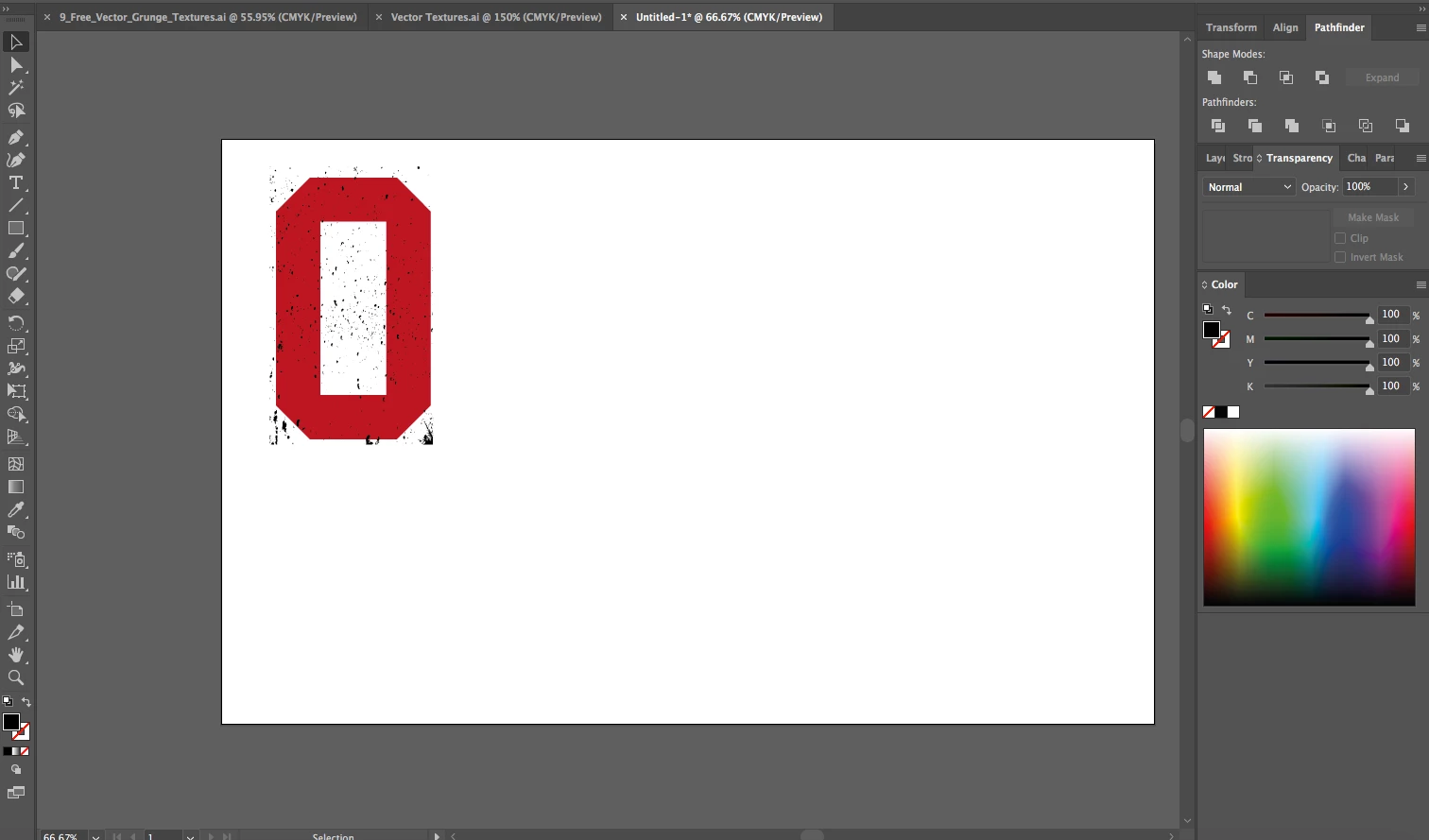
< this is the image of the black grunge vector when it is released from transparency mask.
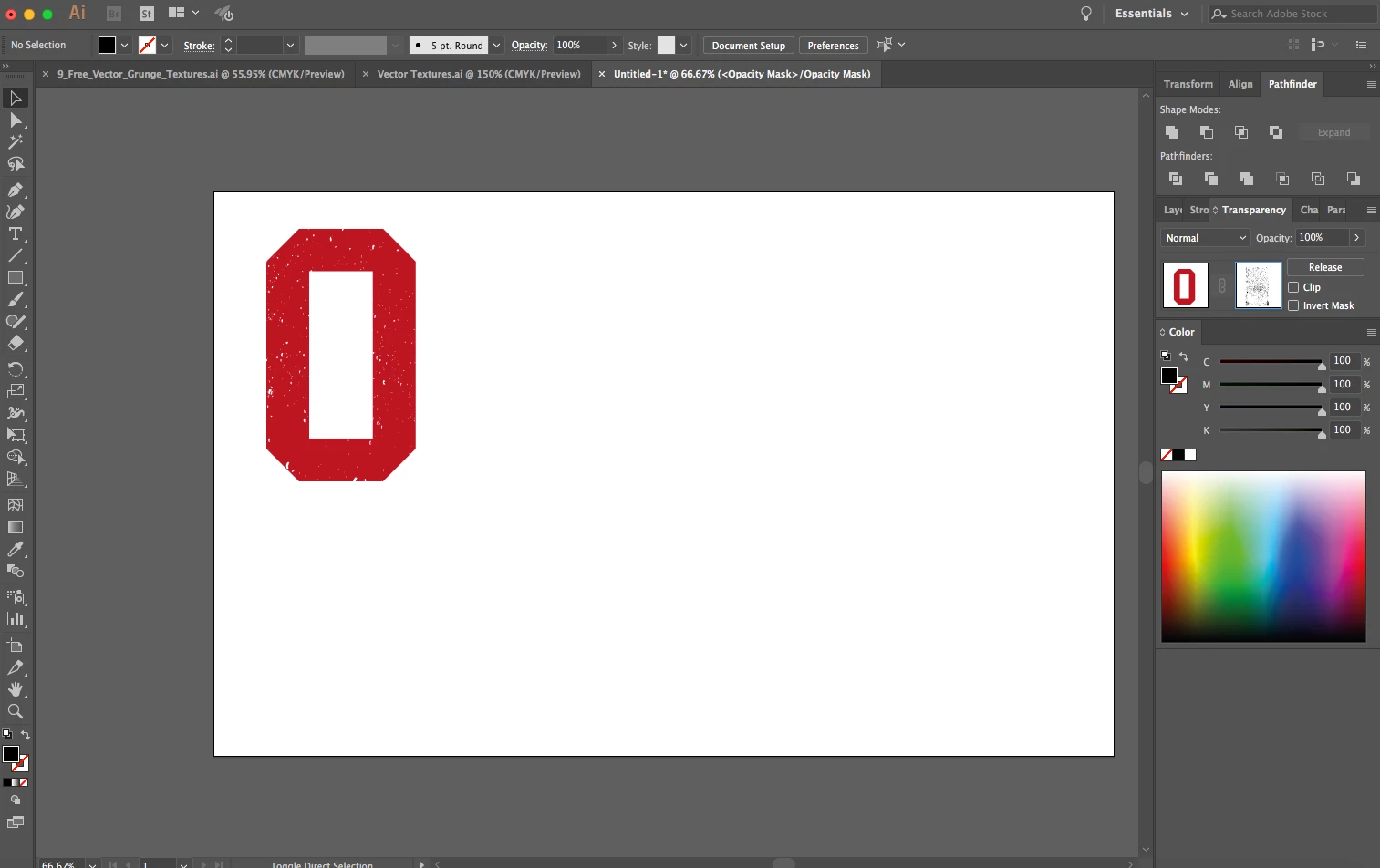
< CMYK is to rich black of the vector, but just will not change from being white!

Can anyone please help - I'm getting extremely frustrated!

This topic has been closed for replies.
Correct answer lambiloon

Hi please check given video to understand what you are doing hope all will be good...Thanks.

6 replies

Ton Frederiks
Community Expert
Community Expert
September 29, 2018

Transparency masks just do that, make things transparent.

Look at it with the View > Show Transparency Grid on.

As long as your vector texture does not contain a white background, a clipping mask (like Jacobe suggested)  is the way to go:

Ray Yorkshire
Participating Frequently
September 29, 2018

Phillip

Maybe you are using the wrong tool

Make a pattern out of the texture

Object >Pattern>Make

Next select the text,,

go to the Appearance panel , Add New Fill, and apply the new pattern to it

Jacob Bugge
Community Expert
Community Expert
September 29, 2018

Philippa,

As I (mis)understand it, you can:

1) Create a copy of the text above the grunge, select the text and Ctrl/Cmd+C+F; if the text is outlined turn the set of letters into a Compound Path Ctrl/Cmd+8;

2) Select (only) the top copy and the grunge texture and Ctrl/Cmd+7 to create a Clipping Mask.

This should hide the grunge outside the letter shapes and still have it shown on top of the original text.

tromboniator
Community Expert
Community Expert
September 29, 2018

I'm not sure what you're expecting to get, but your second screenshot is exactly what you should get when applying a black mask: black will completely mask the color of the masked object, so that it is fully transparent. The white that you see is the white of the artboard showing through. A white mask lets all the color through, so the masked object is fully opaque. Gray will let more more less color through depending on how dark it is. Other colors will behave according to their grayscale values.

Peter

lambiloon
Community Expert
lambiloonCommunity ExpertCorrect answer
Community Expert
September 29, 2018

Hi please check given video to understand what you are doing hope all will be good...Thanks.

Ali Sajjad / Graphic Design Trainer / Freelancer / Adobe Certified Professional
Bill Silbert
Community Expert
Community Expert
September 29, 2018

Have you tried doing this with a Clipping Mask instead of a transparency mask How to use and edit clipping masks in Illustrator ?