Participating Frequently
August 23, 2022
Answered

Help with cutting a shape from another

  • August 23, 2022
  • 2 replies
  • 778 views

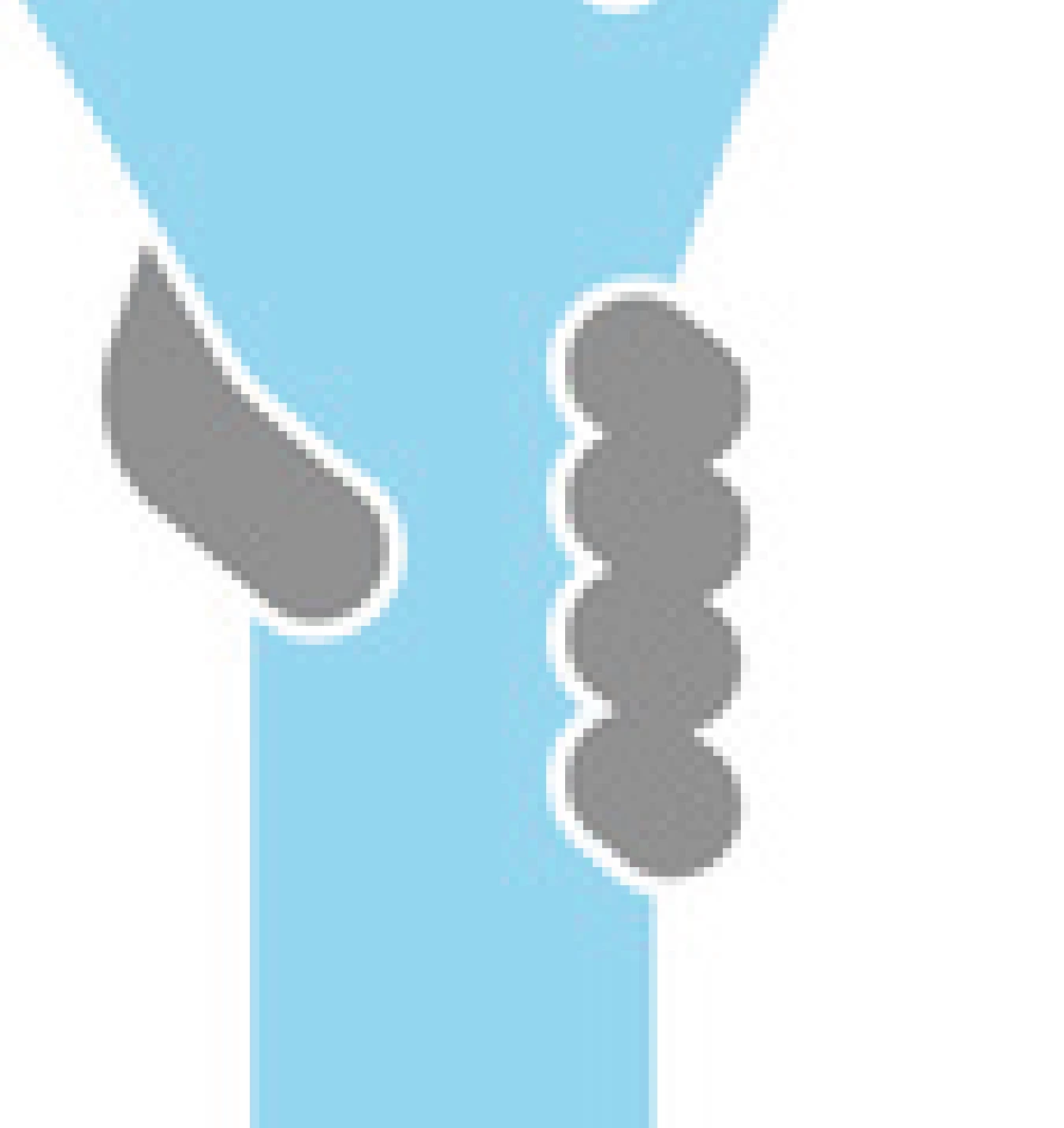
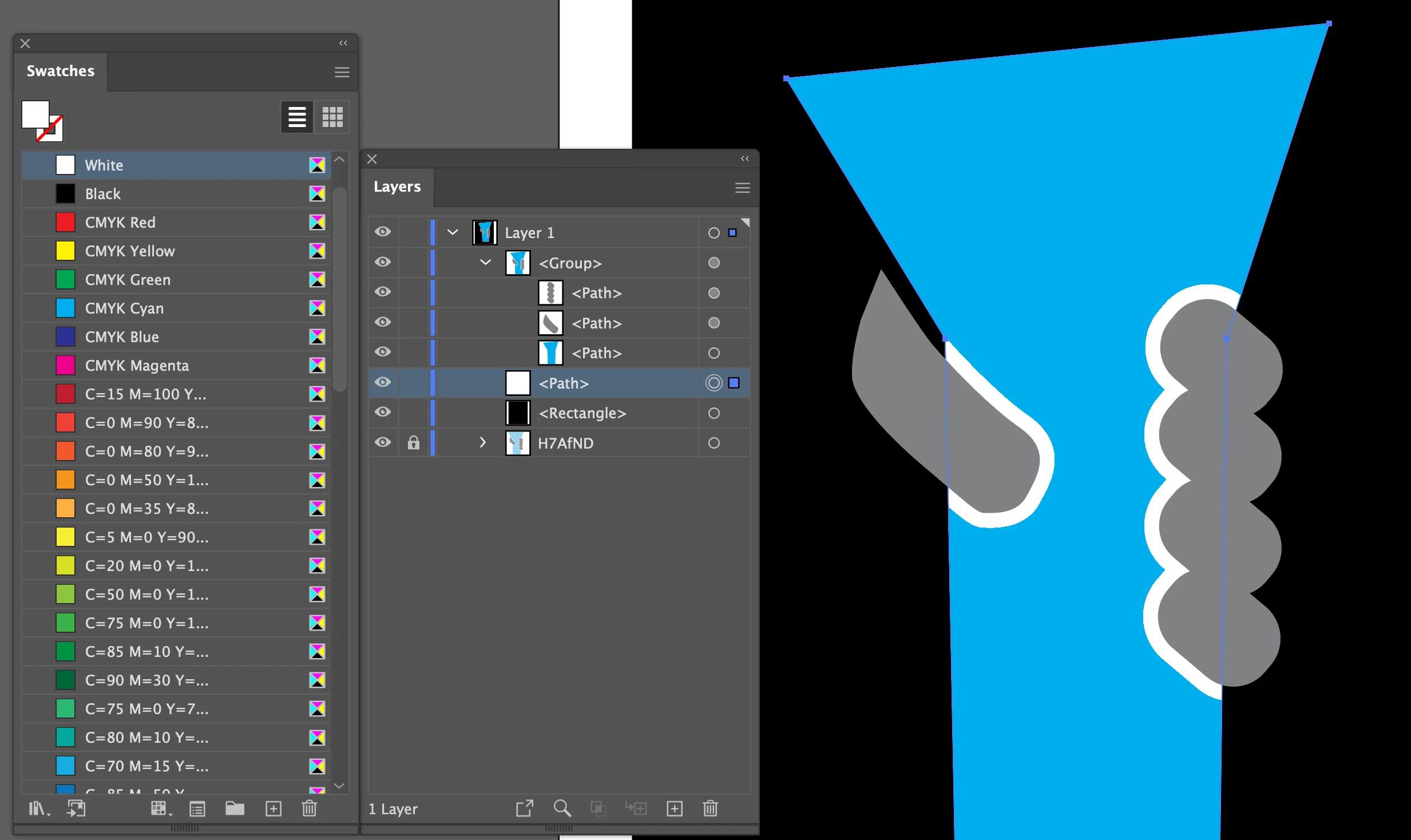
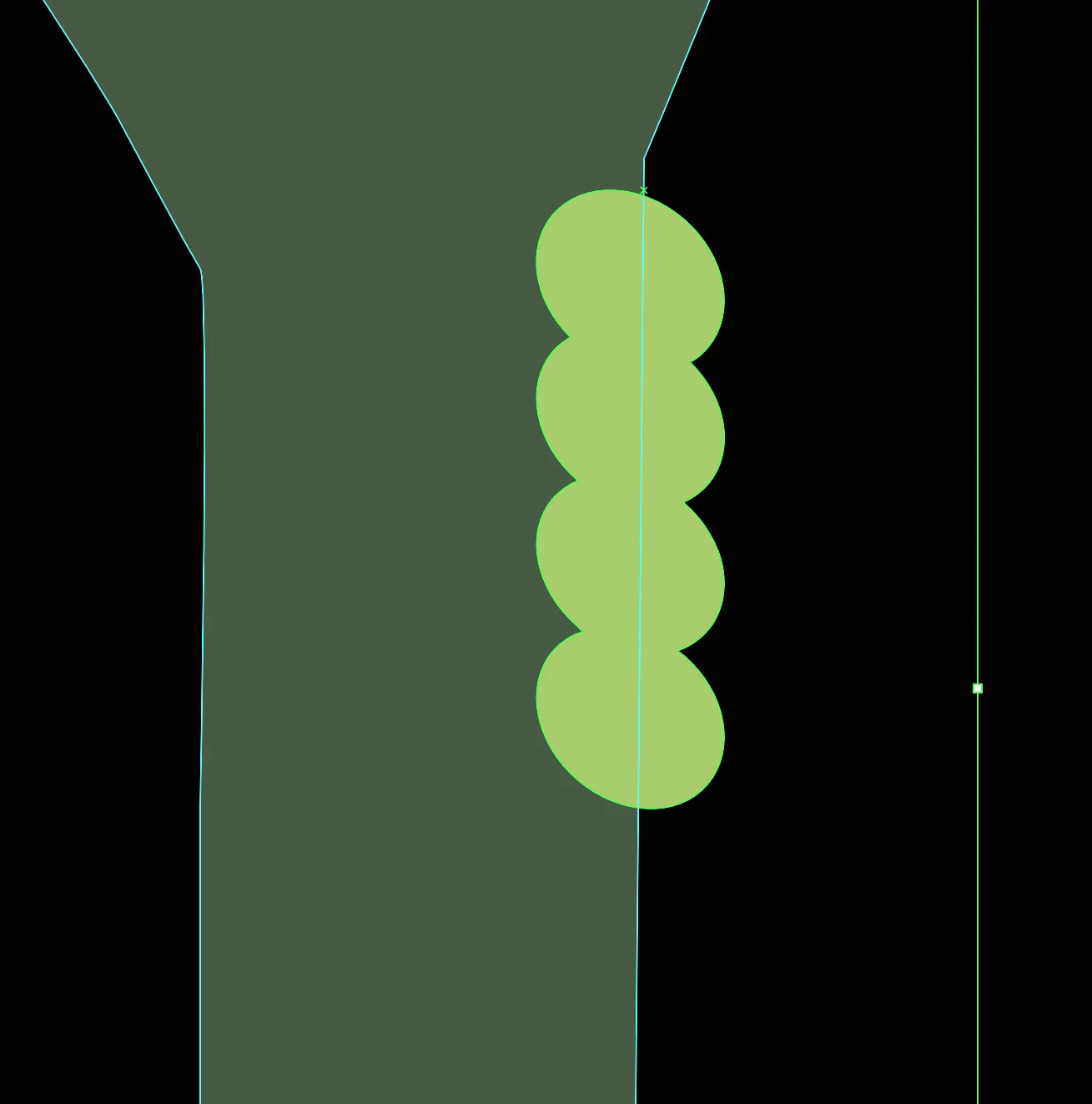
Hello, what I have is the green image, i basically want to make it look exactly like the blue image but can't work out how to get the white gap. I have tried using stroke but I don't want the stroke around the whole of the light green part. Please could someone help,


Thanks, Jess
 

This topic has been closed for replies.
Correct answer SJRiegel

Do you want white strokes, or to have the black show through? 

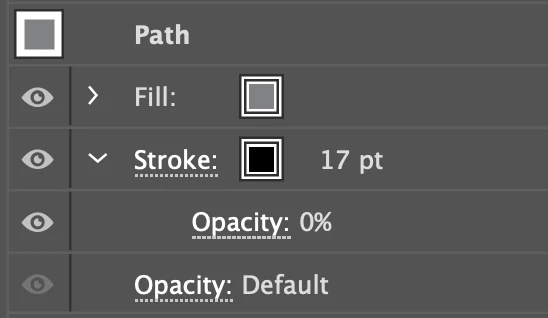
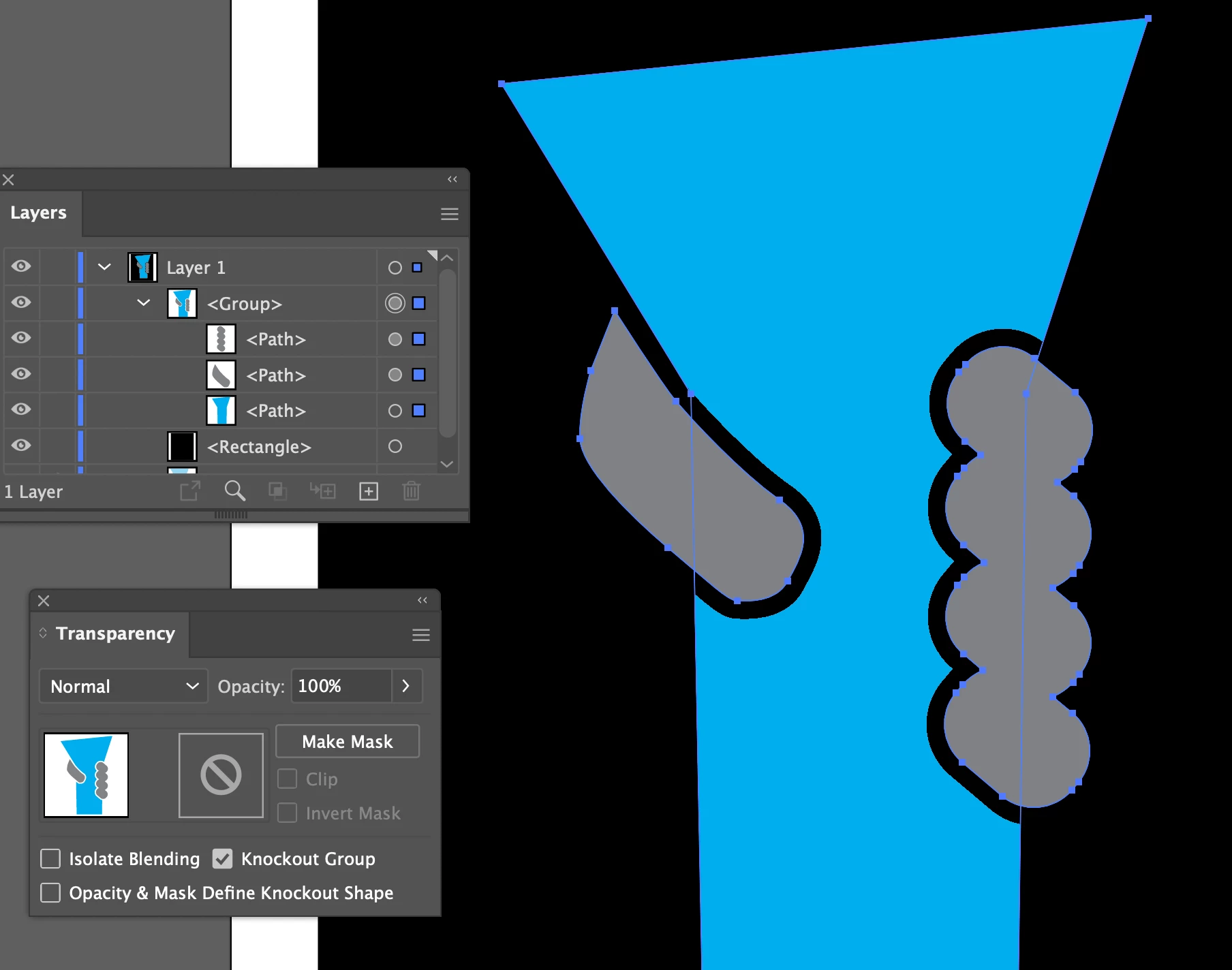
For the first - set a thick black stroke around the fingers, put it behind the fill, and set the stoke's opacity to 0%. 

Group the fingers with the blue shape, and check the Knockout Group box for the group.

If you need white behind the outline, set another copy of the blue below the group, and set to to white.

2 replies

SJRiegelCorrect answer
Legend
August 23, 2022

Do you want white strokes, or to have the black show through? 

For the first - set a thick black stroke around the fingers, put it behind the fill, and set the stoke's opacity to 0%. 

Group the fingers with the blue shape, and check the Knockout Group box for the group.

If you need white behind the outline, set another copy of the blue below the group, and set to to white.

Participating Frequently
August 23, 2022

thank you, i want the gap to be transparant so it will adapt to any background

Legend
August 23, 2022

The Knockout Group does give you that transparency. Below is the same art placed over a green background.


John Mensinger
Community Expert
Community Expert
August 23, 2022

There are several ways to get that. To do it destructively, I'd probably select the fingers shape and use Object > Path > Offset Path to create a larger copy of it, then Use Pathfinder > Minus Front to subtract it from the 'funnel' shape.

Participating Frequently
August 23, 2022

thank you i will try this

Participating Frequently
August 23, 2022

what would my next steps be here?