Known Participant
December 1, 2018
Answered

help with Illustrator: t-shirt

  • December 1, 2018
  • 4 replies
  • 5625 views

Hi, I am looking for as much step by step help on this as possible. I have asked elsewhere and the answers are vague or even suggest to use Photoshop.

1. I had a Santa t-shirt design done on Fivverr. This shirt is for Amazon Merch.

2. The designer did it on Illustrator and sent me the Santa design PNG file with the correct t-shirt Merch by Amazon specs: 4500x5500, 300 ppi etc. I uploaded this PNG design to Amazon Merch, done.

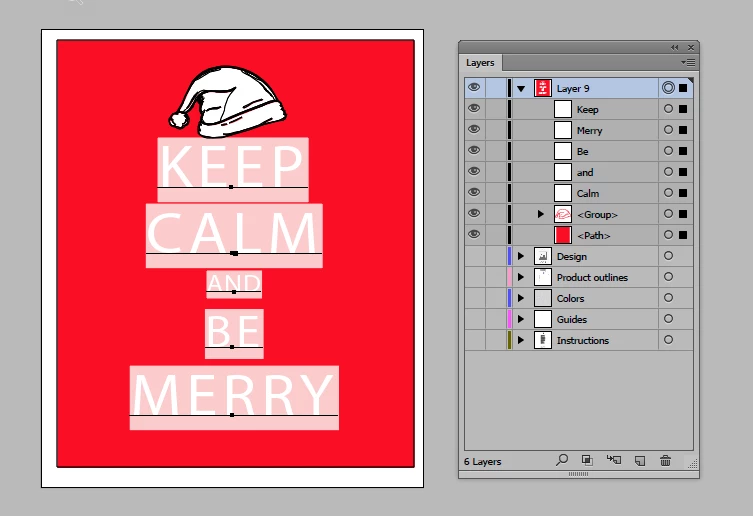
3. I also asked the designer for the Santa AI file so I could make variations of the design by changing the background color and just change a couple of words. In the initial design, the current background color is red and the fonts are white.

This is where I have had problems and have received confusing info.

-So to create a quick variation of the design, what are the next steps?

-Create a new Illustrator doc with the Merch specs and "Place" the designed Santa AI file I was given into it?

-For the variation design how do I change the design background to transparent and say yellow font?

Thanks
    This topic has been closed for replies.
    Correct answer Ray Yorkshire

    Go here

    Merch by Amazon

    and download the template

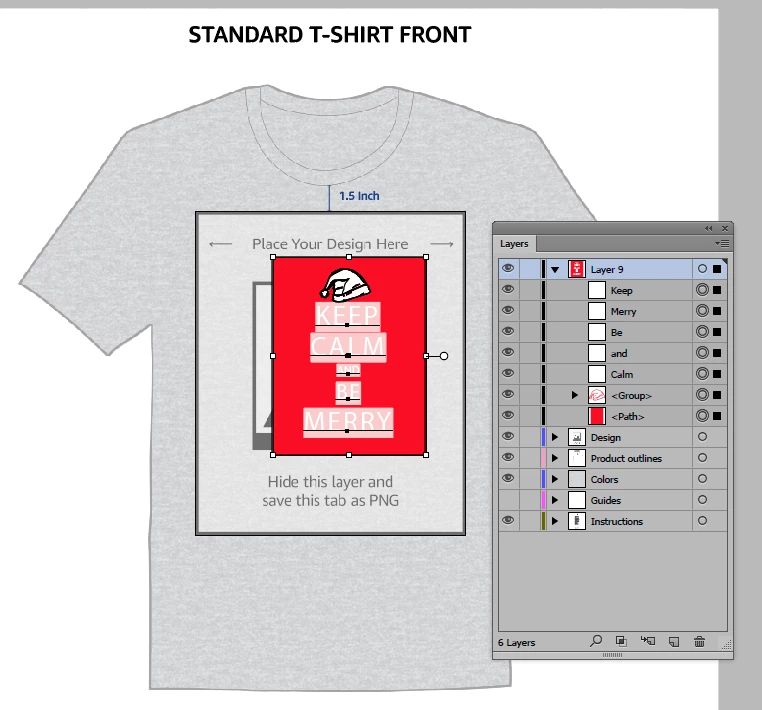
    Open the t -shirt file in Illustrator.

    Have the Layers panel open  ( Windows >Layers)

    at the bottom of that  Create new layer

    Next go File > Open 

    Navigate to the illustrator file with your design and open it,

    Unlock any layers

    Edit > Select all on active artboard

    Edit > Copy

    Switch to the other illustrator file , the template tab,

    Making sure thenew layer you just made is  selected in the layers panel

    Go  Edit >Paste

    to combine the 2 files

    You probably don't have the font your designer used, like me, so illustrator has substituted another font.

    Anyway resize , change the background etc, as suggested here.

    Or you could start again and add something else .

    Then when you are happy

    In the layers panel

    turn off the visibility, the eye icon, off on all the other layers

    just leaving your art.

    to save

    File > Export  > Export As

    tick Use Artboard

    Type png

    Export

    In the next Window

    Set resolution to 300

    transparecy

    OK

    AS the template window, the artboard, was

    15 x 18 inches

    that times by the resolution 300

    = 4500 x 5400 pixels

    as required.

    Done...

    4 replies

    Ray Yorkshire
    Ray YorkshireCorrect answer
    Participating Frequently
    December 1, 2018

    Go here

    Merch by Amazon

    and download the template

    Open the t -shirt file in Illustrator.

    Have the Layers panel open  ( Windows >Layers)

    at the bottom of that  Create new layer

    Next go File > Open 

    Navigate to the illustrator file with your design and open it,

    Unlock any layers

    Edit > Select all on active artboard

    Edit > Copy

    Switch to the other illustrator file , the template tab,

    Making sure thenew layer you just made is  selected in the layers panel

    Go  Edit >Paste

    to combine the 2 files

    You probably don't have the font your designer used, like me, so illustrator has substituted another font.

    Anyway resize , change the background etc, as suggested here.

    Or you could start again and add something else .

    Then when you are happy

    In the layers panel

    turn off the visibility, the eye icon, off on all the other layers

    just leaving your art.

    to save

    File > Export  > Export As

    tick Use Artboard

    Type png

    Export

    In the next Window

    Set resolution to 300

    transparecy

    OK

    AS the template window, the artboard, was

    15 x 18 inches

    that times by the resolution 300

    = 4500 x 5400 pixels

    as required.

    Done...

    KShinabery212
    Community Expert
    Community Expert
    December 2, 2018

    Now I am so curious as I did not know that one could upload designs to Amazon to be printed or sold on merchandise. 

    Quick question... how does this compare to Redbubble and Society 6?  I use both and even still have some design on Zazzle.  But if Amazon produces better quiality prints and creators get a higher percentage then I totally would give Amazon a try.

    I also have used the Threadless Artist Shops... but it is worthless.

    Let's connect on LinkedIn. https://www.linkedin.com/in/kshinabery/
    jane-e
    Community Expert
    Community Expert
    December 1, 2018

    Lots of good advice here; I’ll add just one more thing. Over the years, I have seen too many situations what the client asks the designer for the source file, gets something they think is the spice file, then when they can’t make changes, they call me in to find out why. The worst was a jpeg that was completely uneditable.

    If you are having trouble, please open your layers panel and resize it taller and wider. Spin open the layers. Take a screen shot and post it. Then we know what you are working with and can best advise.

    tromboniator
    Community Expert
    Community Expert
    December 1, 2018

    Assuming that you have Illustrator and that the document is AI, open it as you would any file: do not Place it. Immediately do a Save As so that you are working on a copy and still have the original if things don't go well.

    What you can do once the document is open depends on what is in it: how it was built and what was done to it. Open the Layers panel (Window menu > Layers) and click the reveal arrows

    to see if you have paths and type objects, or just paths, or something else.

    If the background is just a red rectangle (path) you can select it and delete it, change its color, or change its opacity to get what you want.

    If the lettering is live type or outlined type (characters are separate paths or compound paths) you can select it and change the color or move it around.

    If you want to change the words, if it is live type you can select it with the Type Tool and type replacement words. If it is outlined type you will need to delete it and create new type objects.

    If there are effects or multiple fills or strokes applied to objects, this all becomes more complicated.

    What I have outlined here just scratches the surface, doesn't pretend to be a definitive answer. It's just guesswork, as we have no clue what the image looks like or how it was put together, nor what your designer may have sent you. If you want to share the AI document through a file sharing service, or attach a screenshot including the fully open Layers panel, it would be easier to know what to tell you.

    Peter

    Known Participant
    December 1, 2018

    Thank you. This was all helpful, almost there. Illustrator is definitely not intuitive.

    I have uploaded the doc here.

    EDITABLE 2merry-santa hat.ai - Google Drive https://drive.google.com/file/d/1G5QclWMMY23sSo7IeewfXjggNXOxkMKT/view?usp=sharing

    chanaart
    Community Expert
    Community Expert
    December 2, 2018

    Best to keep this thread and add the video here. Duplicate threads will get locked by someone.


    I agree! keep it in the same thread.

    chanaart
    Community Expert
    Community Expert
    December 1, 2018

    First Illustrator document are always open as a transparent background.

    You can see it by going to the properties panel or View: Show Transparency Grid.

    You can do the initial design and  create multiple art-boards.

    Here is a sample....

    File New: Choose the amount of Artboards you want...

    Start the Design and then Copy it to the Artboards. Wit the selection tool select each type and change the color.

    Do the same to the design if needed.

    Here is a screen with the transparency on and off....