Participant
November 1, 2018
Answered

Help with Text on a Line

  • November 1, 2018
  • 3 replies
  • 441 views

Im trying to create the desired effect below, I've tried using the type on path tool but it doesn't seem to work,
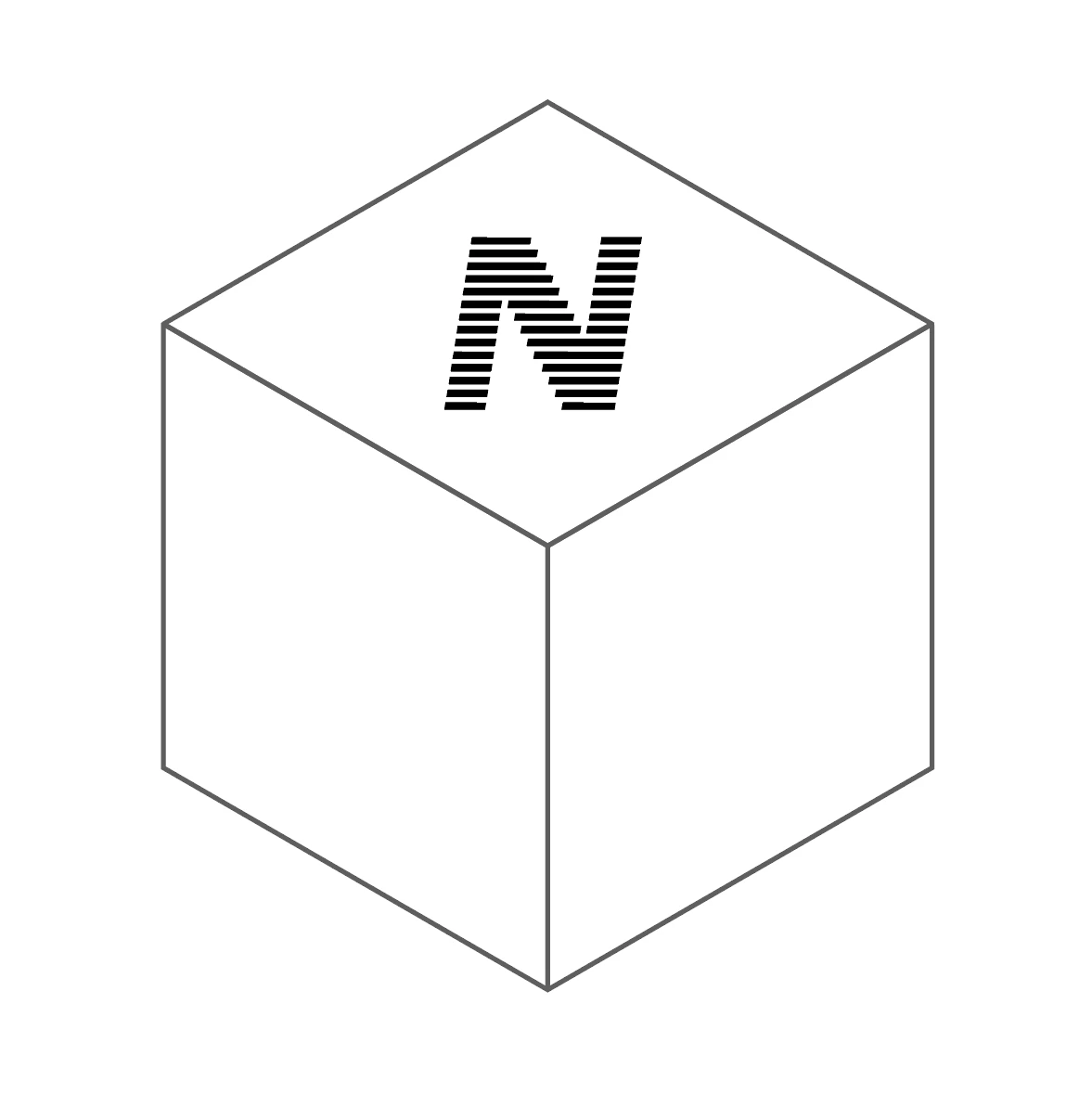
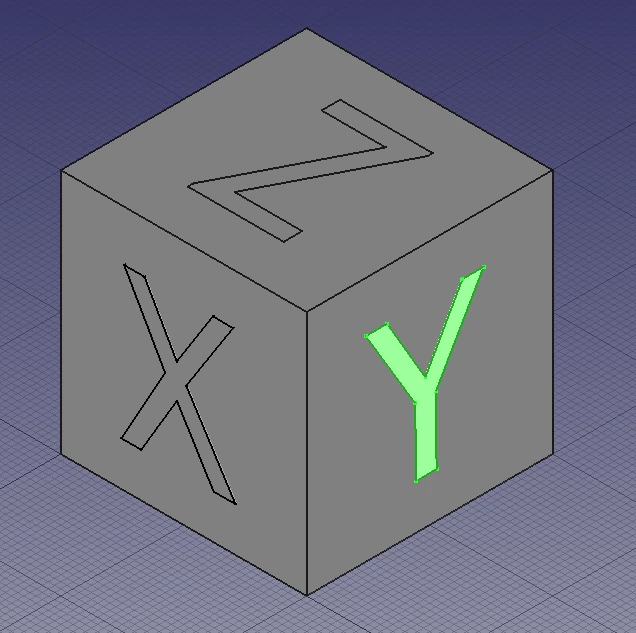
I feel like I'm missing something really obvious here but oh well, any ideas?

Thanks

    This topic has been closed for replies.
    Correct answer Muqqarib Hassan

    Hi, Please See This Video and perform the Same Steps as shown in Video.
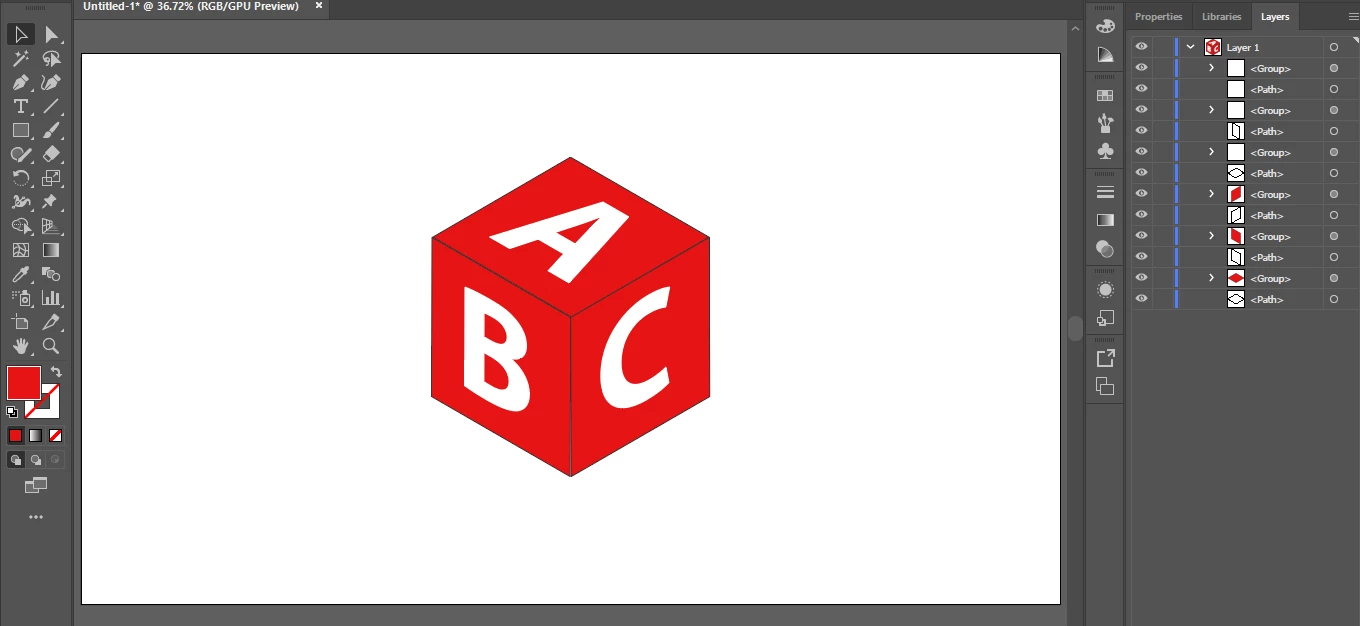
    Thanks.

    3 replies

    Muqqarib Hassan
    Muqqarib HassanCorrect answer
    Inspiring
    November 1, 2018

    Hi, Please See This Video and perform the Same Steps as shown in Video.

    Thanks.

    jane-e
    Community Expert
    Community Expert
    November 1, 2018

    You didn’t say how you created the cube. If it’s a 3D object, then you need to make symbols for the letters x, y, and z and then map them to the surfaces.

    If it’s not 3D, did you draw it with the Perspective Grid? Then make sure you are on the right plane.

    We need more info to give you the best answer, thanks.

    JETalmage
    Inspiring
    November 1, 2018

    Text on a Path is not necessary.

    1. Text Tool: Click (don't drag). Type the text.

    2. Black Pointer: Select the Text object.

    3. DoubleClick the Rotate Tool. Enter 45° (or -45°, to go the other way).

    4. DoubleClick the Scale Tool. Enter 100% for Horizontal. Enter 57.74% for Vertical.

    The text will be appropriate for the top of the cube.

    5. DoubleClick the Rotate Tool. Enter 60° (or -60°, to go the other way).

    Once you get three text objects oriented the way you want, drag them to the side of the Artboard. Whenever you need another, AltDrag a duplicate from the appropriate one and just edit the text as normal.

    JET