Participant
July 1, 2019
Question

Help with turning curves into groups

  • July 1, 2019
  • 3 replies
  • 666 views

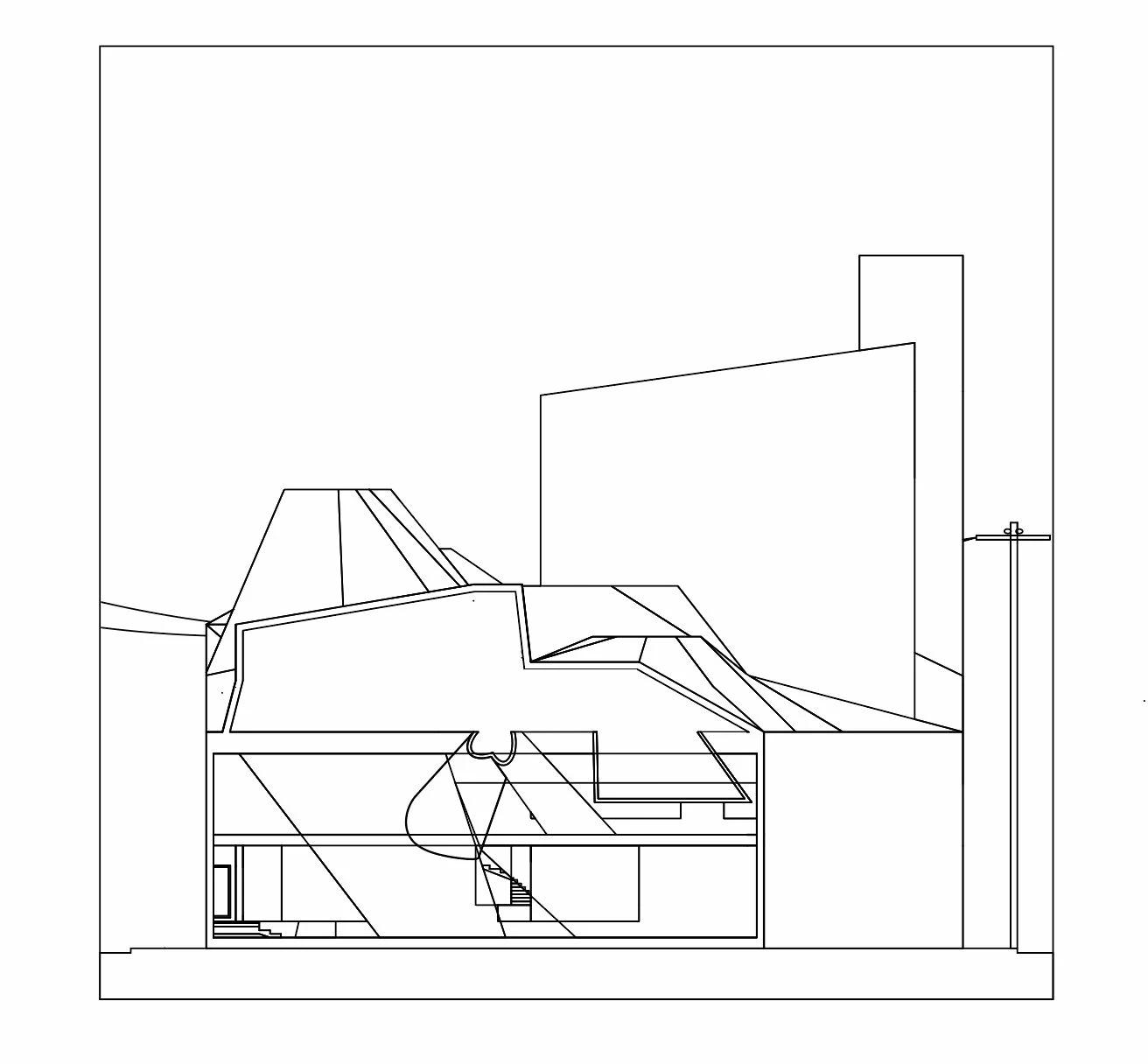
I have little experience with illustrator, i primarily use it by bringing in vector linework from Rhino 3d and then i like to bring the linework to life/ render it by coloring in shapes. the problem is, unless i draw all of these shapes in rhino they do not come in together in illustrator. i know you can individually group lines, but i was just wondering if there was an easier way. how i did it for my last project was (in rhino) drawing all the complete shapes and then used the draw inside tool to color. So

normally the linework image you see comes in as all individual lines, or however i drew it in rhino, not as completed shapes. i had to go back and trace them all in rhino to make the complete shapes. Thanks for your help!!!

This topic has been closed for replies.

3 replies

manal shanableh
Legend
July 1, 2019

I would suggest to use Live Paint Bucket as Omar.Fathy​ suggested.

but it seems that its simple drawing so you can draw shapes again to color them.

mglush
Community Expert
Community Expert
July 1, 2019

Hi!

First, I want to suggest that you might find it easier to draw the shapes directly in Illustrator--because it seems like you are doing double work! If you can, spend a some time getting familiar with the pen tool, and it will free you up to do the creative drawing that you want!

Quick question--when the lines come in from Rhino--are the separate individual lines but in the form of the shape you want? If so then you can select the end points of both lines by dragging around both and then choosing Object>Path>Join (Cmd or Control+J). This will connect those two lines and once you've finished with all the corners will give you a complete shape.

Using the Group command will put everything into a group, but it will not create a complete shape.

You can also bring your art in from Rhino and turn it into a template. Then using Illustrator's powerful drawing tools, you can create the shapes very quickly.

Let us know if you have any questions,

Michelle

Participant
July 1, 2019

Thank you i really appreciate your answer!

First off, i am doing the linework in rhino because i had designed a 3d model of the building, and i was able to turn it into linework through rhino as well. It has measurements and is to a certain scale, and while drawing on illustrator is easy enough it is not precise enough for my work.

And to answer your question yes they are individual and i have used the join command before. but sometimes two shapes will share the same edge and i have to redraw a line etc.. i was just wondering if there was a quicker way for some of the drawings that have a lot of linework and shapes.

you mentioned bringing the linework in as a template.. could you expand on that?

Thanks for the help

mglush
Community Expert
Community Expert
July 2, 2019

Thanks for the added info!

There are a couple of things that I was thinking might help:

1 -- The template: If you paste into Illustrator, it will place it on a layer. Then you can choose Template from the flyout menu, or double click the layer. Choose Template, and Dim to 50% to change the opacity of the layer so that you can draw on it without getting confused by the original lines.

But in reading your post above about how some pieces have the same line and you have to redraw parts made me think of another idea. Do you use layers in your drawings?

2 -- you can copy each element, and then paste it onto a new layer in the Layers panel. If you have two elements that share the same line, then you can paste that element twice and just delete the parts that you don't need--keeping the shared element so that it's on both layers. Do that with all your elements until each are separated and on a new layer--then you can turn the visibility of each one off and on to make sure you have everything. Using layers is helpful because you can turn off the layers that you're not working on to make it easier to focus on the one you are dealing with.

Let us know if that helps!

Michelle

Omar.Fathy
Community Expert
Community Expert
July 1, 2019

I hope that I understood what you need.
You can use the Live Paint Bucket to color shapes even you didn't draw shapes ( Just Non-Closed lines ).
- Select all objects l Lines and go to Object > Live Paint > Make  to make sure that you don't have problem with your lines.
- Use the Live Paint Bucket tool by selecting color from Swatches and click on the closed area that you need to color.

You can also go to Object > Expand to expand all fills and lines after finishing to be easy to use.