
Participant
April 18, 2017
Answered

How can I change the workspace background color from gray to white.

  • April 18, 2017
  • 3 replies
  • 37878 views

I am new to CC2017, having used CS5 for years. I use the workspace outside the page layout as "scratch paper", but am finding it very distracting with the gray background. I want the background to be white to be able to see what I am doing.
This topic has been closed for replies.
Correct answer Eternal Warrior

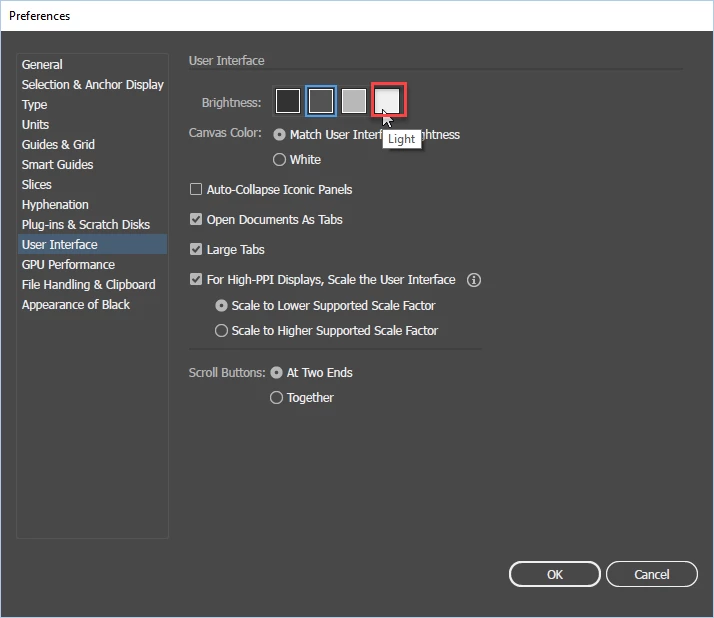
Since my preference display looks different from Barbara's I will post a similar screenshot here for CC2017:

Best,

EW

3 replies

Om Nath Jha
Legend
April 18, 2017

The screenshot posted by  Barbara seems to be from an older version of Illustrator and your's the latest one, however both are the correct way to get the white interface in Illustrator.

Regards,

Om

barbara_a7746676
Community Expert
Community Expert
April 18, 2017

The first screen capture was from CC 2015. The screen capture below is from the most current version, CC 2017. It has the same kind of settings.

If you want WHITE instead of BRIGHT, once you click on "Brightness: Light", you can click the radio button for "Canvas Color: White", which is what DesignWright originally requested.

Eternal Warrior
Eternal WarriorCorrect answer
Inspiring
April 18, 2017

Since my preference display looks different from Barbara's I will post a similar screenshot here for CC2017:

Best,

EW

barbara_a7746676
Community Expert
Community Expert
April 18, 2017

In Preferences you can change the background to white.