
Answered
How can I get letters to appear smaller/broader?

In Microsoft Office Word there is a font setting making font characters to appear smaller or broader:
Does Adobe Illustrator provide a similar setting?

In Microsoft Office Word there is a font setting making font characters to appear smaller or broader:
Does Adobe Illustrator provide a similar setting?
Thanks to you both for helping me out on this !
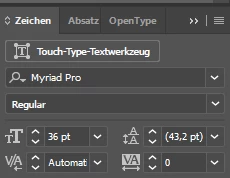
But, strange, I don't have these options available (Illustrator CC 2017):
Do I need to enable some option in order to get these available?
Or, just click the up/down arrows in front of the panel name Zeichen.
It's worth a moment to consider those arrows. Whenever you see them on any panel, you can click on them repeatedly to toggle through the views. The Character panel has three: collapsed, partially open, open all the way. You need to open it all the way to see the scaling commands.
Already have an account? Login
Enter your E-mail address. We'll send you an e-mail with instructions to reset your password.
 AdChoices