


- Home
- Illustrator
- Discussions
- How can I get this effect in Illustrator?
- How can I get this effect in Illustrator?

Copy link to clipboard
Copied
The first picture is what I'm trying to accomplish (the edges of the circle) and the second attachment is mines. I can't get the edges of the circle to look the same as the top. Thanks in advance.
.jpg)



 1 Correct answer


Hi Chrishonda,
One method you could try is to create a polygon with 35-40 sides and then apply a 'Pucker & Bloat' effect. I was able to achieve a similar look:

Hope this helps! I'm sure the community will have some other suggestions as well. Let me know if you have any other questions.
Best,
Wren


Explore related tutorials & articles
 7
Replies
7
7
Replies
7

Copy link to clipboard
Copied
Hi Chrishonda,
One method you could try is to create a polygon with 35-40 sides and then apply a 'Pucker & Bloat' effect. I was able to achieve a similar look:
Hope this helps! I'm sure the community will have some other suggestions as well. Let me know if you have any other questions.
Best,
Wren
Copy link to clipboard
Copied
Thank you. That worked.
Copy link to clipboard
Copied
Glad you were able to get the effect you were looking for! Love the artwork.
Let us know if you need anything else.
Best,
Wren.
Copy link to clipboard
Copied
Thanks Wren.

Copy link to clipboard
Copied
Another, more long winded way to do it.
Something like this
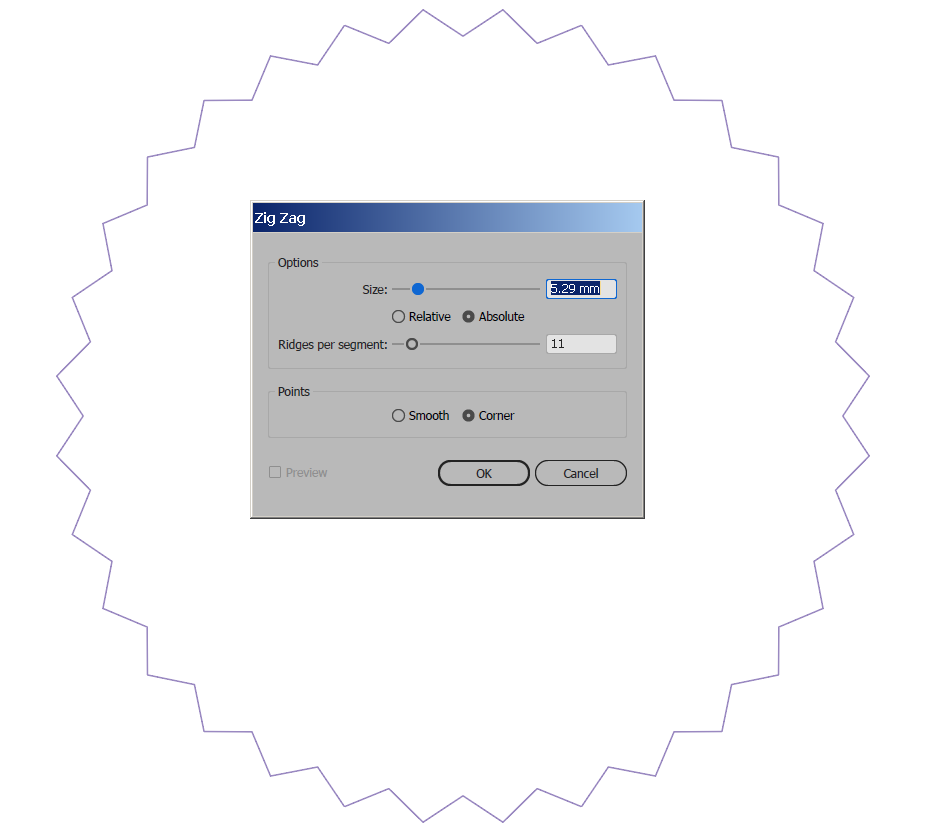
Ok
Object > Expand Appearance
Next deselect everything.
Use the Lasso tool to draw a selection around ALL the inner anchor points
(hope your hand is steadier than mine)
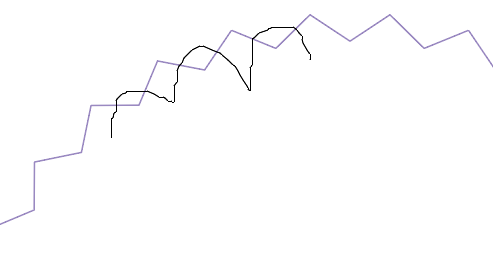
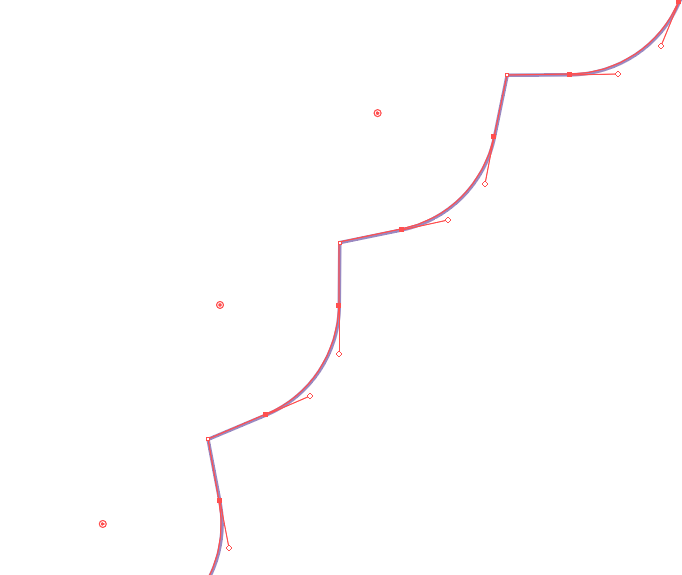
With then all selected
Switch to the - The Direct Selection Tool (white arrow)
And drag the little Widget to your liking.


Copy link to clipboard
Copied
You don't need to expand anything and keep this thing completely editable.
1. create a circle
2. apply the Effect > Distort & transform > Roughen. Size: 0, Detail/inch: whatever you like
3. apply the effect Pucker & bloat with a value of whatever fits.
4. open the Roughen effect again and adjust the detail
It's important to apply both effects in the correct order: Roughen needs to be before Pucker&Bloat

Copy link to clipboard
Copied
Another method:


Get ready! An upgraded Adobe Community experience is coming in January.
Learn more
 AdChoices