
Participating Frequently
July 26, 2022
Question

How can I move two or more anchor points by numbers?

  • July 26, 2022
  • 7 replies
  • 5212 views

I've used this all the time, but in recent versions of Illustrator (26.3.1) this doesn't work anymore:

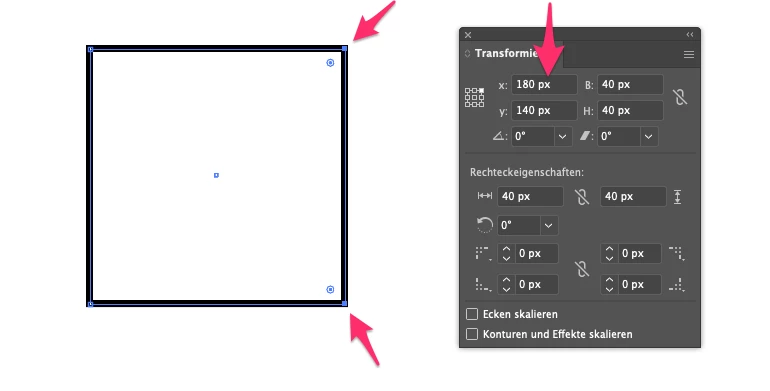
- Example: I've got a rectangle - I'm selecting 2 anchor points and want them to move by editing the coordinates --> it always moves the whole object.

Same procedure with 1 anchor point works like expected --> I'm able to move one anchor point exactly by coordinates. As soon as I select more than one anchor point, the coordinats always refer to the object.

Is there a configuration, to set this back to the former behavior?
7 replies

Community Expert
February 7, 2024

Usually if I'm wanting to move 2 or more anchor points on a path segment a given distance I'll first open the Preferences menu (Ctrl+K) and then enter the desired Keyboard Increment value (listed in the first "General" tab). Then I'll use the direct selection tool to select those anchor points and use the arrow keys to nudge them in that direction. Of course the limitation is hard vertical and horizontal movements. But that does work more often than not.

markus707Author
Participating Frequently
February 15, 2024

Thanks for this suggestion. I use this all the time as well. BUT: I create icons very often and let say, an object is off the pixel grid less than 1 pixel, i.e. 0.03 pixel, you can't achieve whole number pixel numbers with arrow keys. That often happens when processing forms like substracting objects, or cutting etc.

Jacob Bugge
Community Expert
Community Expert
February 15, 2024

Markus,


"I create icons very often and let say, an object is off the pixel grid less than 1 pixel, i.e. 0.03 pixel, you can't achieve whole number pixel numbers with arrow keys."


As I (mis)understand it, you know how much the set of Anchor Points is off, in other words how much you wish to move them, and that is exactly what Bobby describes, simply by setting the increment value to that number, and then you can select them all and nudge them just once.


If you know the current position of one of the Anchor Points and also the correct/desired position, you can even let Illy (job description Adobe Illustrator) calculate the increment value for you = desired position minus current position.


michelew83603738
Community Expert
Community Expert
February 6, 2024

Click on the hamburger menu on top right to get to options for the transform panel. It must be set to transform object only and you want it to be set to transform both.

Kurt Gold
Community Expert
Community Expert
February 6, 2024

That won't help, Michele.


You may reread the request carefully.

Participant
February 6, 2024

Late to the party jhere but I know exactly what you are tryint to do and Illustrator absolutely used to do it in the Transform Pallette. I have to resize complex box dielines all the time and am currently usiing .ai 2024. But I'm positive it allowed you to move more than a single point using coordinates as recent as 2022-2023 versions of .ai.
In fact, you could drop the cursor into the X or Y field to the right of the values and type (+.25) and ot would move just the selected points 1/4". Simple single formula math works in almost any number filed in Adobe applications.

Kurt Gold
Community Expert
Community Expert
February 6, 2024

No, it didn't, Julie, as soon as more than one anchor point was selected.

Kurt Gold
Community Expert
Community Expert
July 26, 2022

There are some echoes in this thread.


Jacob Bugge
Community Expert
Community Expert
July 26, 2022

Right you are, Kurt; most certainly, ly, ly.

markus707Author
Participating Frequently
July 26, 2022

Anyways, thank you, you, you, you ...

rcraighead
Legend
July 26, 2022

Are you thinking of "Transform: Move"? This works for me in Ai 2022.


Jacob Bugge
Community Expert
Community Expert
July 26, 2022

Markus,


You can Direct Select (after deselecting) and then move by numbers in the Object>Transform>Move window.


I believe that was what you did before, rather than using the (other) Transform way.


And what Kurt said.


Edit: I can see that I was late in seeing your reply; and overlooked the last paragraph by Kurt.


markus707Author
Participating Frequently
July 26, 2022

Problem with that is, that values are "relative" to the position, not absolute. So this functionality, that is already implemented in Indesign, would be a suggestion for improvement for Illustrator as well. I wonder how this could NOT be implemented given the time Illustrator exists already...

Kurt Gold
Community Expert
Community Expert
July 26, 2022

Can you remember the last Illustrator version that allowed that kind of movements of multiple selected anchor points with the Transform palette?


I just tried it in some older versions (CS5 and CS2) and both versions did not allow it. It only works with one selected anchor point.


As an alternative, you may just direct select your anchor points, hit the Enter key to open the Move dialog and use the desired settings there.


markus707Author
Participating Frequently
July 26, 2022

Hah, you are right, I now know, where I used this all the time: Indesign! In Indesign it IS possible, to exactly move a selection of anchor points by coordinates, in Illustrator it isn't.