Participating Frequently
August 29, 2018
Respondido

How can I reset the points on the star tool?

  • August 29, 2018
  • 6 respostas
  • 21048 Visualizações

Hello!

I have tried everything Google has to offer. I am trying to make a thin star (almost an x shape) with the star tool. When I draw a star it has hundreds of points on it. I have decreased it in the dialog box and deleted and when I go to draw a new star, hundreds of points reappear. I have trashed preferences. I have restarted Illustrator. I have used the dialog box. I don't know whats going on! Help!! Please!!

    Este tópico foi fechado para respostas.
    Melhor resposta por sharp_hands16B8

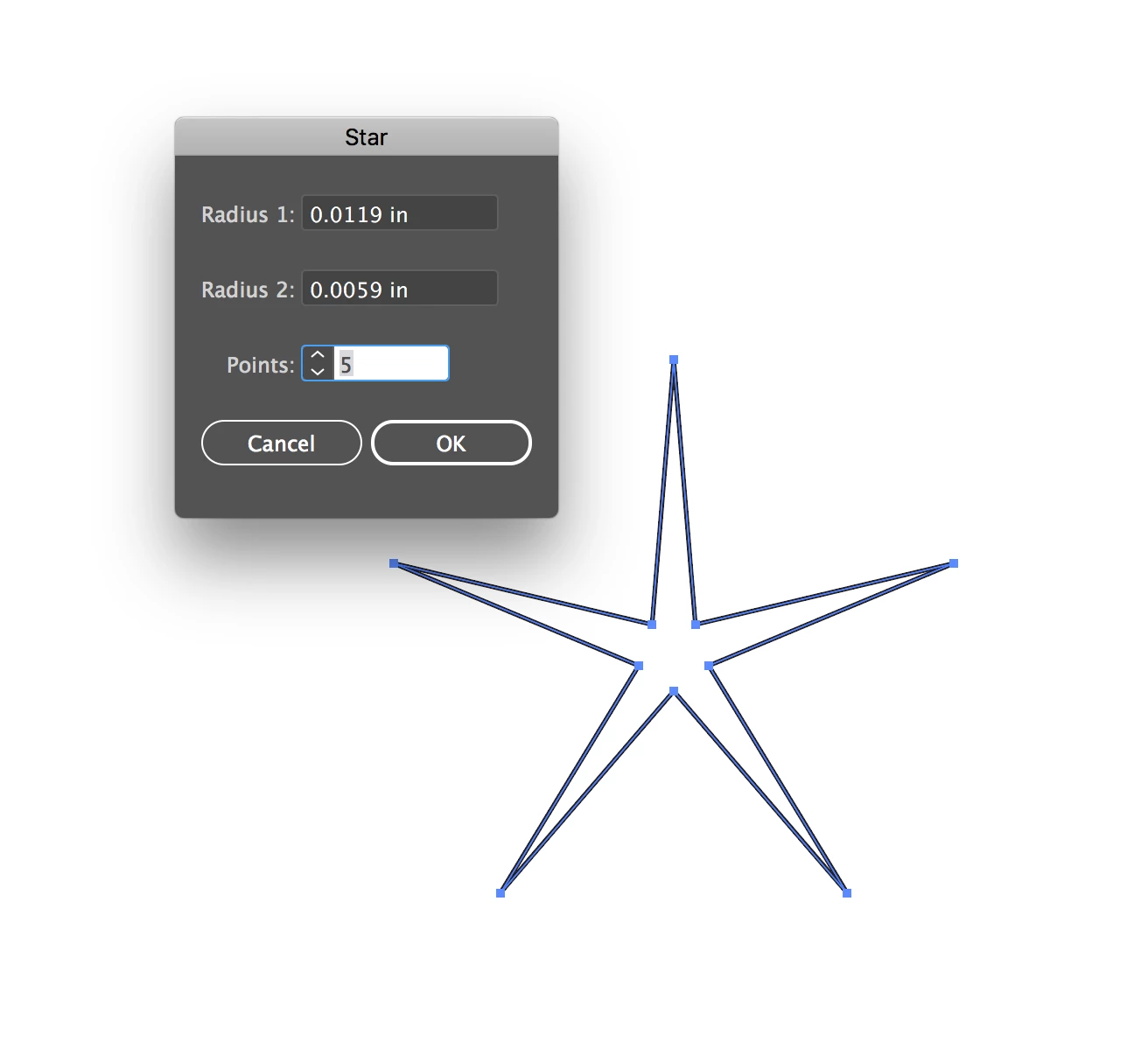
    Just click on the artboard with the star tool and set the radius values you want for the star. Radius one is the outside parameter of the star, and Radius two is the internal parameter of those 5 points. Once you set this, the ratio will hold while you draw a star manually afterward.

    6 Respostas

    sharp_hands16B8
    Community Expert
    Community Expert
    September 4, 2018

    That's interesting, and now your problem becomes more clear. The only way I can recreate this is if I do the following.

    1. Click with star tool and start creating star. Don't let go.
    2. Press arrow key up while I'm still drawing the star.

    The star tool will always remember the last number of points your previous star was created with. So I'm with Monika, I'm wondering if you are using maybe a wacom, or more like a mouse with a tracking wheel. I've seen some designers scrolling up on the jog wheel while drawing a star and that has created this sort of problem before. Is there some other controller at play here? That would explain why resetting preferences in Illustrator would do nothing to fix it.

    Participant
    April 18, 2019

    Nice work with the simple steps. I don't understand how to change the values for the radii and the number of points AFTER it has been created. There are numerous occasions after the original start is in place when it would be very advantageous to change those values without having to create a new star again. Can you add steps for that? I see people saying select the artboard. that doesn't do anything for me and why would it when I want to effect just a single object on the artboard rather than the whole artboard?  Help?

    Monika Gause
    Community Expert
    Community Expert
    April 19, 2019

    https://forums.adobe.com/people/B+T+C  schrieb

    Nice work with the simple steps. I don't understand how to change the values for the radii and the number of points AFTER it has been created. There are numerous occasions after the original start is in place when it would be very advantageous to change those values without having to create a new star again. Can you add steps for that? I see people saying select the artboard. that doesn't do anything for me and why would it when I want to effect just a single object on the artboard rather than the whole artboard?  Help?

    Illustrator can't draw live stars with the star tool (contrary to most other vector applications).

    If you want to draw a live star, start with the circle tool.

    Then apply Effect > Distort & Transform > Roughen: input the first value 0 and then a low value into the second box

    Then add the effect > Distort & Transform > Zigzag

    Adjust both to your needs using the preview.

    Participating Frequently
    August 30, 2018

    Sorry I disappeared. I had to work. So I appreciate the responses but I do know how the star tool works, but its not working correctly. I will attach a screenshot. when I draw a star it has a random number of points. If I continue to make stars the points increase without me doing anything. The down and up arrows do not seem to do anything. If I reset the points to 4, it will give me one star. But the next ones will have more and continue to increase. I have held down command, opt, shift when I relaunched AI and that didn't help. Its crazy!! Lol. The number of points are random and vary from 37 up into the hundreds!

    Ton Frederiks
    Community Expert
    Community Expert
    August 30, 2018

    Which Illustrator version and what System are you using?

    sharp_hands16B8
    Community Expert
    Community Expert
    August 29, 2018

    Just click on the artboard with the star tool and set the radius values you want for the star. Radius one is the outside parameter of the star, and Radius two is the internal parameter of those 5 points. Once you set this, the ratio will hold while you draw a star manually afterward.

    Ton Frederiks
    Community Expert
    Community Expert
    August 29, 2018

    And to make it more pointed, hold dowm the Cmd (Mac) / Ctrl (Win) key while dragging with the Star tool.

    Monika Gause
    Community Expert
    Community Expert
    August 29, 2018

    With the star tool click on the artboard. Enter the number of points you'd like to have.

    You could also press the Down-arrow key a couple of times when drawing a star while the mouse is still down.

    ScooterD76
    Legend
    August 29, 2018

    A screenshot (with dialog box) would be helpful here