Known Participant
May 2, 2009
Answered

How can I split these paths without outlining them?

  • May 2, 2009
  • 2 replies
  • 3844 views

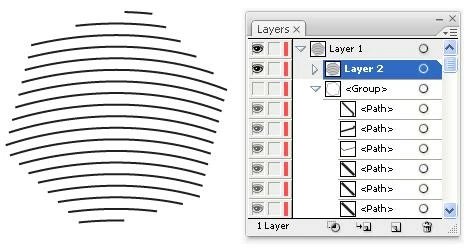
I have hundreds of shapes filled with a pattern of lines. I am trying to figure out a way to clip the lines without ending up with the lines that have been converted to (outlines) closed shapes. It seems like a simple proceedure but Illustrator keeps converting them to closed shapes whenever I try any type of clipping or cropping technique.

I have attached a screen shot showing an example of the shape with tthe line. Any suggestions would be greatly appreciated.

This topic has been closed for replies.
Correct answer CarlosCanto

Hi George,

this is what I did with CS3 trying to recreate your question

1. created the pattern and filled the polygon shape

2. Object...Expand...(Fill only)...Ok

3. Outline... in the Pathfinder palette

4. Stroke with 1 point...just to get visibility

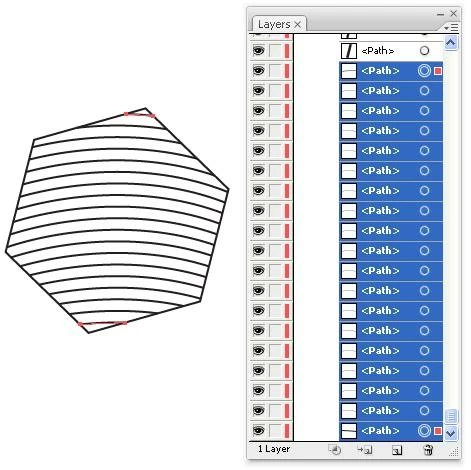
now, I didn't end up with closed shapes as in your image. All I have is open unfilled paths, being the pattern of lines and the segments of the polygon cutter path. The good news is that the cutter segments are all one next to the other at the top of the layers palette, followed by all the pattern lines.

5. Deselect everything

6. Select the first and last of the pattern lines and note their position in the layers palette

6A. to easily find their position go to layers palette menu and click on "locate object"

7. Select all pattern lines in the layers palette...

8. Collect in New Layer....in the Layers palette menu

9. Once the pattern lines are in its own layer, well the job is done

I hope it is of any help, this is my very first post!!! ....Still need a script to deal with hundreds of shapes?

CarlosCanto

2 replies

JETalmage
Inspiring
May 17, 2009

George,

As you have discovered, Illustrator does not provide any decent means by which to cut multiple open unfilled paths without their becoming outlined. The only tool that can do it is the inaccuate Eraser tool. But it can't be told to follow a path; it is limited to either cutting a straight swath, or to the "path" you draw in inaccurate "free hand" mode. In both cases, it always cuts a swath (is incapable of cutting a zero-width swath). In both cases, it can unpredictably alter the shapes of the remaining portions.

The tedious LivePaint toy doesn't help in many-instance situations like this. Other oft-cited workarounds such as applying and then expanding clipping paths or opacity masks results in outlined strokes.

The only command in Illustrator that can correctly cut multiple open unfilled paths is the poorly-named Outline Pathfinder. But it has these poorly-designed behaviors:

* It leaves all the unwanted deadwood in place.

* It cuts the "cutting path" as well, and leaves its resulting segments in place.

* It removes all pre-existing strokes and fills. So that preempts potential workarounds such as using a different color or stroke weight for the cutting paths to facilitating selection and deletion after-the-fact. Nor do object names or notes pre-applied to the cutting path survive the Pathfinder operation.

The obvious need for a decent, straightforward path-cutting capability is one of several areas in which Illustrator feigns "sophistication" with a dizzying array of illogically-designed tools and commands--yet still fails to provide the most basic needed functionality. I've been complaining about this one (and others) for years.

Compare to Corel Draw, with which you can employ any path as a cutting path. When used, the pre-existing strokes/fills are maintained, strokes do not become outlined, and you have the option as to whether the cutting path remains.

Given that AI's scripting model does not provide calls for all the commands in the UI (not that it necessarily should--that's supposed to be what Actions is for), and given that it does not provide such prebuilt functions as determining path intersections, you would be left to "do the math" for the path shapes, were you to try to script such a feature. That would be an impractically ambititious task, compared to the relatively modest cost of a competitive side-grade to a program that already provides the needed functionality built-in.

Back to the horrible Outline Pathfinder: If you first fill the cutter path, the result of the Outline Pathfinder illogically applies the fill color to the portions of the cut paths that intersected the area of the cutter path. The stroke weight becomes set to zero (not even supposed to be allowed in Illustrator), but is visible and selectable by color. The outboard deadwood has its stroke attributes removed. So in some situations, pre-filling the cutter path could be a workaround for selecting and deleting the unwanted outboard deadwood. Unfortunately, the resulting segments of the cutter path itself also receives the same stroke color and weight as the "keeper" content, so you are still left with the problem of no way to differentiate the cutter path remnants for selection and deletion.

JET

Known Participant
May 19, 2009

Thanks for your detailed reply.


I resorted to executing an action with an Applescript to make this work. The problem that I am running into is the apple script wants to run through another iteration prior to the action completing. To solve this problem I was forced to put a timer in the Applescript and hope that the action completed before the next iteration. Unfortunately the time that it takes to go through one iteration of the action is dependant on the file size and as I try to scale this up to bigger files the Applescript fails. I can increase the timer to keep it from failing but to give you and idea it is currently taking more than five hours to complete the current file that I am working.

CarlosCanto
Community Expert
CarlosCantoCommunity ExpertCorrect answer
Community Expert
May 27, 2009

Hi George,

this is what I did with CS3 trying to recreate your question

1. created the pattern and filled the polygon shape

2. Object...Expand...(Fill only)...Ok

3. Outline... in the Pathfinder palette

4. Stroke with 1 point...just to get visibility

now, I didn't end up with closed shapes as in your image. All I have is open unfilled paths, being the pattern of lines and the segments of the polygon cutter path. The good news is that the cutter segments are all one next to the other at the top of the layers palette, followed by all the pattern lines.

5. Deselect everything

6. Select the first and last of the pattern lines and note their position in the layers palette

6A. to easily find their position go to layers palette menu and click on "locate object"

7. Select all pattern lines in the layers palette...

8. Collect in New Layer....in the Layers palette menu

9. Once the pattern lines are in its own layer, well the job is done

I hope it is of any help, this is my very first post!!! ....Still need a script to deal with hundreds of shapes?

CarlosCanto

Known Participant
May 15, 2009

Is this possible?

Larry G. Schneider
Community Expert
Community Expert
May 15, 2009

It's not really clear what you want to do. Do you mean to expand the fill and then clip the strokes to the path edge?

Known Participant
May 16, 2009

This graphic shows the current result that I am getting and the desired result.