
bethanyc22183490
Participating Frequently
May 3, 2024
Question

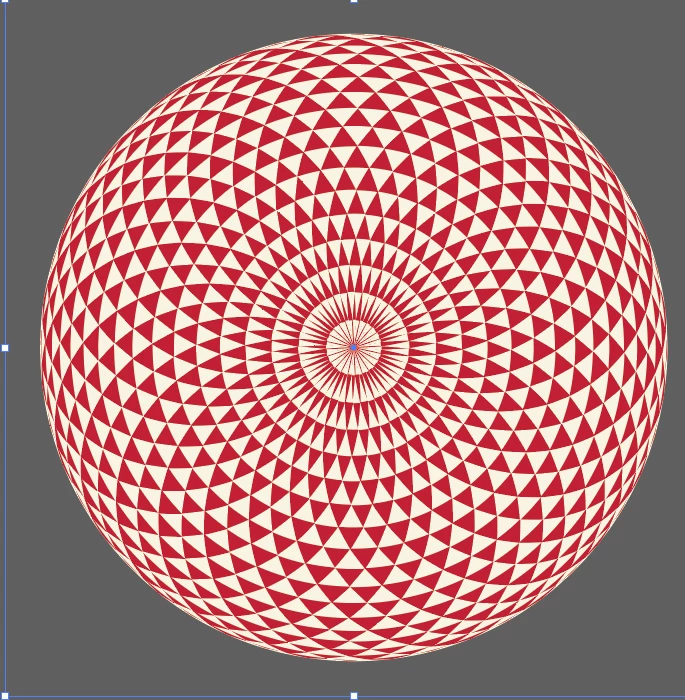
How did I make this?! Radiating triangle sphere shape

  • May 3, 2024
  • 3 replies
  • 1479 views

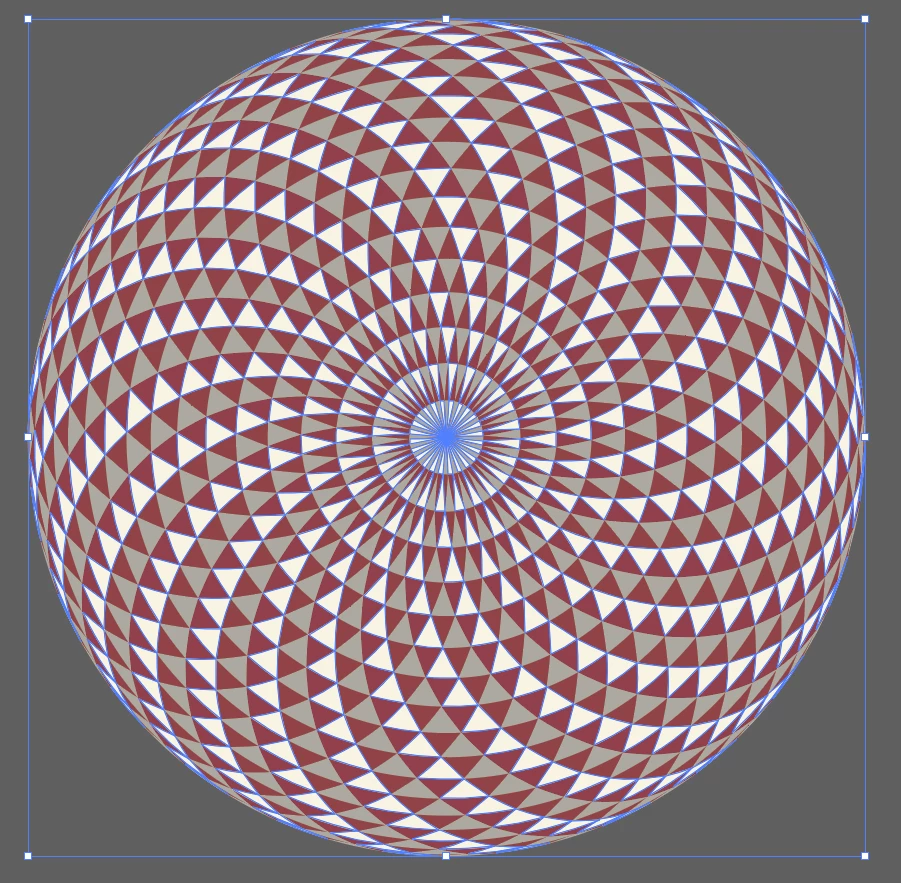
Hello! I can't for the life of me figure out how I made this design a while ago. Can anyone help me work backwards?


I'm pretty sure I made it from radiating circles with just a stroke and no fill, using either transform or rotate/copy and Ctrl+D. 


I can't figure out how I got the lines to cross uniformly like this to make the triangle shapes but I believe once I got the lines set up, I joined them all and then it let me select different rows of them easily so I could fill with alternating colors.
 

This topic has been closed for replies.

3 replies

Ton Frederiks
Community Expert
Community Expert
May 4, 2024

With some work, I got this.

Will describe later this evening (if I have more time) how I got this result.

bethanyc22183490
Participating Frequently
May 4, 2024

amazing! yes I would love to know the steps you took


Ton Frederiks
Community Expert
Community Expert
May 5, 2024

Sorry if it is a little long. I try to work as non destructive as possible, but the last part needs some manual edits to get the distorted triangle effect.

Half a circle (75 px)filled with a dark global color is rotated from the lower right corner with a Transform effect: 35 copies, angle -10°. To get clean filled objects, a Pathfinder effect Exclude was applied and moved to the bottom of the Appearance panel stack. This only works when the Stroke is hidden.

A second Transform Effect is applied, 1 copy is reflected along the X axis.

The result is grouped and a new fill with a light global color is added and dragged below the Contents item in the Appearance panel. The fill is converted to a circle with the Convert to Shape > Ellipse effect. An Absolute size is specified to match the size of the object. A final Pathfinder > Divide Effect is applied as the last item in the Appearance Panel.

I saved the project under a different name because the next steps are destructive.
Use Object > Expand Appearance and Object> Ungroup to get separate individually editable shapes.

Remove the objects to get a single dark colored and a single light colored column. I made them into 2 colored groups.

This is the boring part, you need to split every object in two and give it different colors. You can make it faster by recording 2 actions. This is where global colors are useful. Zoom in and Double click the dark colored group to get into Isolation mode.
Direct Select only the bottom part of a shape (drag over the 2 lower sides). Cut them. Paste in Front. Join. Fill

Repeat to create the other triangles.

The 2 triangle groups are transformed separately. The vertical one is transformed from the bottom center. The rotated one is transformed from the bottom right. Both are transformed 10°.


femkeblanco
Legend
May 3, 2024

The spirograph part can be created with a simple script. 

Select a circle (the count can be changed in the first line):

var count = 25;
var doc = app.activeDocument;
var source = doc.selection[0];
var r = source.width / 2;
var first = doc.pathItems.ellipse(source.top - r / 2, source.left, r, r);
first.stroked = true;
first.filled = false;
for (var i = 0; i < count; i++) {
    var duple = first.duplicate();
    duple.rotate(360 / count * (i + 1), undefined, undefined, undefined, undefined, 
        Transformation.RIGHT);
}

I can't find a formula for the concentric circles. 

Monika Gause
Community Expert
Community Expert
May 3, 2024

You need a circle and a curve. Then duplicate/rotate around the center and then mirror and duplicate.

Then use Live paint to fill this:

bethanyc22183490
Participating Frequently
May 4, 2024

Thanks! I have got to this point but I am missing how to make the lines that create the triangles aside from manually creating circles from the center.

Monika Gause
Community Expert
Community Expert
May 4, 2024

You would use Live paint or shapebuilder afterwards, but using a brush would be much more efficient