
How do I access the full Color Picker when creating a gradient?
I've used Illustrator for a long time, but I've always struggled with the gradient tool. It seems so much more convoluted than the gradient in Photoshop and I don't know if I'm just missing something super obvious.
It seems like the default intended way to add colors to a gradient is to grab them from swatches. I like to sample a lot of different colors when working on a design, so cluttering up a project with a ton of swatches does not seem ideal for my workflow. It also adds an extra step to the process. Surely there's a quicker, more efficient way right?
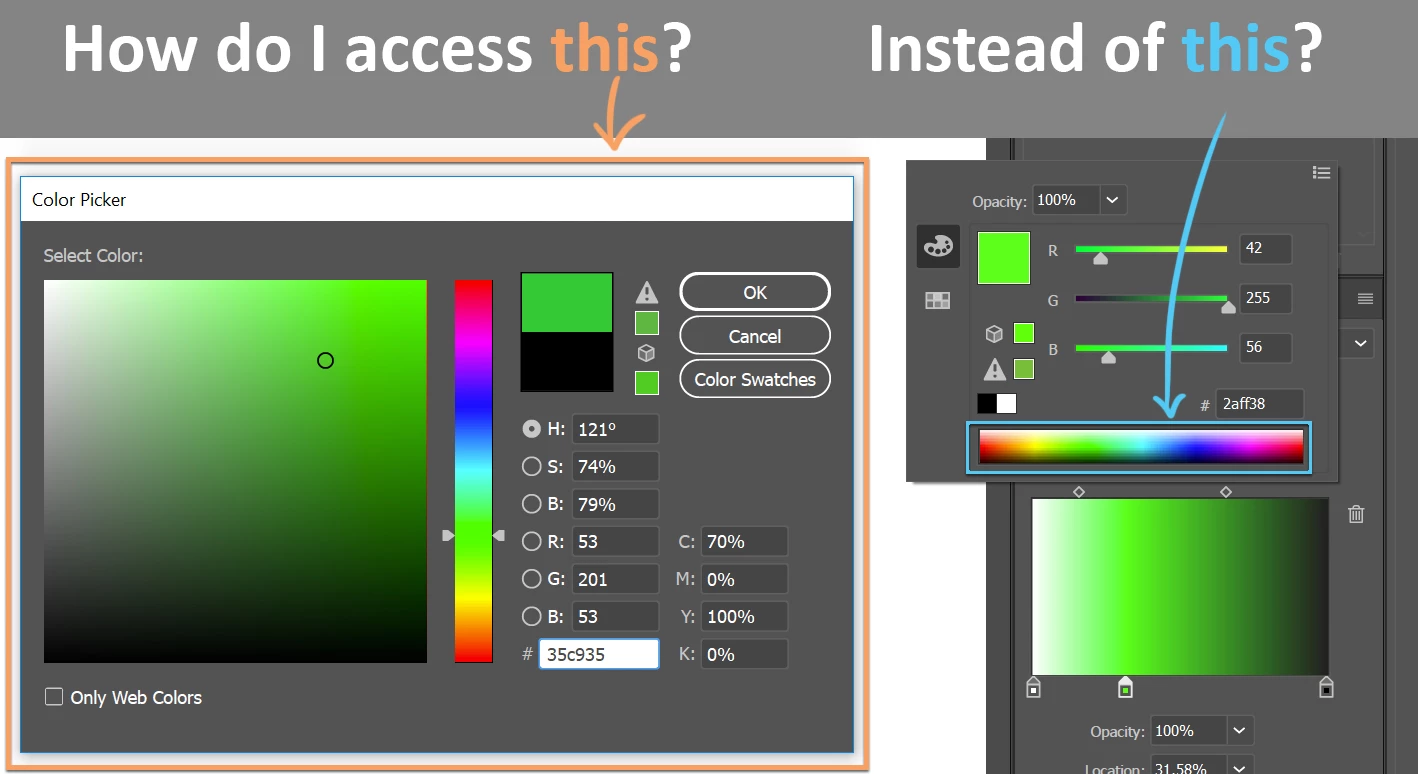
So I discovered that creating a brand new spot on the gradient allows you to access this tiny little color spectrum that is a few pixels tall and looks straight out of a program from the 1980s. This kind of does what I want, but it's hard to get the exact color you want from such a small color window, so you mostly have to just rely on the RGB/CYMK sliders.
Now, double clicking the Fill icon from the Tools panel brings up the full glorious Color Picker that is reminiscent of the one in Photoshop. So I know that full window exists within Illustrator but I can't figure out how to expand that small color spectrum into the larger one. How do I gain access to that full color picker window when I'm selecting colors within the Gradient Panel? Thanks for any advice you can provide!
 AdChoices